
BatchExport
A downloadable tool
V3: Added the “GIF + frames” mode. Download each frame separately as a PNG and a GIF of the entire animation. All at once.
Tired of the hide-show-export-repeat loop? BatchExport automates the most tedious part of your pixel art workflow.
Five export modes:
- Layers – Exports each top-level layer as a separate file. Perfect for sharing individual parts of an illustration (lineart, colors, shading, background...). Optionally limit to the current frame only.
- Tags – Exports each animation tag (idle, attack, jump...) as its own file. No more manually selecting frame ranges.
- Tags + Layers – The full combo: creates a subfolder per tag and, inside each one, exports every layer separately.
- Spritesheets – Generates an atlas per tag (or a single sheet if no tags exist). Supports multiple layouts, deduplication, and JSON metadata.
- Tilemap – Generates a tile atlas plus a CSV map per layer. Includes tile-to-index mapping and optional metadata JSON.
Core features:
- Integer scale multiplier (1x, 2x, 7x... whatever you need)
- PNG, GIF, and WebP output (GIF only for animated modes; sheets and tilemaps are static)
- Canvas trim: crops transparent edges per frame; requires Data export on for engine realignment
- Selection support: draw a selection to crop exports to that rectangle (all modes except Tilemap)
- Frame filtering: in Layers mode, export only the current frame if desired
- Native file browser for choosing the output folder
- Last folder is remembered between sessions
- Original layer visibility is always restored after export
- Clean filenames with automatic collision detection: special characters are sanitized, and duplicate safenames get numeric suffixes (_2, _3...)
- Built-in Help dialog explaining every option
- Single Lua file, no dependencies
Works with Aseprite 1.2.10 and newer.
Workflow
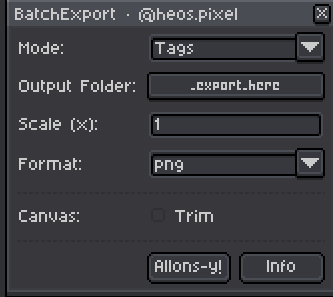
1. Choose mode: Select Layers, Tags, Tags + Layers, Spritesheets, or Tilemap depending on your output goal.
2. Set output folder: Pick any file inside the target folder; the script creates subdirectories as needed. Your last folder is remembered.
3. Configure scale and format: Integer upscale (default 1x) and output format (PNG, GIF for animation, or WebP).
4. Toggle trim (optional): Check "Trim" to remove transparent edges; export metadata if using dynamic alignment in your engine.
5. Set mode-specific options: Layout for sheets, tile size for tilemaps, frame filtering for layers.
6. Export: Press Allons-y! and review the output folder. Hidden layers are always skipped.
Export Modes
Layers: Each top-level layer becomes a file. Combines all frames in animation order. If a frame is active in Aseprite and you have multiple frames, enabling Frame filters to only that frame.
Tags: Each animation tag becomes a file; the tag's frame range is automatically extracted. No tags in your sprite? The script alerts you.
Tags + Layers: Creates a subfolder per tag, then exports each visible layer within that tag range. Ideal for organizing by animation set.
Spritesheets: Generates a packed atlas per tag (or one sheet per sprite if no tags). Rows, columns, or fully packed layouts available. Optionally deduplicate identical frames and generate a JSON map of original to unique indices.
Tilemap: Extracts a grid of tiles from each layer and writes a tile atlas (one per layer, or merged into a single atlas) plus a CSV index map. Multi-frame tilemaps get one atlas and one map per frame.
Sheet Options (Spritesheets Mode)
Layout: Horizontal, Vertical, Rows (grid), or Packed. Packed minimizes empty space but breaks grid alignment; grid layouts are engine-friendly if all frames have the same size.
No duplicate: Drop repeated frames from the atlas and write a _map.json file mapping each original frame index to its unique equivalent. Saves memory in engines that support frame deduplication.
Export metadata: Includes JSON array of frame rectangles (x, y, width, height) for frame-accurate reconstruction in game engines.
Tilemap Options (Tilemap Mode)
Tile size: Width and height of each grid cell in pixels (calculated pre-scale). The sprite is divided into a grid; each cell becomes a tile.
All frames: If checked, generates a shared tile atlas and one CSV map per frame. Uncheck to generate only the first frame's map.
Single atlas: Merges all visible layers into one atlas at the root of the output folder. Otherwise, each layer gets its own subfolder with its own atlas and maps.
Export metadata: Generates a _meta.json file with tile and grid information, plus layer names and frame counts.
Canvas Trim and Selection
Enabling Trim calculates the bounding box of all non-transparent pixels across the exported frames and crops the output to that box. This is useful for compact, tight exports, but requires your game engine to support dynamic canvas offsets or JSON metadata to realign sprites during playback. Otherwise, leave Trim off for uniform, grid-aligned cells.
If you have an active selection in Aseprite (any rectangular selection), all export modes (except Tilemap) will crop their output to that selection rectangle. This is handy for exporting just a portion of a larger sprite without modifying the whole document.
Frame Filtering (Layers Mode)
In Layers mode, if your sprite has multiple frames and a frame is currently selected in Aseprite, the script detects this and exports only that single frame per layer—useful for extracting one frame without manual visibility toggling. Leave it unset to export the full animation.
Hidden Layers and Name Collisions
Hidden layers are always skipped, regardless of mode. This is by design: use layer visibility to control what gets exported.
If two layer or tag names collapse to the same safe filename (e.g., "walk!" and "walk?" both become "walk_"), the script auto-appends numeric suffixes (_2, _3...) to keep exports unique.
Tips
Use Tags + Layers when you want to organize by both animation and part (e.g., separate body/arm/face exports per idle/attack tag).
Trim is powerful but requires engine support or post-processing; test with a single layer first to verify alignment.
Spritesheets with "No duplicate" and deduplication-aware engine can reduce file size significantly on sprite-heavy animations.
Use Tilemap mode when exporting static level art or background grids; the CSV maps directly to engine tile arrays.
Open the Info dialog for a quick reference of all options and their effects.
Compatibility
Requires Aseprite 1.2.10 or later. Works with RGB and Grayscale color modes. Indexed color mode is not supported for tilemap generation
💬 Feedback & Support
I love seeing how you use BatchExport in your projects. If you have questions, ideas, or just want to share what you've made, feel free to leave a comment or reach out directly. It's always great to see your work in action.

If you found this tool useful, taking a moment to leave a rating really helps. Thanks for the support ❤️
Purchase
In order to download this tool you must purchase it at or above the minimum price of $2.99 USD. You will get access to the following files:
Leave a comment
Log in with itch.io to leave a comment.