Heos Camera
A downloadable tool
Heos Camera is a Lua script for Aseprite that applies professional camera effects to flattened scenes. Parallax, Dolly, Shake, Sway, Roll, Zoom, Ken Burns—all with smooth timing curves and frame-perfect control.
Examples
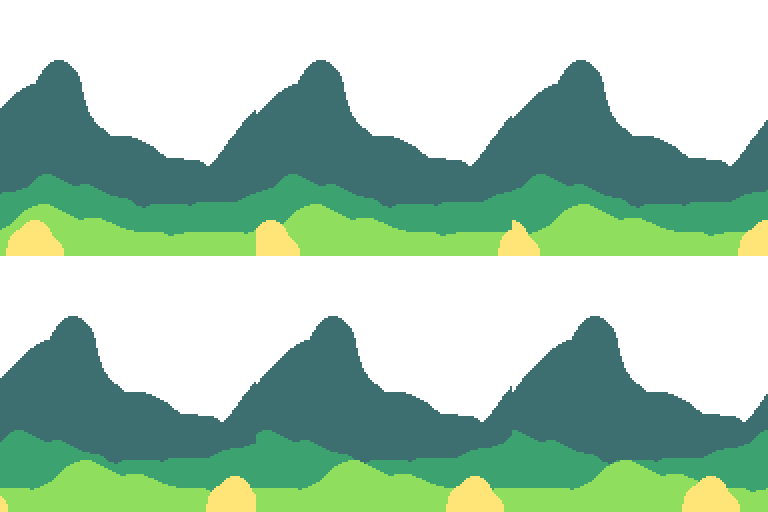
Parallax with Loop
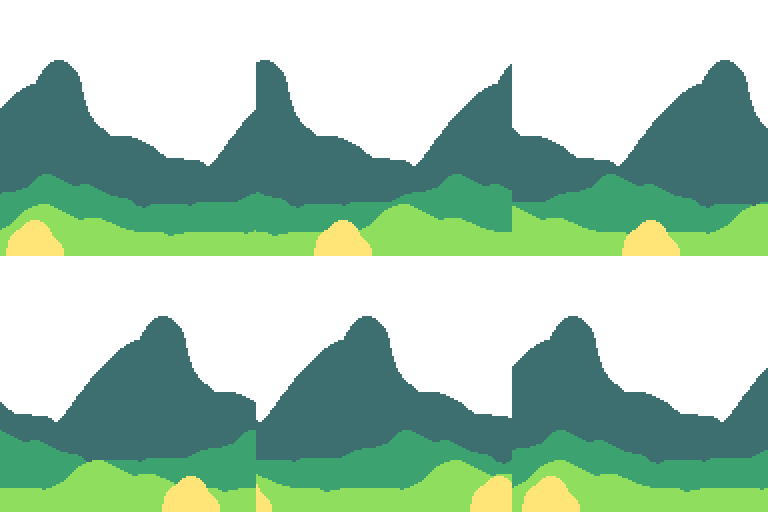
Dolly:
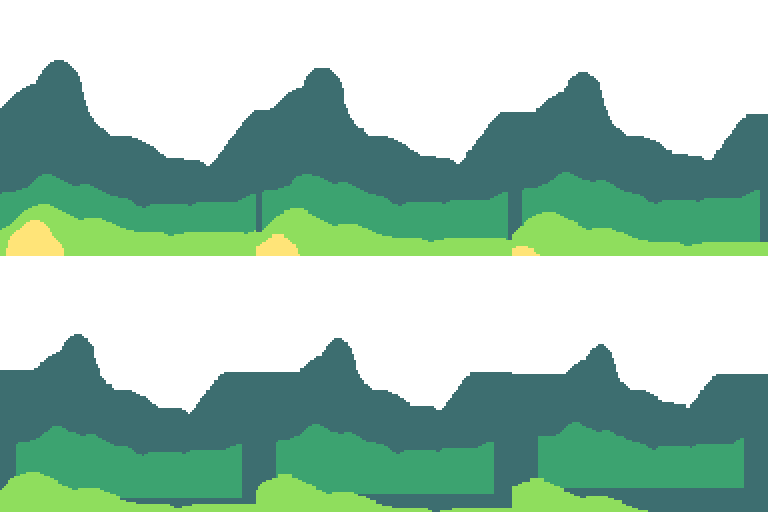
Shake:

Sway:
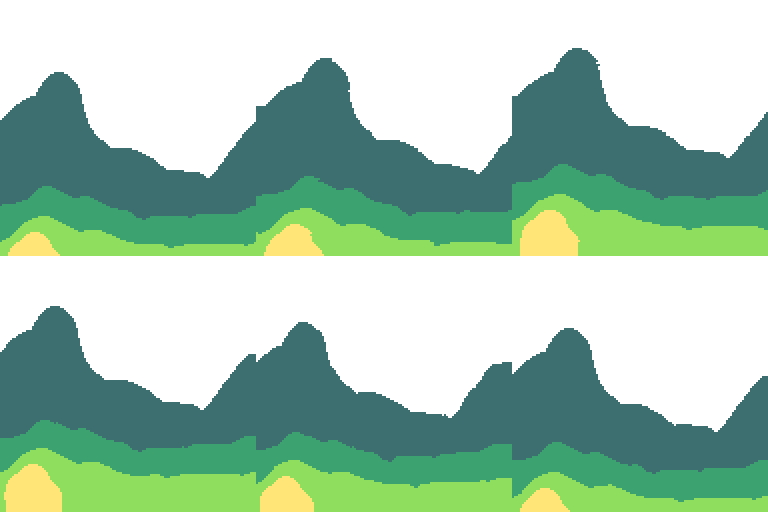
Roll:
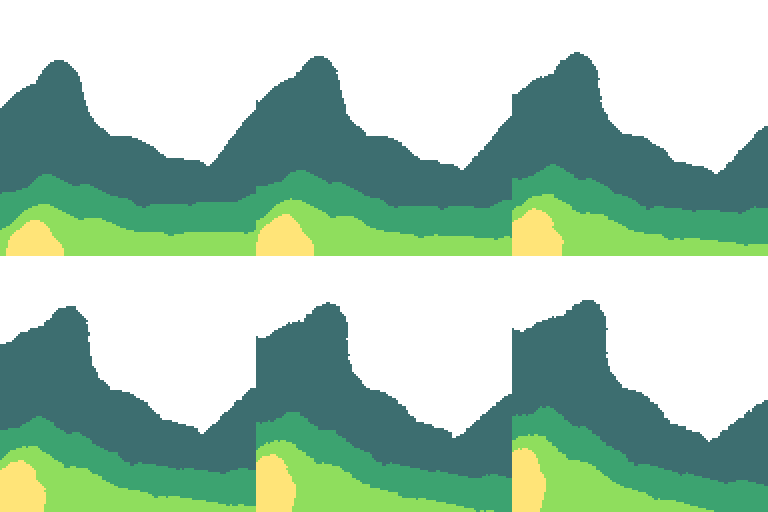
Zoom:
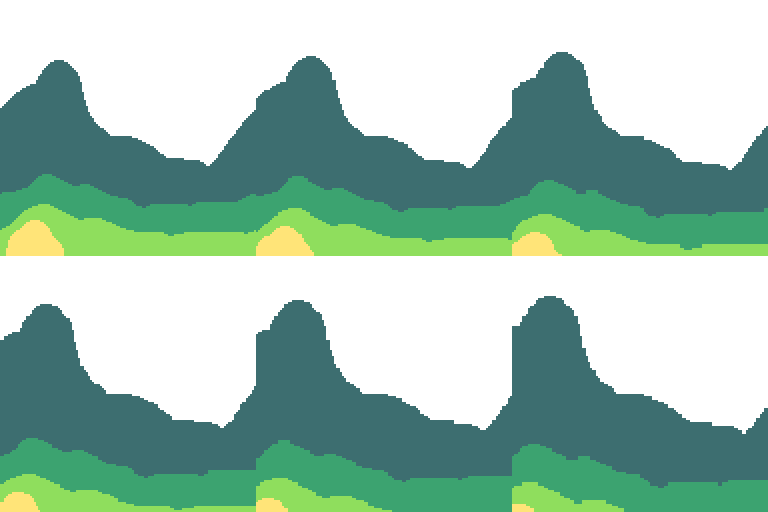
Ken Burns (Similar to "zoom," but with a slight parallax effect between layers)
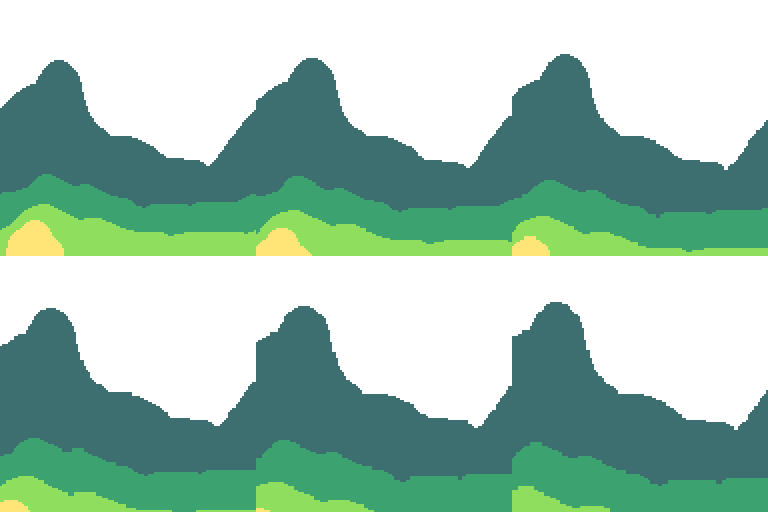
There are some settings, styles, directions... For example, in Zoom and Ken Burns, there's a button to create a layer for marking with a point where to direct the effect:
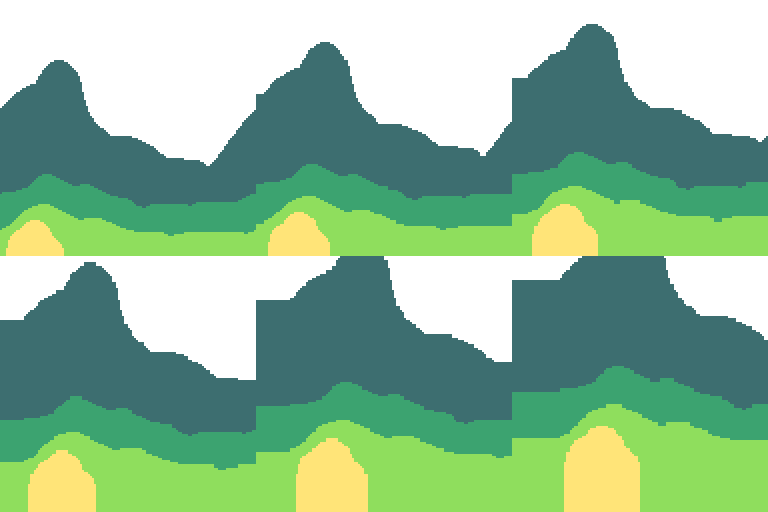
Per-layer tuning. Negative values are allowed and apply to all effects—flip direction, create opposing motions, or split Dolly planes:

Workflow
1. Arrange layers: Place your art as top-level layers or groups. Hide anything you don't need.
2. Flatten the scene: Merge or composite into a single visible layer (background). Camera reads from this flattened view.
3. Pick a tab: Parallax, Dolly, Shake, Sway, Roll, Zoom, or Ken Burns. Each has its own settings.
4. Adjust values: Set speed, intensity, timing, or direction. Use the preview on the help buttons if unsure.
5. (Optional) Tune per layer: Press "Layer tuning" to set custom values for individual layers (native units: px/frame, %, degrees, etc.). Negative values work too—flip direction for depth effects or create opposing motions.
6. Press Allons-y!: Renders frames and creates output on a new layer.
7. Clear before switching: Use the Clear button to remove output and restore your original state.
How Camera Effects Work
Heos Camera treats your flattened scene as a virtual camera. Each effect moves or transforms that view over a series of frames. Some effects (Parallax, Ken Burns, Dolly) read layer depth; others sample the entire composite. Timing curves smooth motion—choose Linear for constant speed, Ease in/out for natural acceleration, Bounce for playful impact, or Elastic for springy overshoots.
Layer tuning: All 7 effects support per-layer values via the "Layer tuning" button. Each mode uses its native units: Parallax uses px/frame, Dolly uses % with sign (+ forward / − back), Shake uses px amplitude, Sway uses px drift, Roll uses degrees, Zoom uses % scale, Ken Burns uses x factor. Setting a custom value for any layer automatically switches that effect to per-layer rendering. Without custom values, Shake/Sway/Roll/Zoom stay on the fast flattened path (no performance penalty). Negative values flip direction or phase—perfect for asymmetric depth or opposing motions.
Focus point: Zoom and Ken Burns can target a magenta dot you paint on the "Heos_Focus" layer. Without it, they zoom on the canvas center.
Parallax Tab Parameters
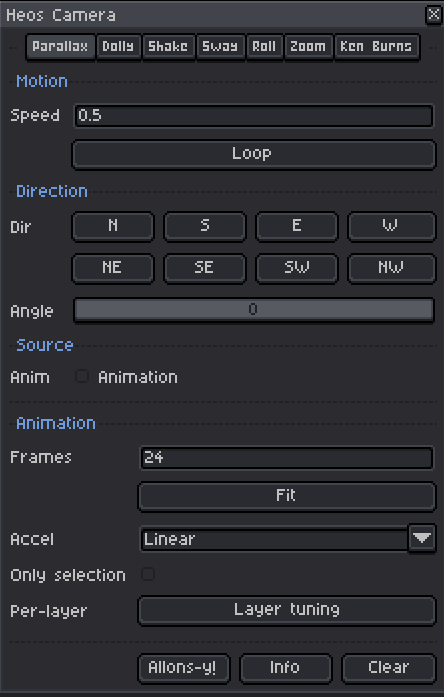
Speed: Pixels per frame for the back layer. Decimals allowed (e.g., 0.5, 1.25). Each layer up moves faster; layers tile seamlessly.
Loop: Button. Fills frames and tunes speed for a perfect seamless loop. Forces Linear timing and cardinal direction (N/E/S/W).
Dir buttons (N, S, E, W, NE, SE, SW, NW): Quick cardinal and diagonal direction presets.
Angle: Slider, 0–359 degrees. Manual angle control (0=E, 90=S, 180=W, 270=N).
Tuning: "Layer tuning" button. Set px/frame per layer to override auto speed. Negative values reverse direction for that layer.
Dolly Tab Parameters
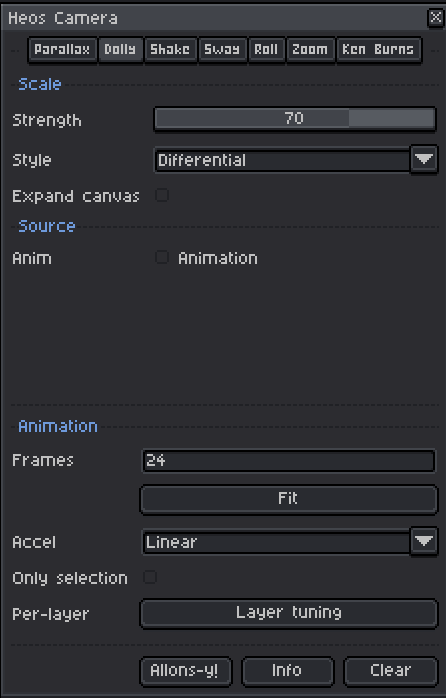
Layers: 2 or more visible layers/groups. Each plane scales toward its own target percent. Previously limited to 2; now supports as many as you need.
Strength: Base scale intensity for the Style preset, 0 to 100. At 0, no effect. At 100, strong depth compression.
Style: Differential (back recedes, front advances) or Vertigo (back scales, front stays). This preset fills the auto split; refine per layer after.
Tuning: "Layer tuning" button. Set % per layer: + comes forward (grows), − recedes (shrinks). Overrides the Style preset for that layer.
Expand canvas: Checkbox. Experimental; grows canvas to fit scaled content. Leave unchecked unless you need it.
Shake Tab Parameters
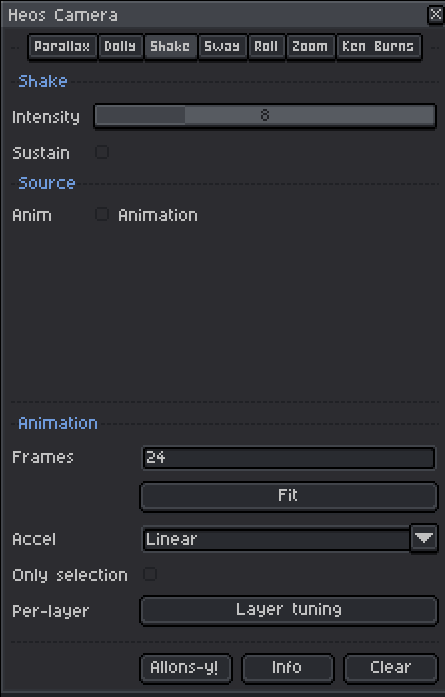
Intensity: Maximum offset in pixels, 0–32. Higher values shake more violently.
Sustain: Checkbox. On = shake stays constant throughout. Off = shake fades out over the animation.
Tuning: "Layer tuning" button. Set px amplitude per layer. Negative values shake that layer opposite to others.
Sway Tab Parameters
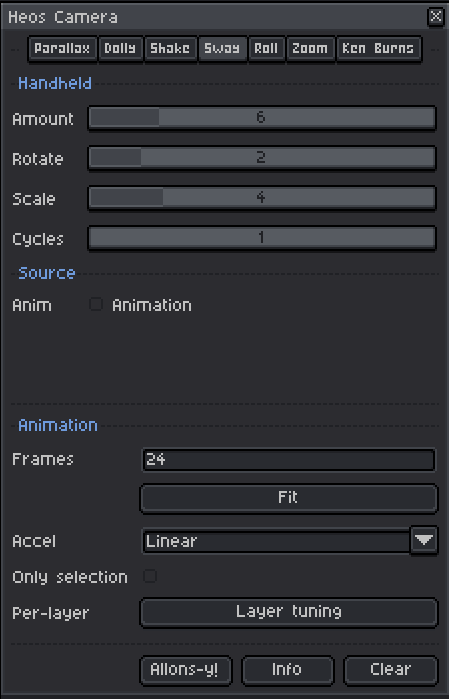
Amount: Handheld drift in pixels, 0–32. Sideways and vertical wobble.
Rotate: Tilt amplitude in degrees, 0–15. Camera tilts left/right gently.
Scale: Breathing amplitude in percent, 0–20. Subtle zoom in/out to sell the handheld feel.
Cycles: Oscillations per loop, 1–4. How many times the sway completes in your animation (loops perfectly).
Tuning: "Layer tuning" button. Set px drift per layer. Rotate and Scale stay global; only drift varies per layer.
Roll Tab Parameters
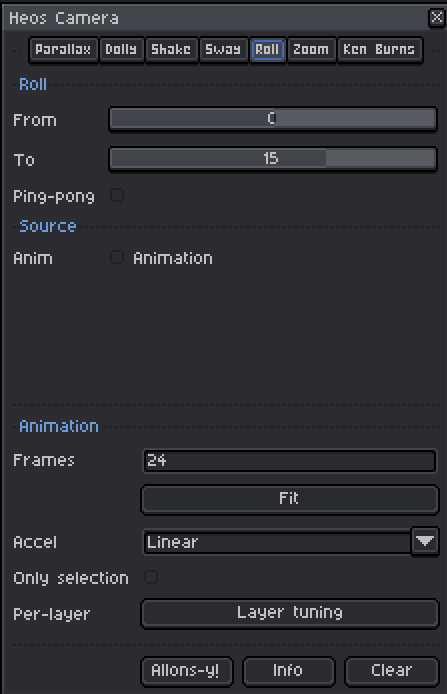
From: Starting tilt in degrees, -45 to 45. Negative = counterclockwise, positive = clockwise.
To: Ending tilt in degrees, -45 to 45.
Ping-pong: Checkbox. On = animation goes from "From" to "To" and back (loops perfectly). Off = ramps from "From" to "To" once.
Tuning: "Layer tuning" button. Set target angle per layer. Negative angles tilt opposite to positive ones.
Zoom Tab Parameters
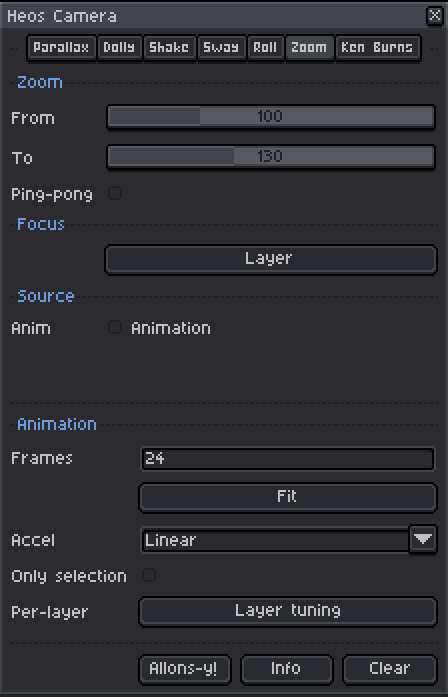
From: Starting scale in percent, 25–300. 100 = no zoom, 150 = 1.5x magnified, 50 = half size.
To: Ending scale in percent.
Ping-pong: Checkbox. On = loops zoom in and back out. Off = zooms once from "From" to "To".
Layer button: Creates or activates the "Heos_Focus" layer. Paint a magenta dot to set the zoom target point. Without it, zooms on canvas center.
Tuning: "Layer tuning" button. Set target % per layer for zoom parallax effects.
Ken Burns Tab Parameters
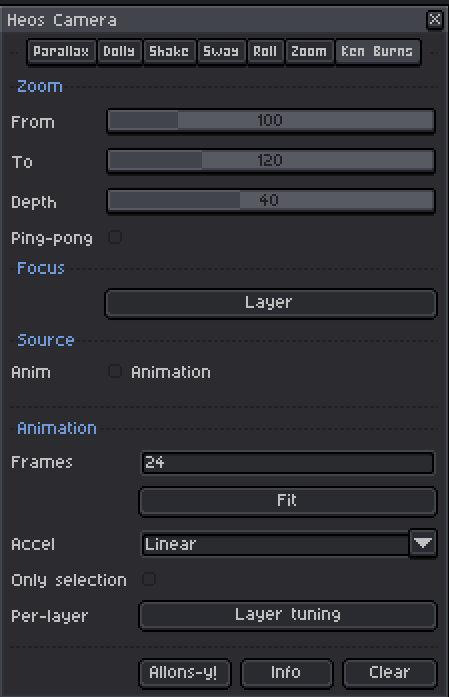
From: Starting zoom in percent, 50–300.
To: Ending zoom in percent.
Depth: Parallax intensity, 0–100. Front layers zoom more than back. At 0, all layers zoom equally. At 100, strong depth variation.
Ping-pong: Checkbox. On = slow zoom in and back out (loops). Off = slow zoom once.
Layer button: Creates or activates the "Heos_Focus" layer. Paint a magenta dot to pan toward during the zoom. Without it, stays on canvas center.
Tuning: "Layer tuning" button. Set zoom factor per layer.
Shared Parameters (All Tabs)
Frames: Number of frames to generate. Default is 24. Increase for longer, smoother animations.
Accel: Timing curve. 9 options: Linear, Ease in, Ease out, Ease in-out, Smooth, Sine, Back (overshoot), Bounce, Elastic. Each changes the feel of motion.
Only selection: Checkbox. Animates only inside the marquee selection; everything outside stays static from the capture frame.
Layer tuning: Button. Opens the per-layer tuning window for the active effect tab. Set custom values in native units (px/frame, %, degrees, etc.). Applies to all 7 effects.
Focus Layer & Magenta Dots
Zoom and Ken Burns can target a specific point on your canvas. To use it, press the "Layer" button in either tab—this creates or switches to a layer named "Heos_Focus". Paint small magenta dots on this layer at the point you want to zoom or pan to. The script finds the centroid of all magenta pixels and uses that as the focus point. If no magenta is found, the effect defaults to the canvas center.
Tips
For Parallax, use the Loop button to lock in seamless tiling. It auto-calculates frames and speed for your canvas size and direction.
Shake feels best with Bounce timing; Sway loops smoothly with Sine or Ease in-out. Experiment with Accel curves to match the mood.
Ken Burns + Depth is perfect for cinematic title cards or slow, dramatic reveals. Sway works great for spooky or dreamlike scenes.
Use "Layer tuning" to create asymmetric depth. Set the background to move slower and the foreground faster—or even opposite directions—for dynamic parallax. Negative values help flip phase or direction.
Always flatten your scene first (hide or merge unused layers). Camera reads from the visible composite, not individual layers.
You can use any camera in animations you've already created to add the finishing touch.
Compatibility
Requires Aseprite 1.3.x or later. Works with RGB color mode only (Grayscale and Indexed are not supported). Make sure your sprite is set to RGB before using Camera.
Feedback & Support
I love seeing how you use Heos Camera in your projects. If you have questions, ideas, or just want to share what you've made, feel free to leave a comment or reach out directly. It's always great to see your work in action.

If you found this tool useful, taking a moment to leave a rating really helps. Thanks for the support. ❤️
Purchase
In order to download this tool you must purchase it at or above the minimum price of $3.99 USD. You will get access to the following files:
Leave a comment
Log in with itch.io to leave a comment.