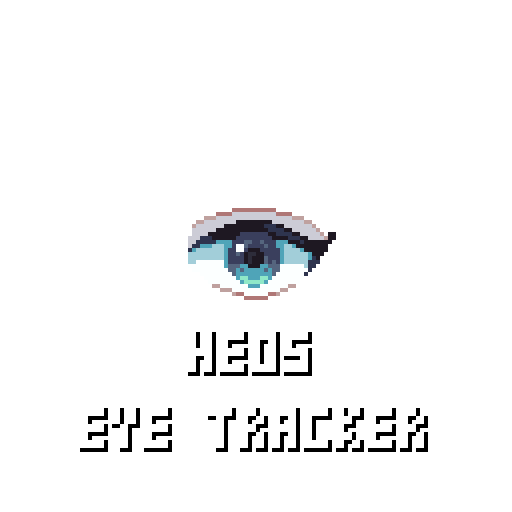
Heos Eye Tracker
Heos Eye Tracker is a tool that simulates a pixel art eye following the mouse cursor in real time. It uses a set of nine directional frames (Up, Down, Left, Right, and the four diagonals) and is packaged with three components: a ready-to-test interactive demo, a blank tool for custom eye sprites, and the original eye assets in both GIF and PNG formats.
Perfect for game developers, UI designers, or pixel artists who need to test character reactions, UI feedback, or animated eye behavior in response to cursor position. All components work entirely in the browser, no installation required.
What's Included
1. Interactive Demo: An HTML page with the pixel art eye already loaded and ready to test. Open it, move your mouse or finger over the canvas, and see the eye react in real time.
2. Blank Tool (Eye_tracker_user.html): The same tracker engine, but with an empty slot grid. Drag and drop your own 9 GIF frames (one per direction) and test your own eye sprites or character animations. Includes dropdown menus to reassign directions if a frame is in the wrong slot. It doesn't necessarily have to be an eye — anything you want to follow the cursor will work.
3. Eye Assets (9 GIFs + 9 PNGs): The pixel art eye used in the demo, available in all 9 directions. Each format is provided so you can use them directly in your game engine or animation software, or as a reference for creating your own eye sprites.
Workflow (Using the Blank Tool)
1. Load frames: Drag and drop 9 GIF files (one per direction) into the grid. They are automatically sorted by the number at the start of the filename.
2. Assign directions: If a frame is in the wrong slot, use the dropdown menu under each image to swap it with another direction.
3. Set scale and speed: Adjust the preview scale (1–8×) and animation speed (6–40 fps) before launching the live tracker.
4. Launch: Press "Allons-y!" to decode the GIFs and enter the live tracking mode.
5. Test the eye: Move your mouse or finger over the canvas. The eye switches to the closest direction (or stays in "Front" when inside the dead zone).
6. Fine-tune: While tracking, adjust scale, speed, front zone radius, diagonal threshold, and toggle return-to-center behavior on the fly using the floating controls panel.
How the Eye Tracker Works
Each mouse or touch position is compared to the center of the canvas. The direction is determined by the angle and distance from the center, using a dead zone and an adjustable diagonal threshold for smooth transitions.
Dead zone (Front Zone): The central area where the eye stays in "Front" (direction 5). Its radius is adjustable from 5 to 60 pixels.
Diagonal threshold: A value from 0.10 to 0.90 that decides whether the cursor is closer to a cardinal or a diagonal direction. Lower values make diagonals easier to trigger; higher values favor cardinals.
Animation playback: Each direction is a full GIF sequence. When switching, the eye can reverse to the first frame before playing the new direction, or cut directly if the option is disabled.
Touch support: The tool works with touch devices. While dragging your finger, the eye follows the touch point. When you lift your finger, the eye returns to "Front" automatically (if auto-return is enabled).
Inactivity timeout: On desktop, if the mouse stops moving for 1.5 seconds, the eye automatically returns to "Front" to simulate idle behavior. This can be disabled via the auto-return checkbox.
Parameters
Scale (preview): 1 to 8×, scales the canvas before launching. Default 8×.
Scale (live): Same as preview, but adjustable during tracking.
Speed: 6 to 40 fps, controls the GIF animation playback rate.
Front Zone: 5 to 60 pixels, the radius of the central dead zone where the eye points "Front".
Diag Threshold: 0.10 to 0.90, controls the sensitivity of diagonal direction detection.
Return to center (reverse): If enabled, the eye plays the current direction backwards to frame 0 before switching to the new direction.
Auto-return to front: If enabled, the eye resets to "Front" after 1.5 seconds of mouse inactivity (desktop) or immediately after lifting your finger (touch devices).
Tips
Name your GIFs with a number at the start (e.g. 1_front.gif, 2_up.gif) to ensure automatic sorting. The tool reads the first digits it finds in the filename.
For the best tracking experience, keep the "Front" frame as a neutral, forward-looking pose. The tool uses direction 5 (center) as the default, so make sure that frame is the most stable one.
The included PNG assets are perfect for quick integration into game engines like Unity, Godot, or GameMaker, while the GIFs are ready for prototyping or web-based demos. The floating controls panel stays out of the way but is always accessible for live adjustments.
Examples
The interactive demo comes with the eye assets pre-loaded. Here you can see the pixel art eye in action, tracking the mouse cursor in real time.
Tip: Use the blank tool to test your own character eyes, UI indicators, or any animated element that needs to react to cursor position. The tool also works on touch devices, making it ideal for mobile prototyping.
Feedback & Support
I love seeing how you use Heos Eye Tracker in your projects. If you have questions, ideas, or just want to share what you've made, feel free to leave a comment or reach out directly. It's always great to see your work in action.

If you found this tool useful, taking a moment to leave a rating really helps. Thanks for the support.
Download
Click download now to get access to the following files:
Leave a comment
Log in with itch.io to leave a comment.