Heos impact-frames
Heos Impact Frames is a Lua script for Aseprite that generates dynamic impact effects by analyzing the silhouette of your artwork across every frame of an animation. Perfect for adding explosion flashes, energy bursts, shockwaves, speed streaks, and debris to pixel art animations without manual frame-by-frame drawing.
Workflow
1. Open sprite: Any frame count works. Impact is centered on the canvas by default.
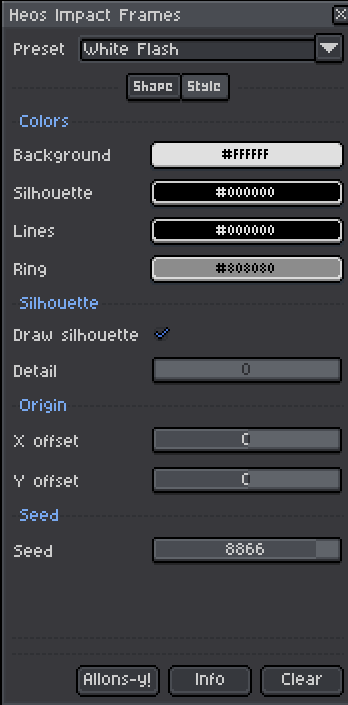
2. Select preset: Choose White Flash, Black Strike, Gold Impact, Red Fury, Cyan Shock, Minimal, or Custom.
3. Adjust Shape tab: Set burst lines, rings, scratches, and scatter particles.
4. Adjust Style tab: Set colors, silhouette detail, origin offset, and seed.
5. Select frames: Active timeline selection limits the effect; no selection processes all frames.
6. Press Allons-y!: Generates or regenerates the output layer in one click.
How Impact Frames Work
The script flattens all visible layers (excluding its own output layer) for each selected frame, then analyzes the resulting image to detect the artwork's silhouette. Impact lines, rings, scratches, and scatter particles radiate outward from the center of the canvas, using the silhouette as a mask to create a cohesive impact composite.
Silhouette composition: The flattened frame is overlaid on top of the generated impact, preserving the original artwork shape.
Per-frame variation: The seed auto-advances per frame, creating subtle animation variation across the timeline.
Center origin: Impact radiates from canvas center by default, adjustable with X/Y offsets.
Shape Parameters
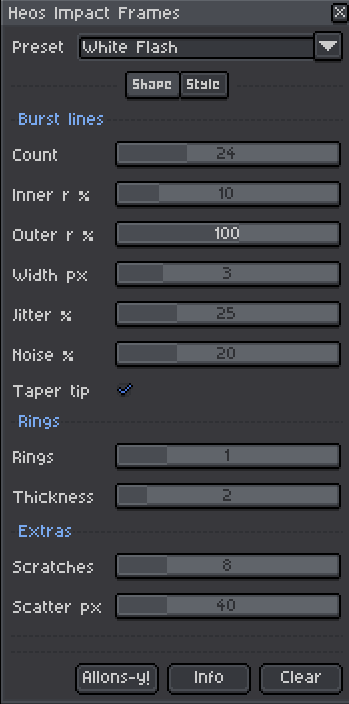
Count: Number of radial burst lines. 0 to 80.
Inner r %: Starting radius of burst lines as percentage of canvas diagonal. 0 to 60%.
Outer r %: Ending radius of burst lines as percentage of canvas diagonal. 40 to 150%.
Width px: Line thickness at the base in pixels. 1 to 12.
Jitter %: Angular randomness applied to each line direction. 0 to 100%.
Noise %: Length randomness applied to each line. 0 to 80%.
Taper tip: When enabled, lines thin to a point at the tip.
Rings: Number of shockwave rings. 0 to 5.
Thickness: Ring thickness in pixels. 1 to 10.
Scratches: Number of speed streak lines. 0 to 40.
Scatter px: Number of loose pixel debris particles. 0 to 200.
Style Parameters
Background: Impact background color. Used when Preset is set to Custom.
Silhouette: Color of the artwork silhouette overlay. Used when Preset is Custom.
Lines: Color of burst lines and scratches. Used when Preset is Custom.
Ring: Color of shockwave rings. Used when Preset is Custom.
Draw silhouette: When enabled, composites the flattened artwork on top of the impact.
Detail: 0 = solid silhouette fill. Higher values detect and outline only high-contrast edges. 0 to 100.
X offset: Horizontal shift of the burst center. -200 to 200 pixels.
Y offset: Vertical shift of the burst center. -200 to 200 pixels.
Seed: Randomization seed. Auto-advances each render. 0 to 9999.
Full Presets
The Preset dropdown instantly sets all parameters to a themed configuration. Custom allows full manual control. Available presets:
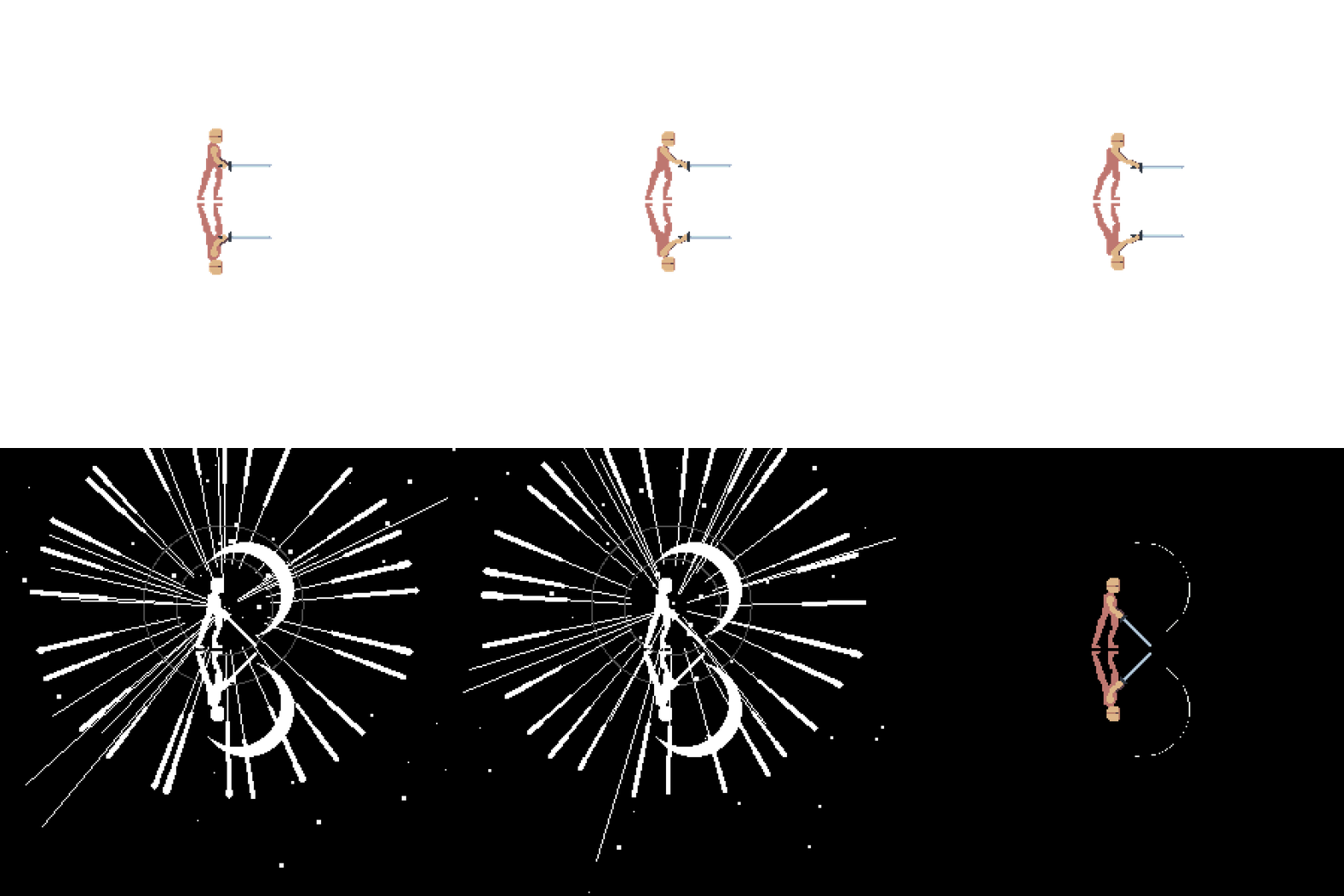
White Flash: Bright white burst on dark silhouette. Classic impact look.
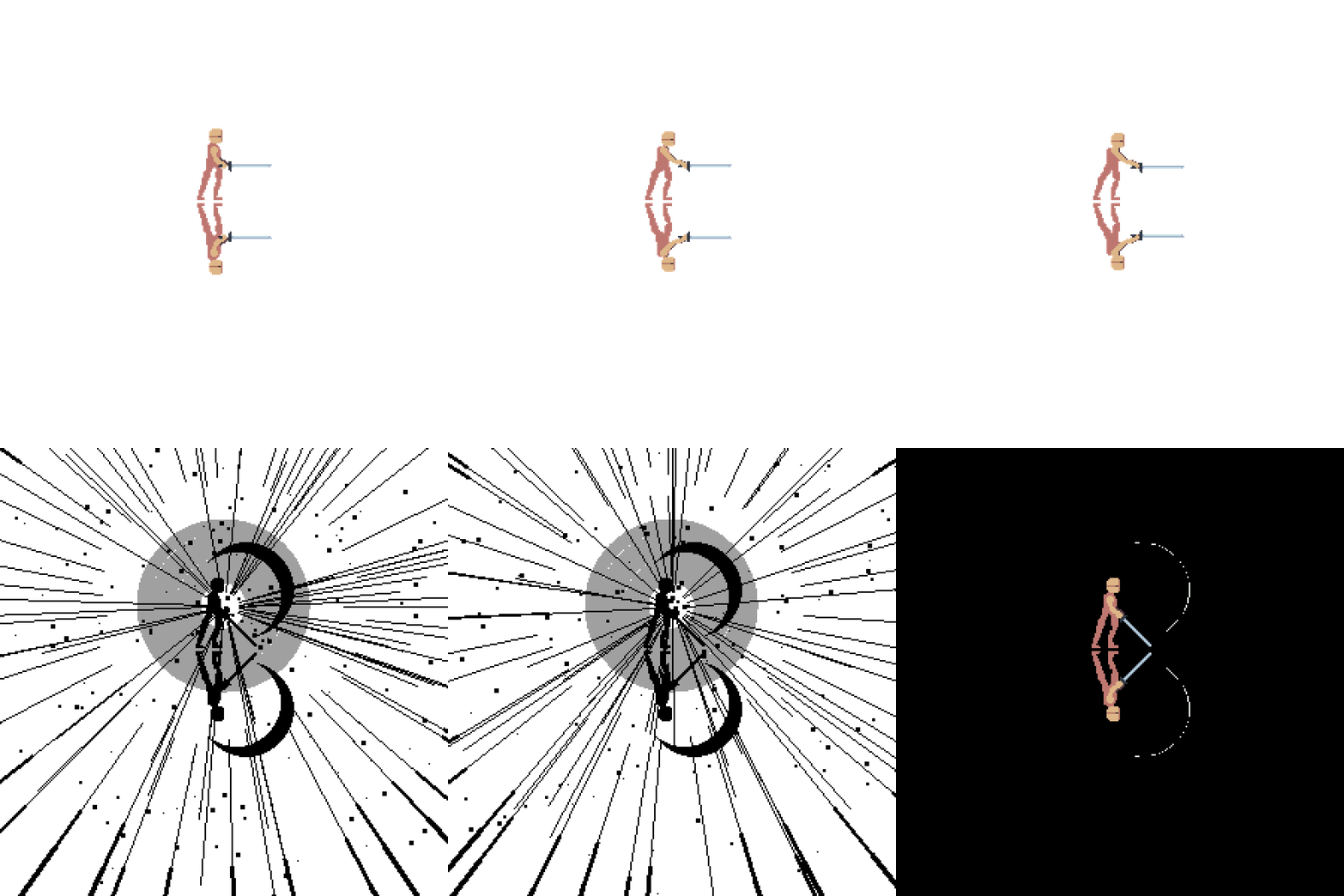
Black Strike: Dark burst with white silhouette. Inverted high-contrast.
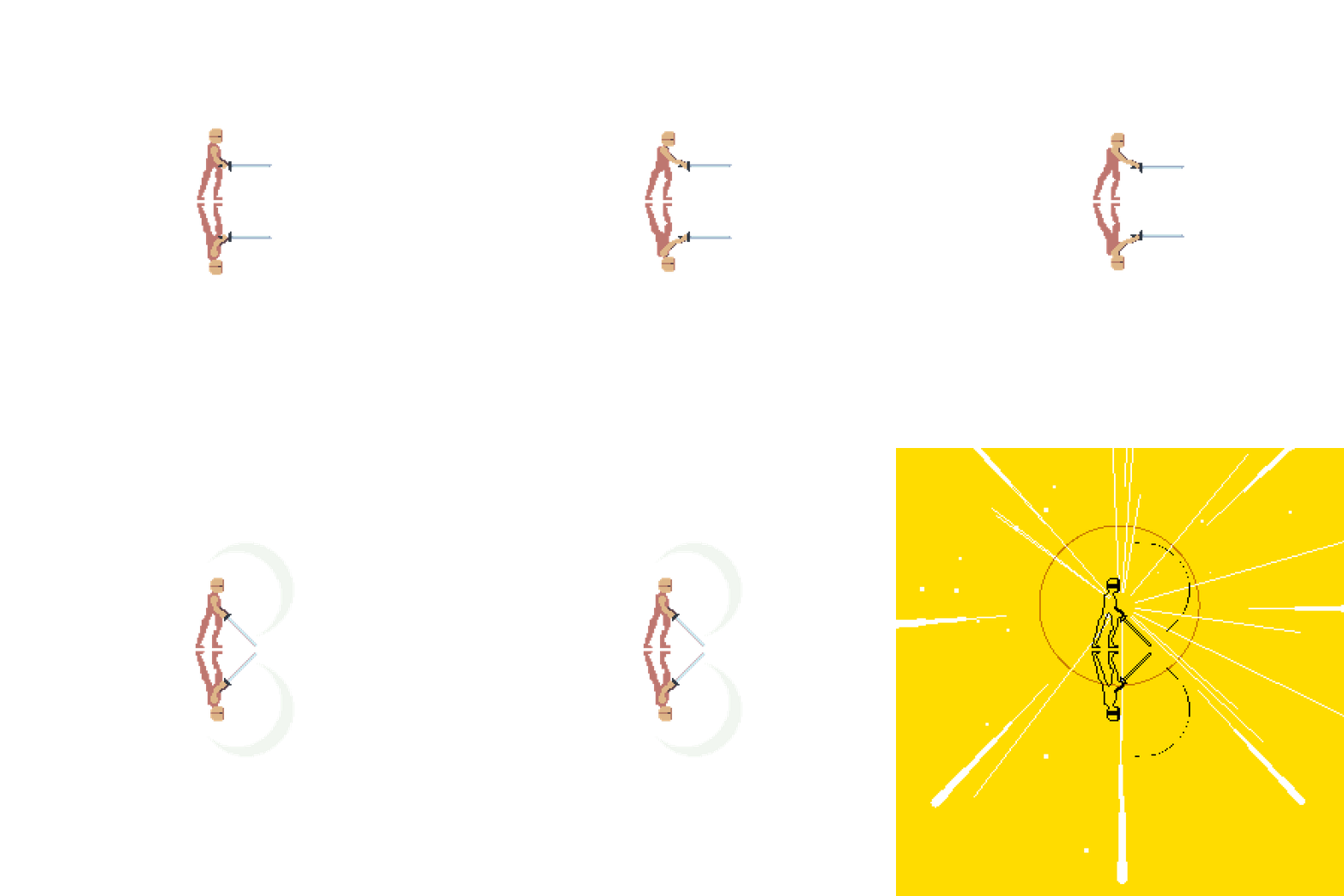
Gold Impact: Warm gold background with dark silhouette and white lines.
Red Fury: Aggressive red burst with yellow lines and high scatter.
Cyan Shock: Cool blue-cyan burst with multiple rings. Energy feel.
Minimal: Clean black silhouette on white with minimal lines. No rings, scratches, or scatter.
Custom: All colors and parameters fully adjustable by the user.
Selection & Region
If you have an active frame selection in Aseprite's timeline, the effect is confined to those frames. Otherwise, all frames are processed. The script ignores layer selection and always uses the full canvas.
Tips
Use higher Jitter and Noise values for chaotic, explosive effects. Lower values produce cleaner, more geometric bursts. The Taper tip option gives lines a natural thinning effect; disable it for solid blocky lines.
The Detail slider in Silhouette is useful for stylized outlines: set it to 40-60 to render only the outer edges of your artwork, creating a comic-book impact look.
To preview the effect on a single frame, select only that frame in the timeline before pressing Allons-y!. The output layer is regenerated each time, so you can iterate quickly.
Compatibility
Requires Aseprite 1.3.x or later. Works with RGB and Grayscale color modes. Indexed sprites are not supported.
Examples
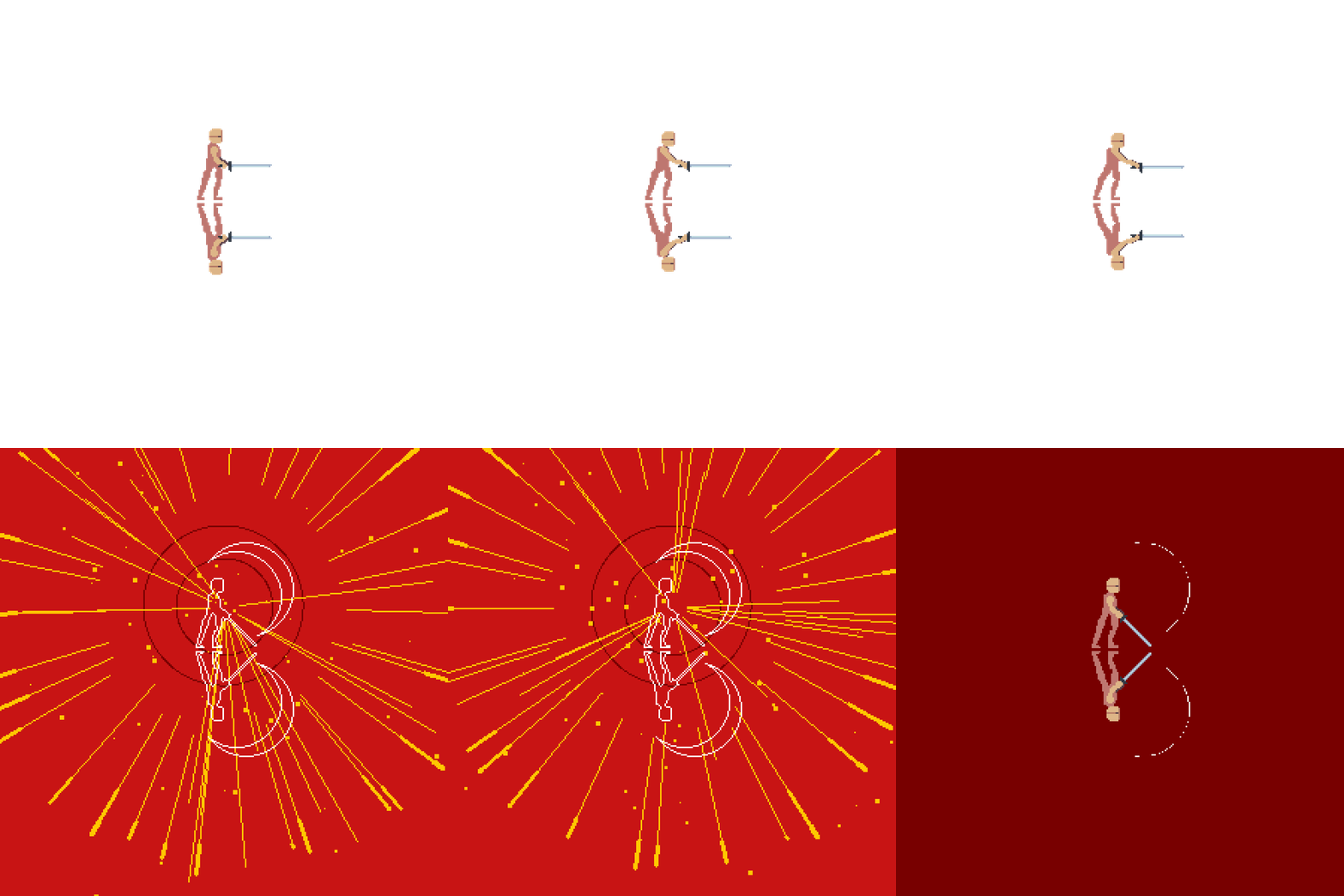
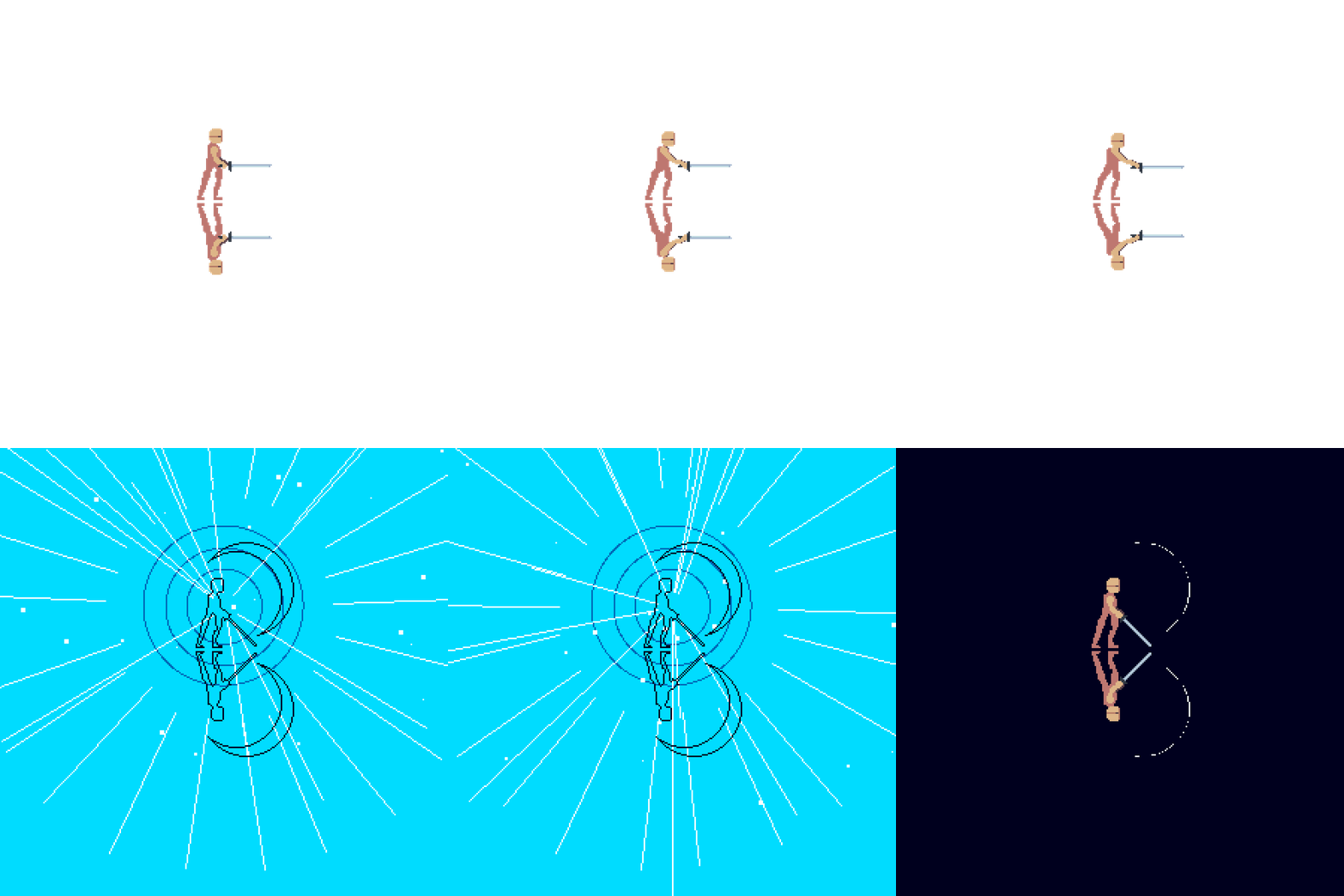
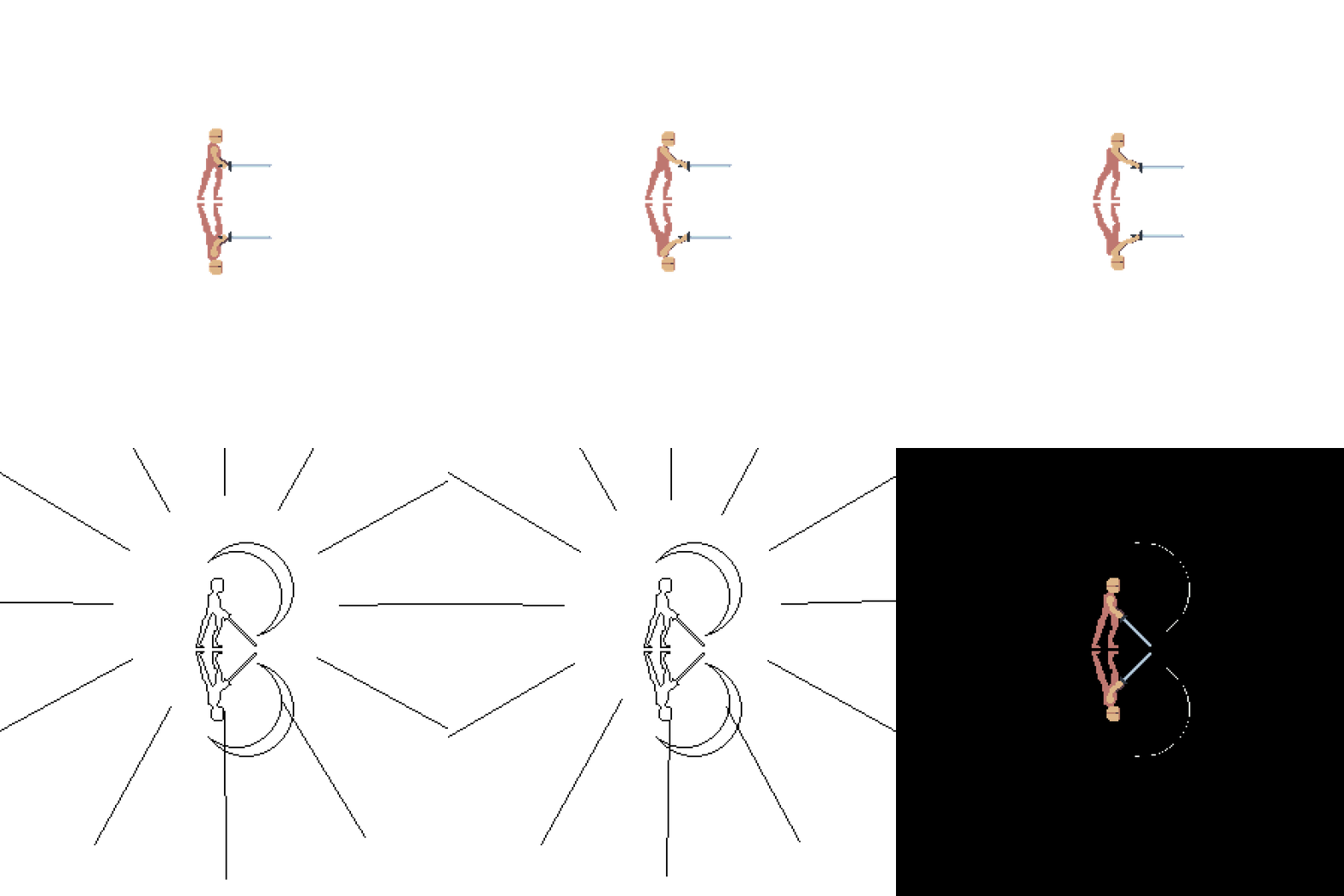
Feedback & Support
I love seeing how you use Heos Impact Frames in your projects. If you have questions, ideas, or just want to share what you've made, feel free to leave a comment or reach out directly. It's always great to see your work in action.

If you found this tool useful, taking a moment to leave a rating really helps. Thanks for the support.
Purchase
In order to download this tool you must purchase it at or above the minimum price of $2.99 USD. You will get access to the following files:
Leave a comment
Log in with itch.io to leave a comment.