Heos Lathe
Heos Lathe is a Lua script for Aseprite that spins a 2D profile around a vertical axis to generate a fully shaded 3D solid, complete with camera rotation and surface decals.
Perfect for creating vases, columns, bottles, bowls, chess pieces, lamps, or any lathe‑turned object in pixel art, with turntable animation built in.
Examples
Presets:
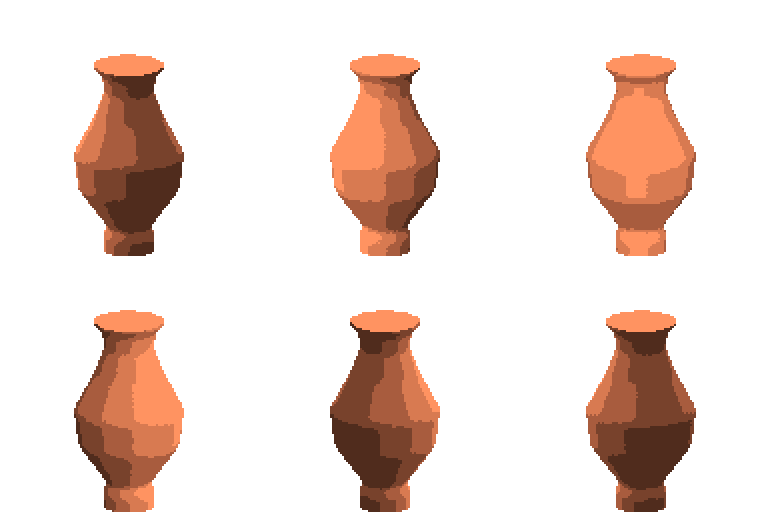
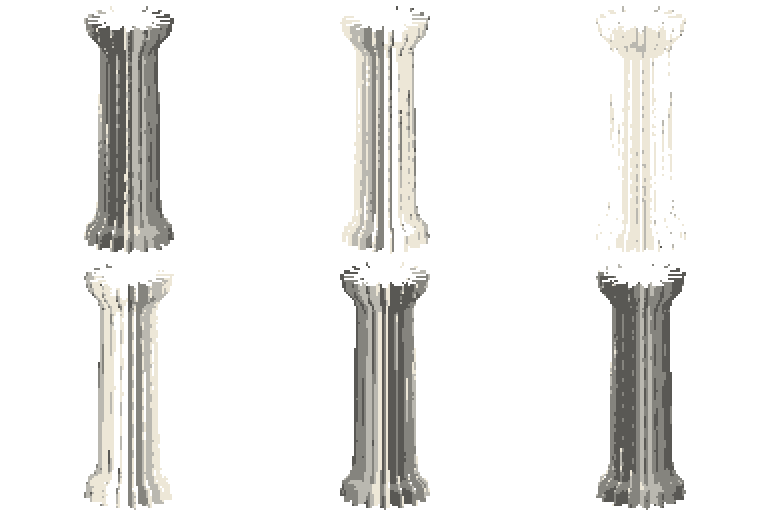
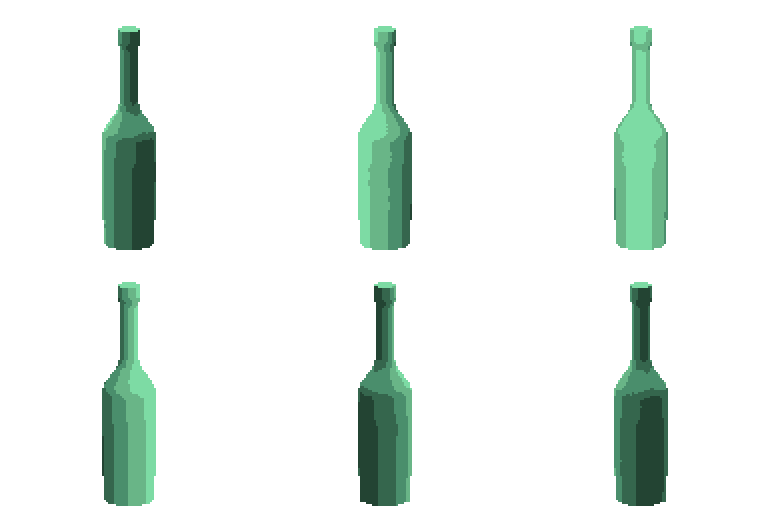
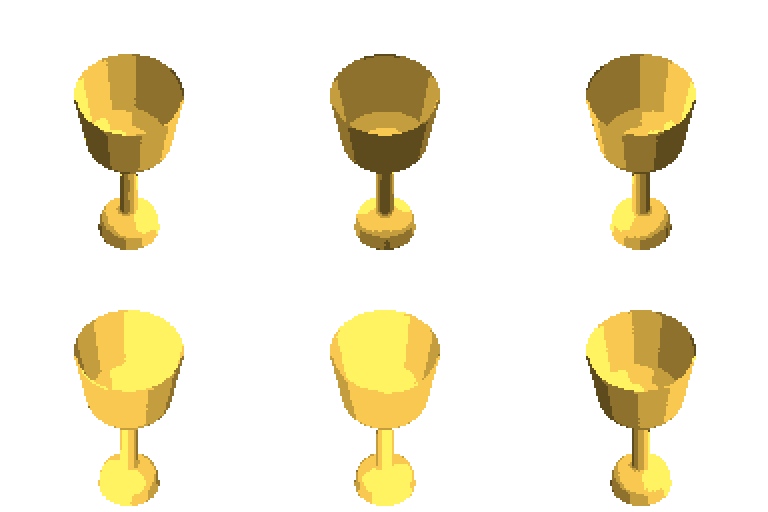
Example of workflow:
Form:
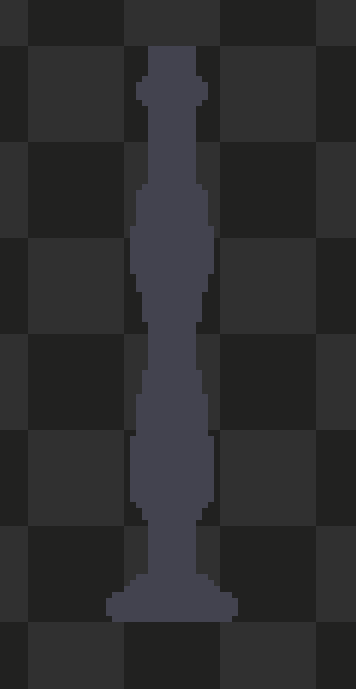
In “colour,” you can choose the material, a custom color, or use the color from the layer. In “profile,” you can adjust the size to your liking.
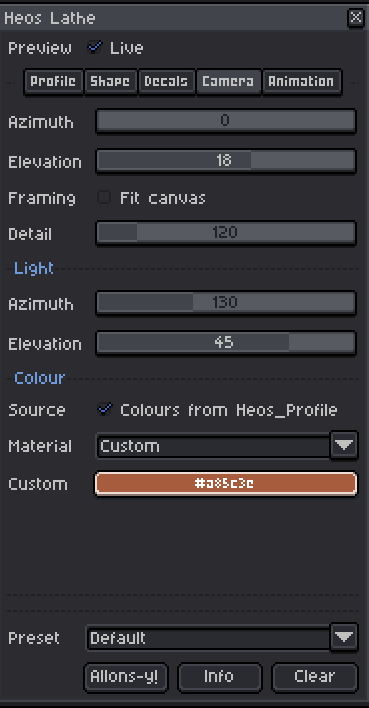
Until it takes the shape you want:
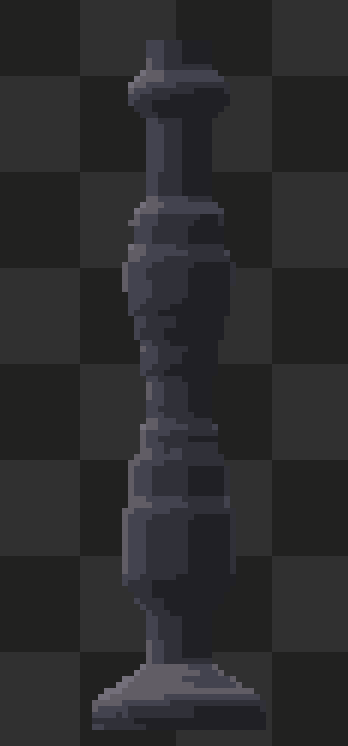
In Decals, you can add up to 6 layers for different decorations to add to your shape. By default, they are turned off. Select the first layer, and let's add an arm. To place it intuitively, I'll switch to flat view and position it:
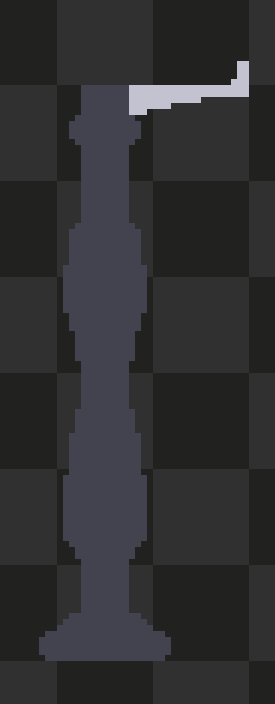
Now, in the Decals panel, with Decal 1 selected, I set the angle to 90 and the number of repetitions to 4. This way, I get all 4 arms positioned perfectly:
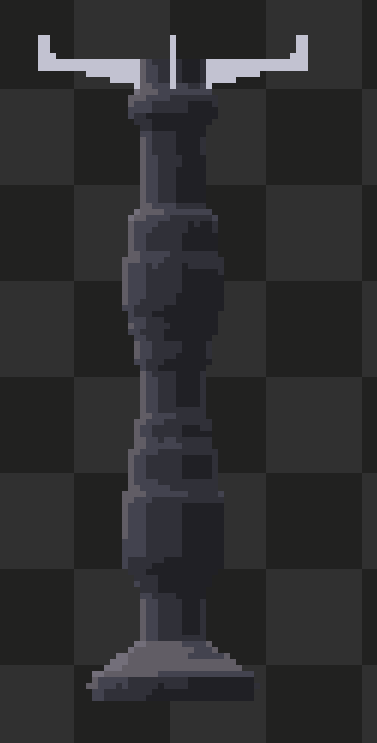
Now I'm creating a new shape in Decal 2. I paint it in place, set the same values as in the previous decal, but this time, I enable “Volume.” That will turn the decal into a 3D drawing as well:
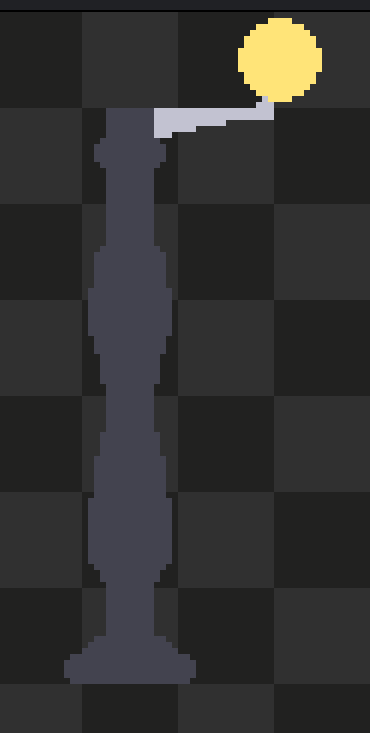
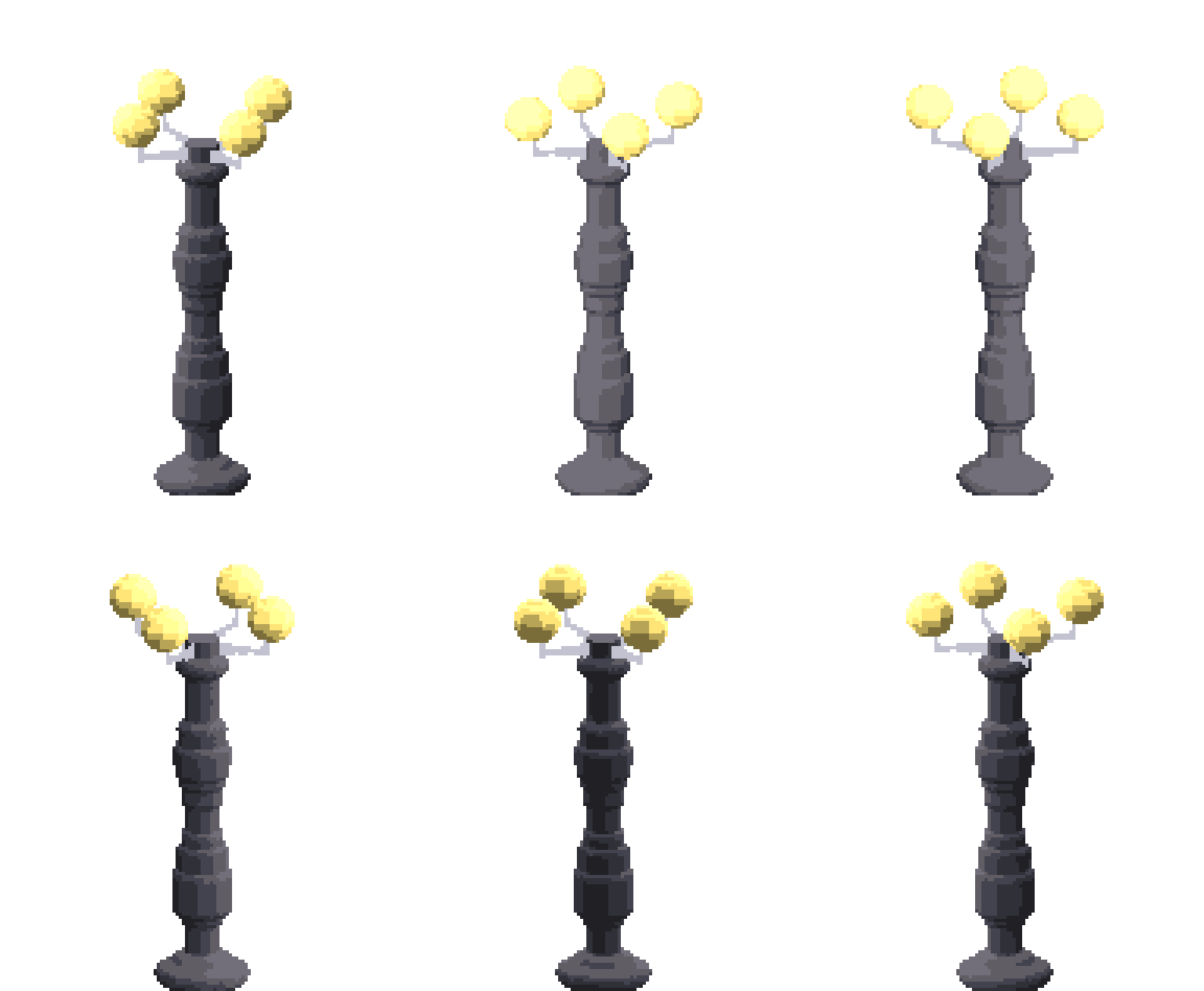
Result:
Workflow
1. Choose profile: pick a built‑in Shape from the dropdown, or draw your own on Heos_Profile and set Shape to Custom.
2. Tune dimensions: adjust Height, Width, Smooth, and Wobble until the silhouette reads right.
3. Add decals (optional): draw separate blobs on Heos_Decal_1 … _6; each blob becomes a distinct decal.
4. Set camera & light: use the Camera tab to spin the view and place the highlight.
5. Render: press Allons‑y! – the solid appears on the output layers.
6. Animate (optional): switch to the Animation tab, choose a mode, and render a turntable.
How It Works
The lathe spins a single profile around a vertical axis. Every ring is shaded against a fixed world light, so rotating the camera moves the highlight naturally. The profile can be a built‑in formula or a hand‑drawn outline on Heos_Profile.
Decals are read from separate layers. Each connected blob is placed where you drew it, measured against the profile's centre line. If the blob lies inside the silhouette, it wraps onto the surface; if it lies outside, it sticks out and foreshortens correctly.
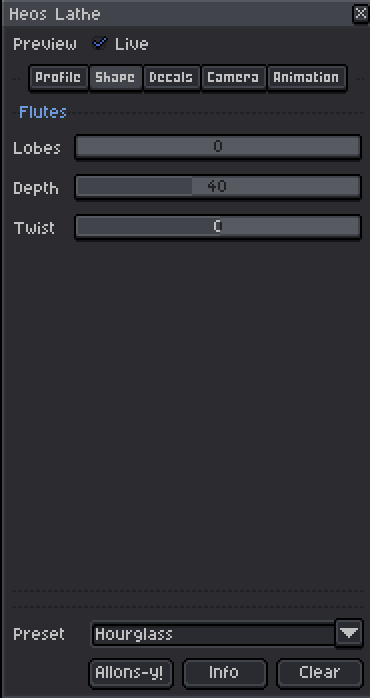
Flutes and twist break radial symmetry: lobes cut vertical grooves, twist turns them into spirals.
Caps close the ends: Flat, Domed, or Open to show the interior for bowls and pots.
Profile Parameters
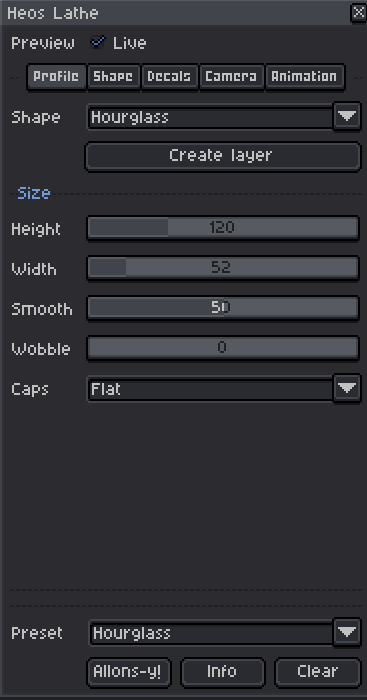
Shape: 24 built‑in outlines plus Custom. Custom reads your drawing on Heos_Profile from bottom to top.
Height: height of the piece in pixels (8–400).
Width: maximum radius × 2 in pixels (4–400).
Smooth: rounds the profile; 0 leaves steps, 100 is very smooth. The two ends are never touched.
Wobble: low‑frequency noise on the radius (0–100). A little wobble makes it look handmade.
Caps: Flat, Domed, or Open. Open leaves the hole and shows the inside wall.
Shape Parameters (Flutes & Twist)
Lobes: number of vertical flutes (0–32). 0 is smooth, 2 is oval, 8–20 gives a fluted column or ribbed barrel.
Depth: how deep the flutes cut (0–100). The shading tilts with them, so they catch light realistically.
Twist: rotation in degrees from foot to top (–360 to 360). Turns straight flutes into a spiral.
Decals Parameters
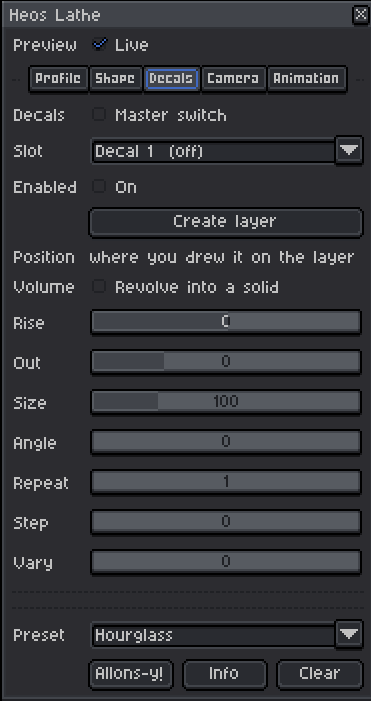
Master switch: enables decals globally.
Slot: choose one of six slots; each has its own layer (Heos_Decal_1 … _6).
Enabled: turns the slot on; the layer appears automatically.
Volume: revolves the blob into a solid (a circle becomes a sphere). Off keeps it flat.
Rise: shift the decal up or down (–100 to 100).
Out: push it outward (–100 to 300).
Size: scale of the decal (10–400). 100 is the pixel size you drew.
Angle: rotation around the axis (0–359°).
Repeat: number of copies (1–64).
Step: degrees between copies (0–180). 0 spreads them evenly around the full turn.
Vary: randomise each copy in angle, height, size and mirroring (0–100).
Camera & Light Parameters
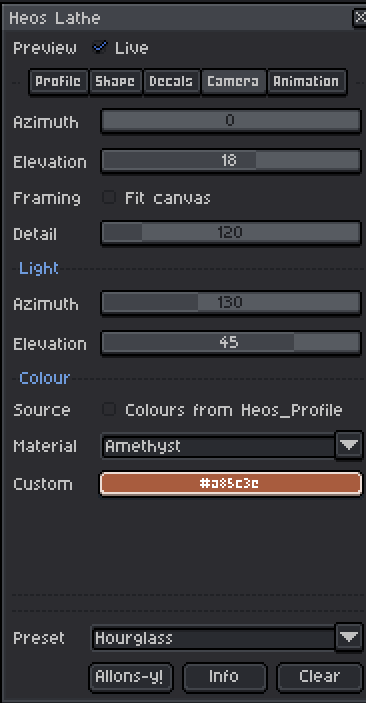
Azimuth: rotate the camera around the piece (0–359°).
Elevation: look down (positive) or up (negative, –90 to 90).
Fit canvas: scales the piece to fill the sprite. Off gives you a fixed size for precise placement.
Detail: extra sampling density (100–250). You rarely need this; the base rate already adapts to curves.
Light Azimuth / Elevation: direction of the fixed world light (–90 to 90 for elevation).
Colour: pick a Material preset (Terracotta, Bronze, Gold, etc.) or Custom colour. Tick Colours from Heos_Profile to read the colour of each row from the drawn outline (only with Shape = Custom).
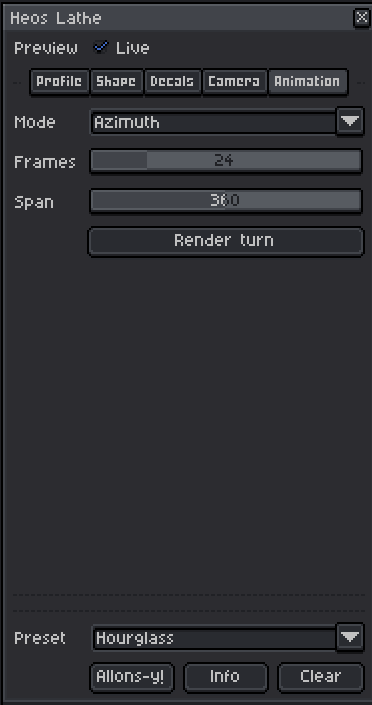
Animation Parameters
Mode: Azimuth (plain turntable), Elevation (bob up/down), Both (spin + bob), or Figure 8 (sweep back and forth).
Frames: number of frames (1–120).
Span: degrees covered (15–720). 360 with Azimuth gives one clean loop.
Presets
The Preset dropdown instantly loads a themed configuration. You can still tweak any parameter afterwards. Available presets:
Default: balanced vase shape.
Greek vase: amphora profile with terracotta colour.
Fluted column: 16‑lobe marble column.
Twisted urn: 8‑lobe bronze urn with 140° twist.
Chess pawn: smooth ivory pawn.
Potion: jade bottle.
Wooden barrel: 14‑lobe oak barrel with wobble.
Temple bell: bronze bell.
Clay pot: open terracotta pot with wobble.
Stone mortar: open sandstone bowl.
Brass lamp: gold lamp.
Toadstool: rose‑quartz mushroom.
Iron rocket: 4‑lobe iron rocket.
Obsidian egg: smooth obsidian egg.
Hourglass: amethyst hourglass.
Compatibility
Requires Aseprite 1.3.x or later. Works with RGB colour mode only (indexed sprites are not supported).
Tips
Use decals to break the radial symmetry – a single heraldic shield or a row of leaves instantly gives the piece a facing direction. For a hand‑made feel, set Wobble to 20–30 and Smooth to around 40.
When drawing a custom profile, the entire silhouette is read: the radius of each row is half its width, and the axis is the centre line. Decals are placed against that same centre line, so you can draw them right where you want them.
For a sprite sheet of 8 directions, render an animation with 8 frames, Azimuth mode, Span 360°, then export the frames as individual images.
FAQ
Q: My custom profile is not showing up. Make sure the layer is named exactly Heos_Profile and contains opaque pixels. The shape dropdown must be set to Custom.
Q: Decals disappear or are buried. Check that the decal layer is enabled and the Master switch is on. Decals drawn inside the silhouette wrap; those drawn outside stick out. Use Out and Rise to nudge them.
Q: The animation pulses in size. Turn on Fit canvas – the framing is measured once across the whole turn, so the size stays constant.
Q: Can I use indexed colour? No, the script requires RGB mode for correct shading and decal colours.
Feedback & Support
I love seeing how you use Heos Lathe in your projects. If you have questions, ideas, or just want to share what you've made, feel free to leave a comment or reach out directly. It's always great to see your work in action.

If you found this tool useful, taking a moment to leave a rating really helps. Thanks for the support.
Purchase
In order to download this tool you must purchase it at or above the minimum price of $3.99 USD. You will get access to the following files:
Leave a comment
Log in with itch.io to leave a comment.