
Heos Launcher
A downloadable tool
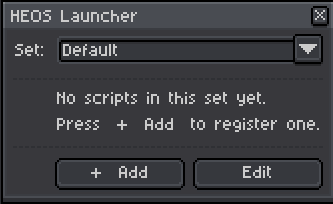
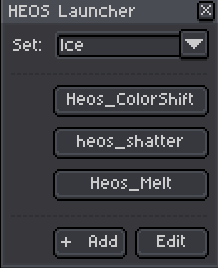
Heos Launcher is a script launcher for Aseprite that organizes your Lua scripts into named sets with a clean, one-click interface. Perfect for keeping your five most-used scripts for a given project in one place, switching between collections instantly, and running scripts without navigating folders.
Workflow
1. Add a script: Press + Add, pick a .lua file from your scripts folder, and give it a button name.
2. Run: Click any script button in the list to execute it immediately.
3. Switch sets: Use the Set dropdown to switch between different collections of scripts.
4. Edit mode: Press Edit to reveal reorder controls, rename buttons, or remove scripts from the current set.
5. Manage sets: Create new sets, rename existing ones, or delete sets you no longer need.
6. Save automatically: All changes are saved to heos_launcher.cfg next to the launcher script.
How Sets Work
Each set is a named collection of script entries. You might have one set for pixel art tools, another for animation helpers, and a third for export utilities. The active set is remembered between Aseprite sessions.
Sets are independent: Switching sets changes only the visible list. All sets are stored in the same config file.
Persistent storage: The configuration is written to heos_launcher.cfg in the same folder as the launcher script, so your setup survives restarts.
Safe removal: Removing a script from a set only removes the entry from the launcher; the .lua file stays on disk.
Set Management Parameters
Set dropdown: Switch between existing sets. The selected set becomes active.
New set: Creates a new empty set with a name you provide. Duplicate names are not allowed.
Rename: Changes the name of the current set. Duplicate names are blocked.
Delete set: Removes the current set and its script list. The last set cannot be deleted.
+ Add: Opens a file picker to select a .lua script. The button name is auto-filled from the filename but can be edited.
Edit: Toggles edit mode, revealing Up, Down, and Remove controls for each script entry.
Selection & Region
Not applicable: Heos Launcher is a launcher interface, not a canvas-processing script. It has no canvas interaction.
Tips
Name your sets by project type (e.g., "Character Art", "Tilemaps", "UI Design", "Animation") to quickly switch contexts. Keep the launcher open and dock it next to your Aseprite workspace for instant access to your tools.
The launcher does not require any specific sprite open. You can run it from the File > Scripts menu or bind it to a keyboard shortcut.
Compatibility
Requires Aseprite 1.3.x or later. Works with all color modes.
FAQ
Q: Can I have the same script in multiple sets? Yes. The launcher allows duplicate script entries across different sets. Each entry is independent.
Q: What happens if I move or delete a script file? The launcher will show an alert when you try to run it, telling you the file was not found. You can then remove the entry from the set.
Q: Where is the configuration stored? In the same folder as heos_launcher.lua, as heos_launcher.cfg. This makes it easy to back up or sync your setup.
Q: Can I use relative paths? The launcher stores full paths to scripts. This works reliably across sessions as long as your scripts folder structure remains consistent.
Feedback & Support
I love seeing how you use Heos Launcher in your projects. If you have questions, ideas, or just want to share what you've made, feel free to leave a comment or reach out directly. It's always great to see your work in action.

If you found this tool useful, taking a moment to leave a rating really helps. Thanks for the support.
Download
Click download now to get access to the following files:
Leave a comment
Log in with itch.io to leave a comment.