Heos LipSync
Some changes:
-Support has been added to record your voice directly in the program and download the recorded audio. That should make the work a little easier.
-Parts are now automatically added to the program. This makes it possible to test it quickly. (+Clear button)
-I’ve tried to adjust the interpretation of written text, but it’s currently only optimized for Spanish (pronunciation and spelling are the same); however, the audio does detect any language.
Heos · LipSync
Heos LipSync is a browser-based, dependency-free lip sync animator for pixel art, illustration, and character animation. Import a face and a set of mouth sprites, generate a phoneme timeline from written text or an imported audio file, refine it frame by frame on the built-in timeline, and export as an animated GIF, spritesheet PNG, or WebM video with audio
Designed for indie game developers, animators, VTubers, and comic creators who need fast, clean lip sync without a full animation suite.
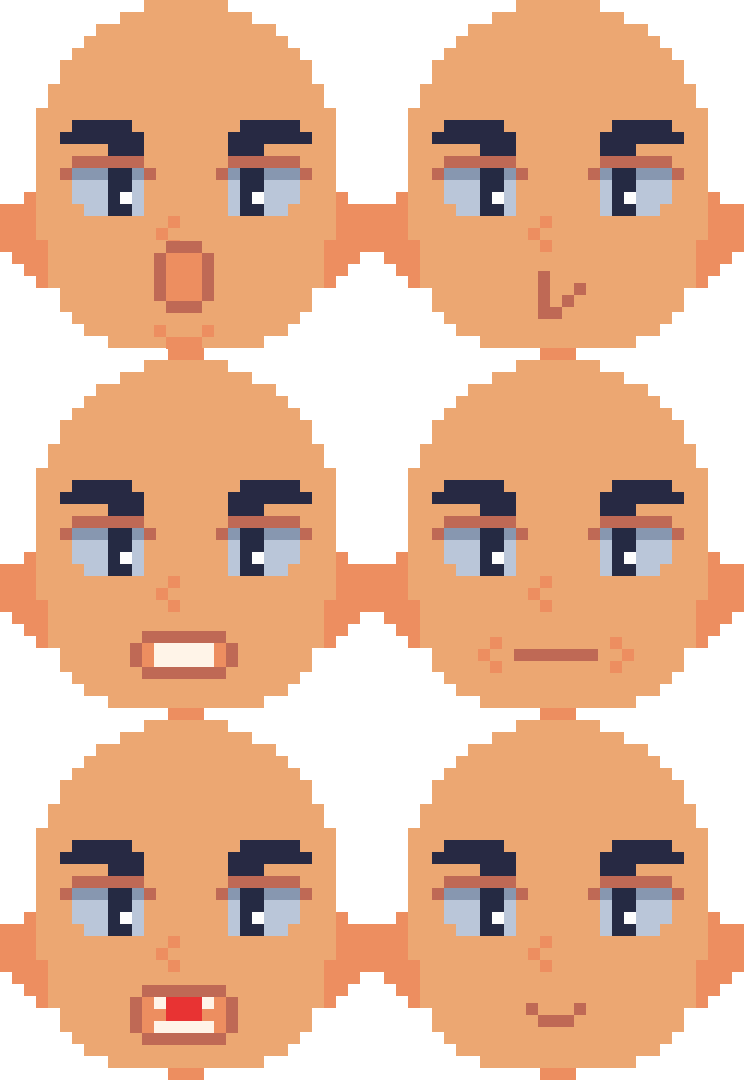
Includes a package of ready-to-use examples: two face expressions, 12 mouth sprites mapped to the full Expanded phoneme chart, 3 extra mouths, and a sample audio track — so you can test every feature straight out of the box without drawing anything first.
The pack is from my chibi character template
Main Features:
- Three viseme modes – Anime · 3 (closed / mid / open, classic cartoon flap), Normal · 7 (REST, M/B/P, F/V, consonants, E/I, O, U, A), and Expanded · 11 (full 12-mouth lipsync chart: A, O, E/I, consonants, M/B/P, CH/J, U/Q/W, F/V, L, R, TH, REST). Switching modes remaps the existing timeline automatically.
- Text mode (Spanish & English) – Type your dialogue and hit Allons-y!. The tool maps each letter and digraph (ch, sh, th, rr, ll) to its phoneme viseme and builds the full frame timeline instantly. Use
-for a short pause and--for a longer one. Punctuation pauses automatically. - Audio mode – Import any audio file (MP3, WAV, OGG…). The tool analyses amplitude for mouth openness and spectral centroid to distinguish rounded vowels (O/U) from open ones (A/E), then builds the timeline. Refine the result by hand after.
- Text-to-Speech playback with sync – A built-in TTS reader plays the text aloud while the animation runs. Word-boundary events keep the mouth animation locked to the voice in real time, and the speed auto-calibrates after each playthrough to match the animation duration. Choose any voice installed on the system — English, Spanish, French, German, and more, depending on the user's OS and browser.
- Up to 12 mouth sprites – Import separate PNG files or slice a spritesheet (configurable columns and rows). Name files
0.pngthrough11.pngin chart order and they auto-assign to visemes in Expanded mode with no extra setup. - Multiple faces / expressions – Import several face images (happy, angry, surprised…) and switch between them per frame using the face track on the timeline. Export any expression at any time.
- Extra mouths – Import smiles, winks, and other non-lipsync poses as extras. They appear in the paint palette and can be placed manually on any frame. Not generated automatically — fully under your control.
- Two-track timeline – A slim face track sits above the colour-coded mouth track. Right-click/drag on either to paint; left-click/drag to scrub. Frame-accurate, keyboard-friendly.
- Pixel-art export – Integer upscaling (×1 to ×16) with nearest-neighbour rendering keeps every pixel sharp. The output dimensions are always even for codec compatibility. GIF preserves real alpha transparency (palette index + disposal mode 2). WebM records an opaque canvas with audio in VP9.
- Transparent, solid colour, or image background – Switch between the three with header buttons. Transparent exports carry a genuine alpha channel in GIF and PNG. Video background falls back to white (VP9 has no alpha).
How to Use (step by step):
- Import a face – Click Add face / expression… in panel 1. Import multiple faces for expression changes. Click a face thumbnail to set it as active. Use the scale slider to zoom the whole composition.
- Import mouths – Choose Separate (multiple PNGs sorted by filename) or Spritesheet (one image, set columns and rows, then slice). Import 3 to 12 mouths. For Expanded mode, name them
0through11in phoneme-chart order for automatic assignment. Add extra mouths (smiles, etc.) in the Extras section below. - Choose a viseme mode – Select Anime, Normal, or Expanded in panel 3. The viseme-to-mouth table updates. Reassign any viseme to any mouth using the dropdowns.
- Position the mouth – Drag on the stage to move the mouth anchor. Scroll to fine-tune its scale. The face scale slider zooms face and mouths together.
- Generate the timeline – In Text mode: type the dialogue, set chars/sec, choose a TTS voice, and click Allons-y!. In Audio mode: import a file, adjust the silence slider, and click Allons-y!.
- Refine on the timeline – Right-click/drag on the mouth row to paint the selected viseme. Left-click/drag to scrub. Right-drag on the face row (top strip) to assign expressions to frames. Hit Play to preview with TTS or audio.
- Set the background – Use the header buttons (⬜ transparent / 🎨 colour / 🖼 image).
- Export – Set the scale multiplier (×4 or ×8 recommended for pixel art), then click Export GIF, Export spritesheet, or Export video (.webm). Video records in real time and includes the audio if you are in audio mode.
User Interface – Left Panel:
- 1 · Face – Add one or more face images. Click a thumbnail to activate. Scale slider zooms the whole composition uniformly. Click any panel heading to collapse/expand it.
- 2 · Mouths – Import sprites (separate or spritesheet). Delete individual mouths with the red ✕. Add optional extra mouths (non-lipsync poses) in the Extras sub-section.
- 3 · Viseme → Mouth – Mode selector (Anime / Normal / Expanded) and the assignment table. Each viseme gets a colour-coded chip; pick which mouth index it uses. The paint palette below the timeline reflects these assignments live.
User Interface – Main Area:
- Stage – Live preview canvas. Drag = move mouth. Scroll wheel = scale mouth independently.
- Transport – Play/Pause, loop toggle, frame counter, and scrub slider. In Text mode, Play also reads the dialogue aloud using the selected TTS voice.
- Paint palette – Viseme buttons (coloured per mode) plus any extra mouths (distinct colours, never duplicated). Right-click/drag on the timeline to paint the active selection onto frames.
- Timeline – Face track (top strip, one cell per frame) and mouth track (large coloured strip). Right-click/drag = paint · Left-click/drag = scrub. Waveform overlay shown in Audio mode.
- Text / Audio controls – Text: textarea, chars/sec, pause frames, TTS voice selector, TTS speed slider with auto-sync button (≈), 🔊 read-aloud, and Allons-y!. Audio: file import, silence threshold, sensitivity, and Allons-y!.
- Export bar – Scale ×N (with live pixel dimensions), Export GIF / Spritesheet / WebM.
Example of mouthpieces for the Advanced style (included in the sample pack):

💬 Feedback & Support
Heos LipSync is part of the Heos toolset for indie creators. If you animate a character with it, I'd love to see the result! Leave a comment, report any issue, or share your work. Your feedback keeps the tools improving.

If you find this tool useful, a rating is greatly appreciated. Thank you for your support ❤️
Download
Click download now to get access to the following files:
Leave a comment
Log in with itch.io to leave a comment.