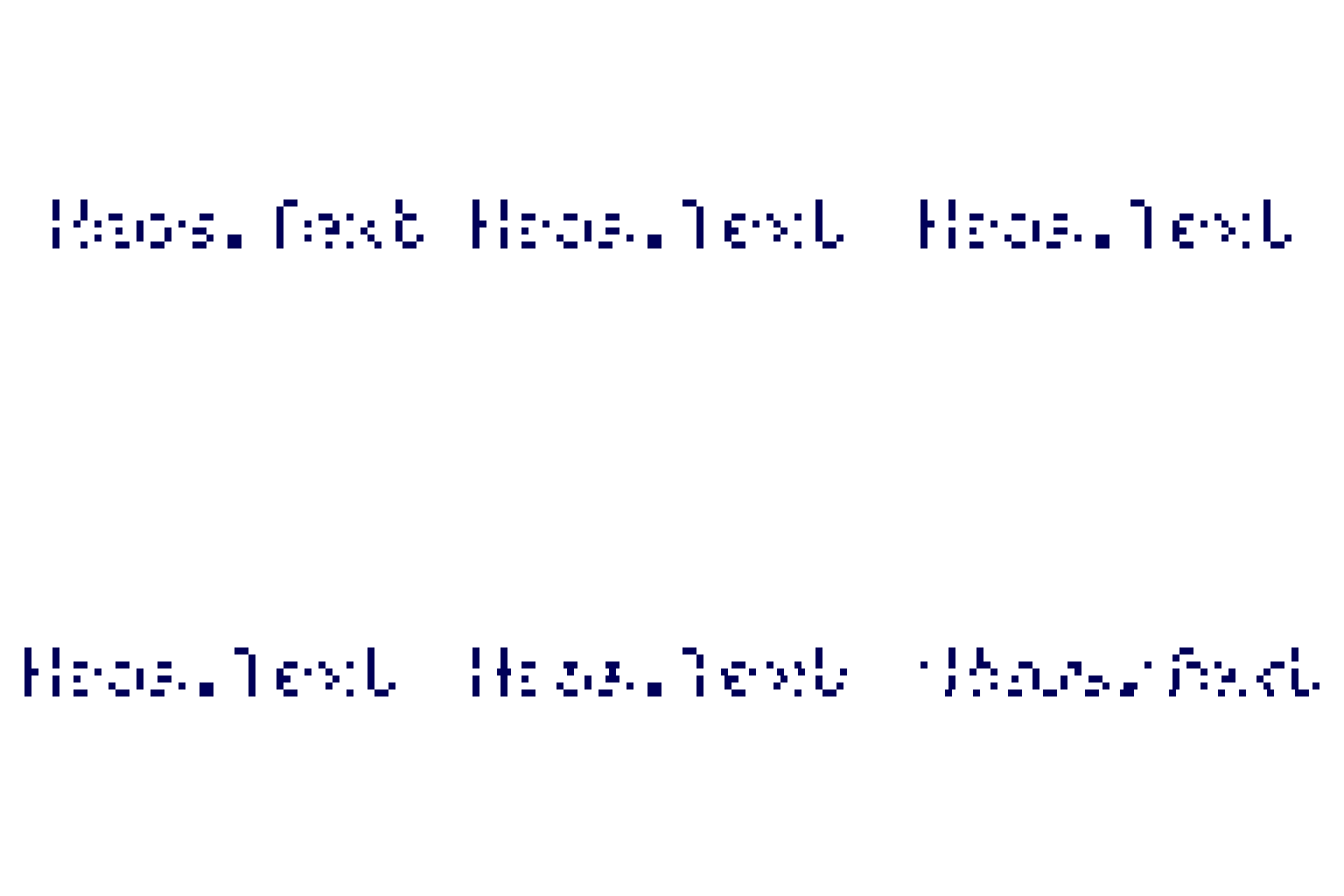
Heos Text
A downloadable tool
V4. Frame-based font editing + improved 3x5
The 3x5 font has been reworked: M, N, Ñ, and W now display at their proper width (4–5 pixels each, instead of a compressed 3). Since the renderer uses variable-width glyphs, this works seamlessly without affecting any other letters. If you have existing text using the 3x5, it will now be slightly wider and read much more clearly.
The font creation workflow now has a second mode: Frames. Instead of drawing all characters in a single grid, you can generate a multi-frame sprite where each frame holds one letter at full zoom, with its reference glyph faintly stamped as a guide. Turn on onion-skin and you'll see the previous letter in the background—perfect for maintaining consistent stroke weight and x-height across the whole font. The charset is automatically saved inside the sprite's metadata, so you can close and reopen it days later and it will still know which frame is which letter.
You can freely convert between the two layouts: click "To frames" to unpack a grid into a frame-per-character sprite, or "To sheet" to repack frames back into a grid. Both create new sprites, so your original is never touched. Load font also now reads directly from sprite frames, not just image files.
All the old workflows still work exactly as before—both systems live side by side.
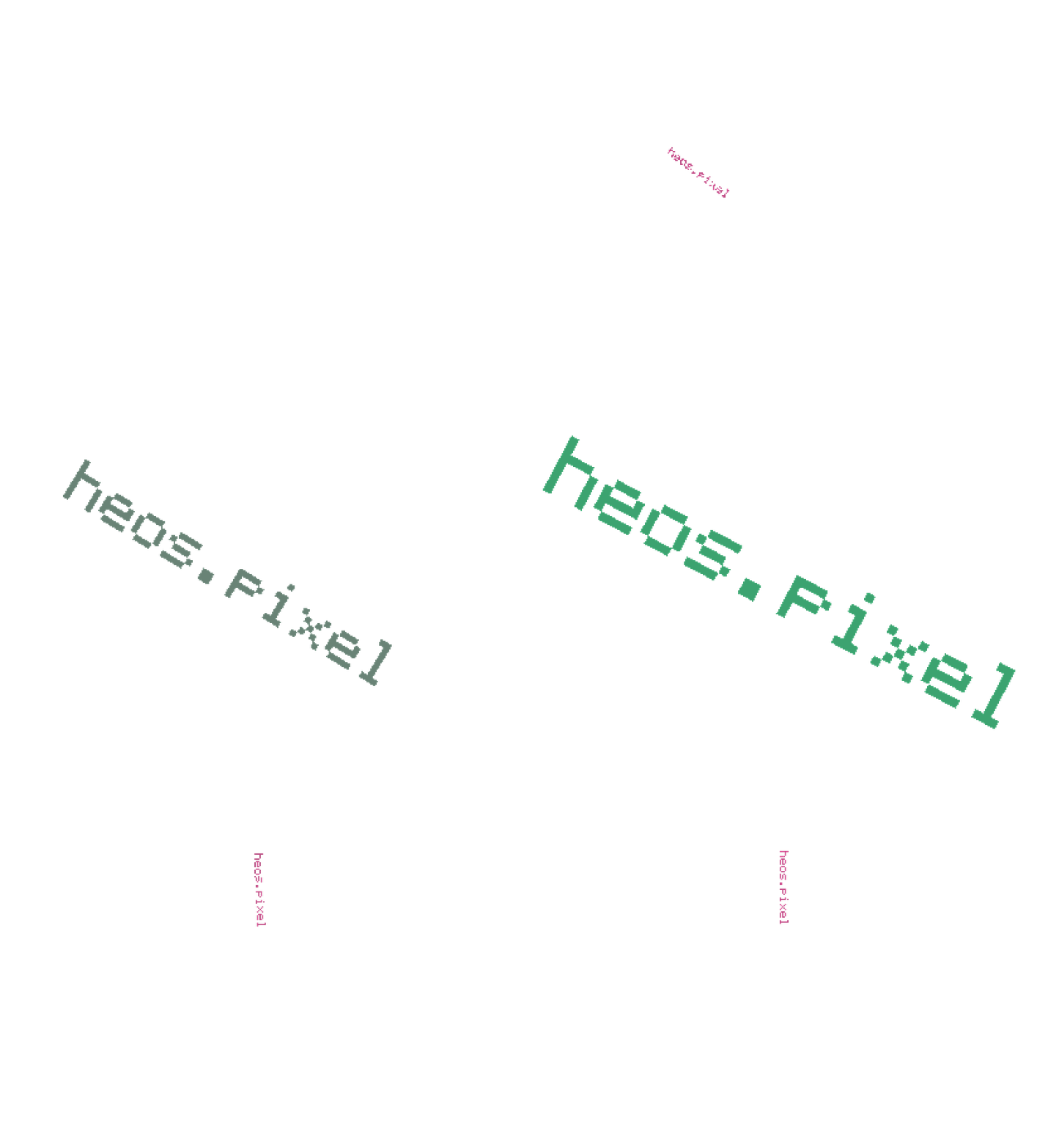
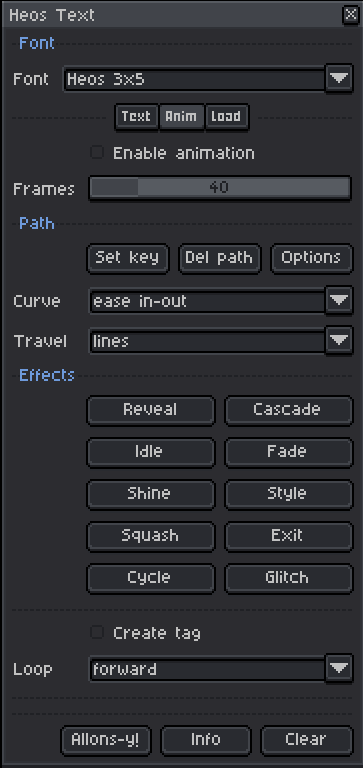
V3. Big update — The script now handles path-based animation: place a dot on the Heos_Text_Path layer and the text follows it. Each dot encodes position (its centre), scale (its width / Dot unit) and colour (its ink), so a single blob is a complete keyframe you can drag, resize or recolour by hand. The path layer is visible during editing, then hidden by the bake. Turn the text to face the path or to point at the letter's own stroke direction. A full suite of effects — reveal, cascade, idle wiggle, fade, ghost trail, shine, squash, exit, colour cycling, glitch, outline and shadow — lets you build rich animated text without leaving the sprite.
New “Set key” button in the Anim tab: drops a marker on the current frame that captures the text's position, scale and colour. The “Del path” button clears the path layer; show it again to keep working on it. The “Allons-y!” button writes every frame of the animation, creating a tag if you choose.
V2. Small addition: There was already a line break in use, but it was a bit awkward to use (\n). Now, a shortcut button has been added for this, and it doesn't lose focus on the text box, making it more convenient.
I hate Aseprite's built-in text input feature. You have to guess the size, and the window closes as soon as you apply it… if you want to adjust it, you have to reopen the text input window, and not all the settings are saved. I've tried to fix that with this script. It only has two embedded fonts, but I've also added an easy way to create and use your own fonts in various sizes.
Heos Text is a Lua script for Aseprite that renders bitmap text with live preview, custom fonts, and template generation. Perfect for adding crisp, readable typography to pixel art without the frustration of Aseprite's native text tool.
Workflow
1. Open a sprite: Make sure it is in RGB or Grayscale mode (indexed sprites are not supported).
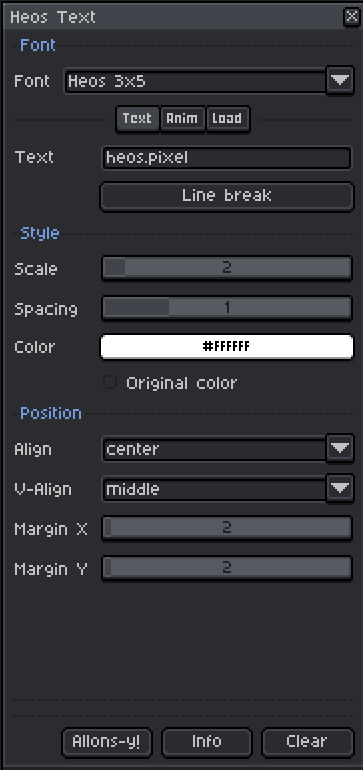
2. Type your text: Write your message in the text field. Use \n for line breaks.
3. Pick a font: Choose between the two built‑in fonts or a custom one you have loaded.
4. Adjust style and position: Change scale, spacing, color, alignment, and margins.
5. You don't need to click “Allons-y!” to save the text, but it's there just in case. You never know.
6. Edit or clear: Change any setting to update live. Press Clear to remove the text layer.
How the Font System Works
The script comes with two built‑in fonts: Heos 5x7 (real lowercase, includes Ñ/ñ) and Heos 3x5 (small‑caps style, also includes Ñ). You can also load your own fonts from an image sheet.
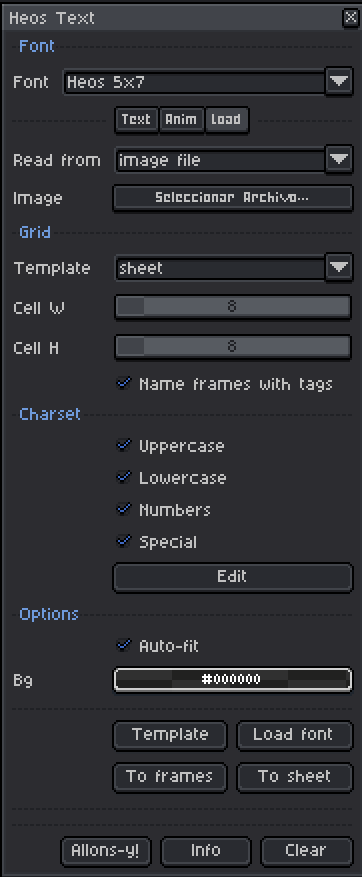
Loading a custom font: Use the "Template" button to generate a blank sprite sheet with a grid and the characters you need. Draw your glyphs inside each cell on the "Font" layer (the faint guide lines are ignored during import). Then go back to the script, pick the image file, set the correct cell size, and press "Load font". The font will appear in the dropdown.
Auto‑fit: When loading, this option automatically trims empty space around each glyph, making proportional fonts easier to create.
⚠️ Important – Loading a Custom Font
Just selecting an image file is not enough. You MUST click the "Load font" button after choosing the file. The template is only a guide for drawing; the actual font is imported only when you press Load font.
Parameters
Text: The string to render. Use \n to break lines.
Scale: 1 to 16; multiplies each pixel of the glyph.
Spacing: Extra pixels between characters (0 to 4).
Color: The main text color. Not used if "Original color" is enabled.
Original color: Keeps the original colors from a loaded font instead of using the solid color.
Align: Left, center, or right horizontally.
V‑Align: Top, middle, or bottom vertically.
Margin X / Margin Y: Offset from the edges (in pixels, before scaling).
Cell W / Cell H: The width and height of each glyph cell in the source image (when loading).
Charset: Which character sets (uppercase, lowercase, numbers, special) to include when generating a template or loading a font. Use the "Edit" button to customise the characters in each set.
Tips
When designing your own font, draw only inside the cells. Use a background color that is clearly different from your ink (for example, bright magenta) and set that color as "Bg" in the Load tab – this helps the script ignore the guide lines. Turn on Auto‑fit for proportional fonts, turn it off for monospaced fonts.
The script respects the sprite's colour mode (RGB or Grayscale). This allows you to create fonts that are much more creative and rich in detail—or maybe even something that isn't strictly a font? The text layer is updated live, so you can tweak parameters while seeing the result. Use the "Clear" button to completely remove the text layer when you are done.
You can use the script to animate text. Type a letter, create another frame, and type the next one. You can also move the text or change its color.
Compatibility
Requires Aseprite 1.3.x or later. Works with RGB and Grayscale colour modes. Indexed sprites are not supported.
Examples
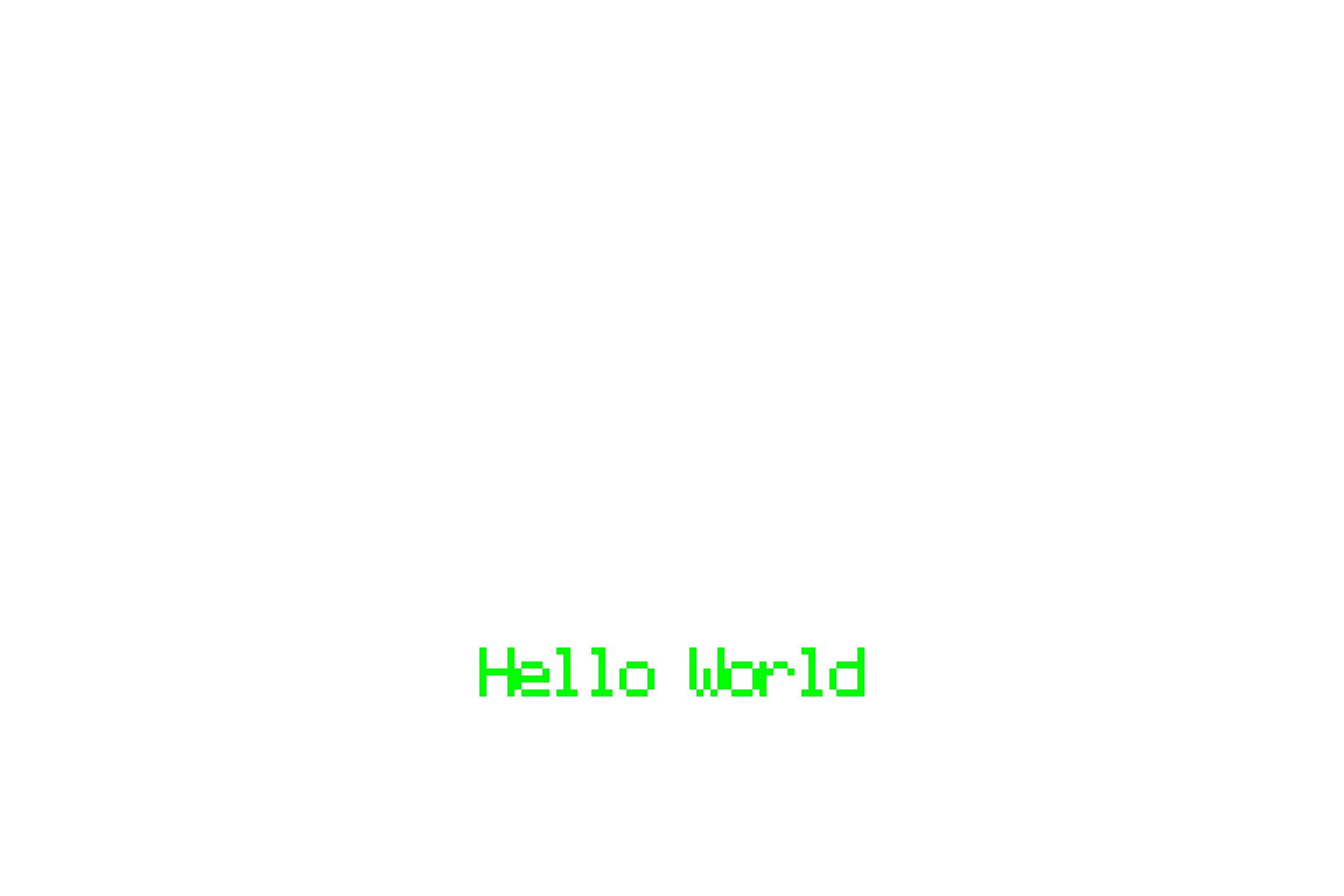

If you create a font using the template, please let me know in the comments (including the size), and I'll be happy to link to it.
V3:
Path animation:
Reveal/Cascade/Idle/Fade/Shine/Style/Squash/Exit/Cycle/Glitch
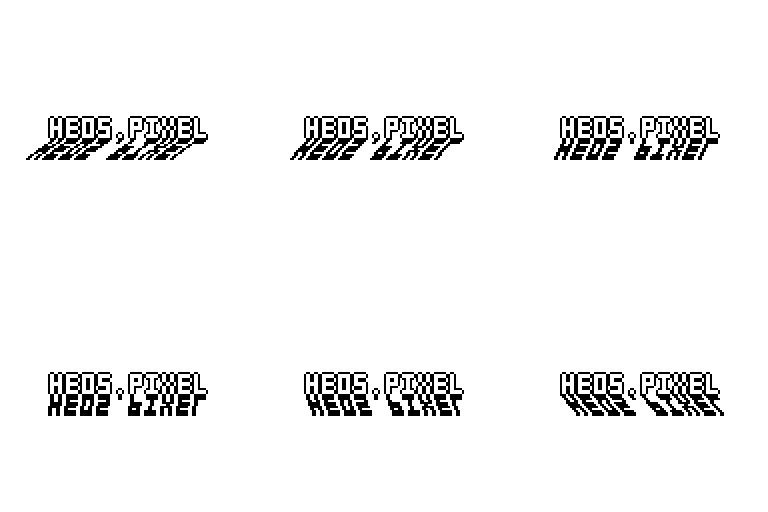
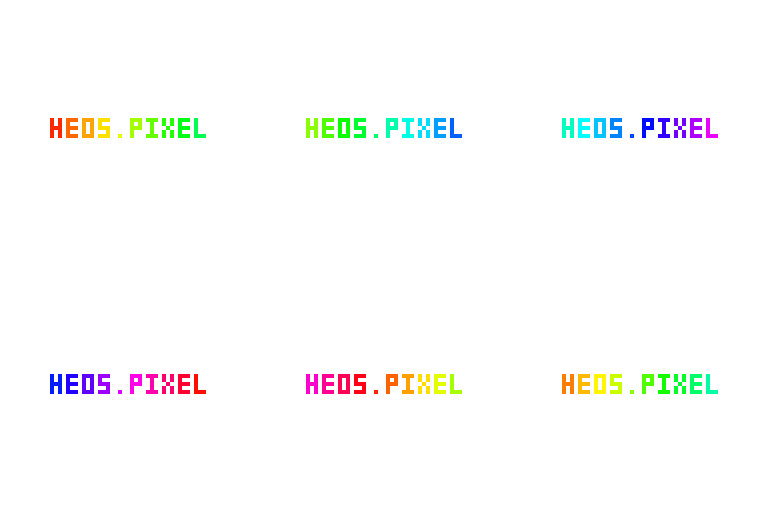
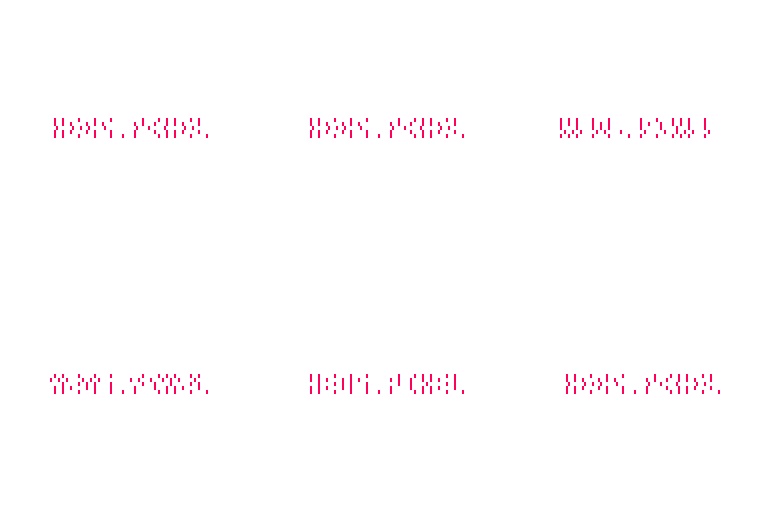
And yep, you can combine them. Each effect has its own settings so you can customize it to your liking.
Feedback & Support
I love seeing how you use Heos Text in your projects. If you have questions, ideas, or just want to share what you've made, feel free to leave a comment or reach out directly. It's always great to see your work in action.

If you found this tool useful, taking a moment to leave a rating really helps. Thanks for the support.
Download
Click download now to get access to the following files:
Development log
- Heos Text V38 days ago
Leave a comment
Log in with itch.io to leave a comment.