
Heos Twist
A downloadable tool
Heos Twist is a colour ray and twist animation generator for Aseprite 1.3.x. It creates animated gradients that spin, bend, pulse, ripple, or wave around a moving centre. You can use selections, animate the centre point over time, and even let colours follow the exact outline of your shape.
The script works inside Aseprite and adds a new layer named Heos_Twist without altering your original artwork.
Twist Centre & Animated Origin
By default the twist centre is the middle of your sprite or the middle of the active selection. To animate the centre across frames, press the CENTER button in the dialog — it creates the Heos_Center layer and sets your foreground colour to magenta (255,0,255). Paint one magenta (or red) pixel per frame on that layer wherever you want the twist origin. The script also recognises the older CENTER layer for backward compatibility.
Selection & Shape Conform
If you have an active selection (marquee), the effect is applied only inside the selected area. This works great for isolated objects or specific regions.
Enable Shape conform to change how colours flow: instead of following the angle around the centre, the gradient follows the distance from the selection’s border. The colours wrap along the contour of your shape, while the twist offset still animates over time. This creates effects that stick to the outline – glowing edges, contour pulses, or organic patterns that adapt to any form (circles, blobs, pixel art silhouettes).
Twist Modes – 20 Ways to Move
- Spin – constant rotation that speeds up with distance from centre.
- Bend – smooth progressive twist offset.
- Pulse – back‑and‑forth twist that grows and shrinks.
- Breathe – expanding twist with a soft floating oscillation.
- Wave – a travelling wavefront that rolls outward.
- Ripple – concentric rings of twist, like a stone thrown in water.
- Sector – a moving wedge of colour, sharp and directional.
- Kaleidoscope – radial mirror symmetry, folding angles into neat slices.
- Vortex – strongest twist near the centre, fading outward.
- Strobe – alternating between full twist and no twist each frame (adjustable Beat).
- Shockwave – a single tight ring of twist expanding from the centre.
- Unwind – starts completely twisted and slowly unrolls to straight rays.
- Fold – mirrors each angular sector, creating sharp symmetrical patterns.
- Nova – a bright ring that expands and twists at the same time.
- Pendulum – a sweeping arc that oscillates like a pendulum, with adjustable sweep and wake.
- Pinwheel – hard‑edged spinning blades (number of blades adjustable).
- Screw – helical twist along any axis (set the Axis angle).
- Spiral – logarithmic spiral arms that tighten toward the centre (Tightness).
- Turbulence – organic, cloudy distortion driven by value noise (Noise scale).
- Wind‑up – slowly winds up, holds, then quickly releases (Hold %).
Strength, Direction & Easing (Curve)
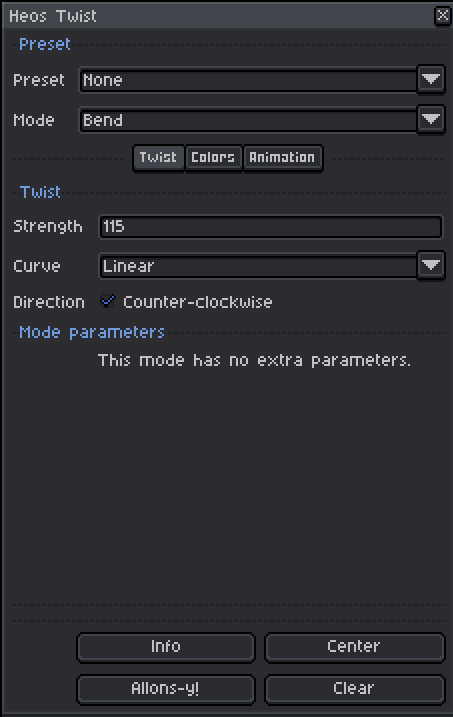
Strength controls the intensity of the twist (maximum angle offset in turns ×100). CCW toggles rotation direction (counter‑clockwise). The Curve (Easing) changes how colours transition from one to the next across the animation timeline:
- Linear – uniform speed, no acceleration.
- Ease In – starts slow, then accelerates (colours linger near the beginning).
- Ease Out – starts fast, then decelerates (colours linger near the end).
- Ease In/Out – slow at both ends, faster in the middle.
Easing affects the temporal flow of the animation – how quickly the colour cycle progresses over frames, independent of the geometry.
Colour Distribution – How Colours Wrap Around
While Easing (Curve) controls time, Distribution controls space – how the colour list is mapped across the angle or distance field inside each frame. You can play with both independently to get wildly different looks.
- Linear – uniform mapping across 0° to 360° (or border to centre).
- Init – more colour samples near the start (first colours are stretched, later colours compressed).
- Final – more colour samples near the end (later colours dominate).
- Equalize – compensates for uneven pixel density (e.g. a star‑shaped selection). Each colour covers the same number of pixels. Perfect for complex selections where you want balanced visibility.
- Sine – sinusoidal warp, smooth acceleration and deceleration across the angle/radius.
- Step – hard quantised bands (no interpolation between colours).
- Dither – adds a small random noise to break banding, giving a grainy / retro feel.
- Bayer – ordered 4×4 dither, produces a more structured pixel‑grid noise.
- Ping‑pong – goes forward through the colour list, then backwards, then forwards – like a mirrored loop. Creates a “bouncing” palette effect.
- Radial – maps the colours by distance from the centre (instead of angle), equalising the pixel count per distance ring.
Playing with Curve + Distribution
You can combine Easing (Curve) and Distribution to create unique motion / colour behaviours. For example:
- Ease Out + Final – colours drift slowly toward the end and stay there (great for sunset / fade).
- Ease In + Init – colours burst out from the first few hues, then quickly change.
- Linear + Equalize – perfect technical look, each colour gets exactly the same pixel area.
- Ease In/Out + Sine – smooth, breathing transitions both in time and space.
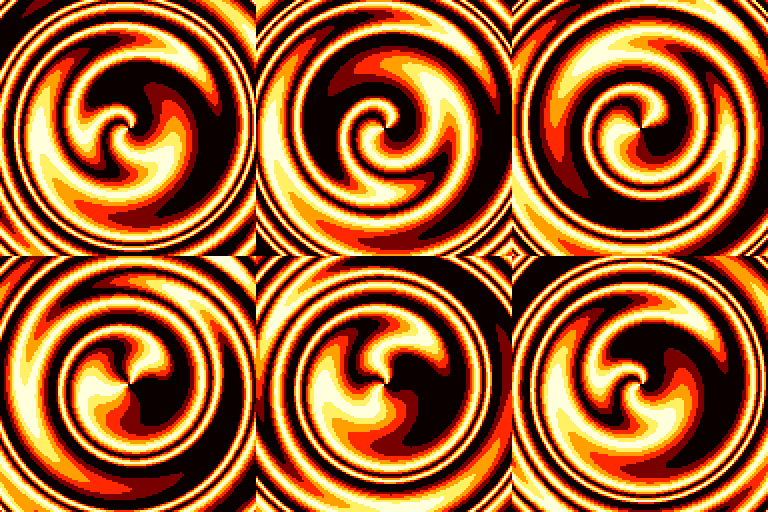
- My personal favourite: Lava preset + Distribution = Ping‑pong.
Mix any distribution with any easing – unexpected combos often produce the most interesting results.
Colour Palette & Repeats
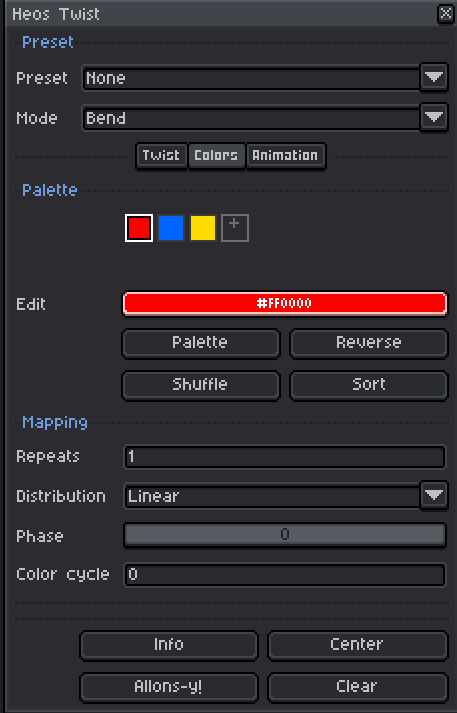
The built‑in colour swatch lets you add, remove, and pick colours (up to 20). The repeats slider decides how many times the colour list cycles along the twist or distance field. For example, three colours with repeats=2 gives two full cycles from start to end.
You can also select a preset from the drop‑down menu (Rainbow, Fire, Ocean, Neon, Sunset, Acid Wave, Ice, Lava, Candy, etc.) to instantly try out different looks; the preview updates automatically. Alternatively, you can use the colour palette you've selected directly by clicking the “Palette” button. Select your colour range or import the entire palette (maximum of 20 colours).
Animation Timing & Loop
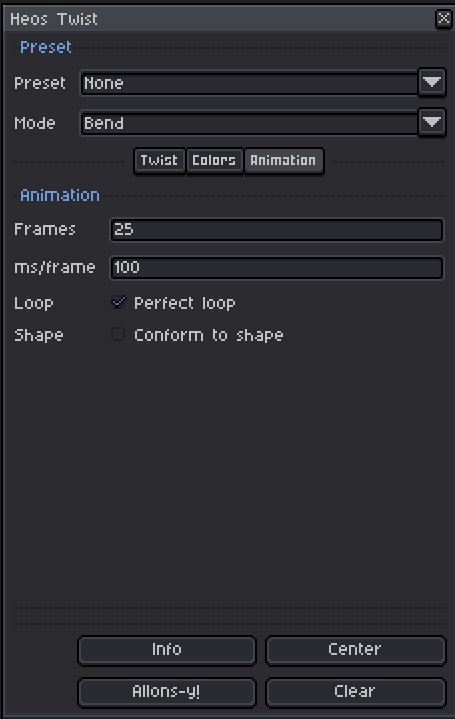
Set the number of frames (2 to 120) and the duration per frame (ms/frame). Enable Perfect loop to make the first and last frame match seamlessly – ideal for gifs or repeating animations. Disable for one‑shot sweeps.
Every time you generate, the script creates or overwrites a layer named Heos_Twist and adds the required frames, even with the animation playing. Your original artwork stays untouched.
Clear & Manage
Use the Clear button to delete the Heos_Twist layer and remove extra frames added by the script. It keeps your original frames safe. The Allons‑y! button generates the full twist animation with your current settings.
Tips for Best Results
- For shape conform, make a precise selection around your object – the distance field works best with closed, non‑fragmented areas.
- Use the
Heos_Centerlayer with two or three keyframes to create slow, cinematic pans or wobbling centres. - Lower strength values (30–80) produce subtle shimmering; higher values (150+) create extreme twisting.
- Combine selection + shape conform to get contour hugging colour waves – ideal for magic spells or glowing creatures.
- Experiment with Curve + Distribution – don't just set both to Linear. Try Ease In + Init for an explosion of the first colour, or Ease Out + Final for a fading tail.
- My favourite effect: use the “Lava” preset and set the distribution to “Ping‑pong.” Nice!
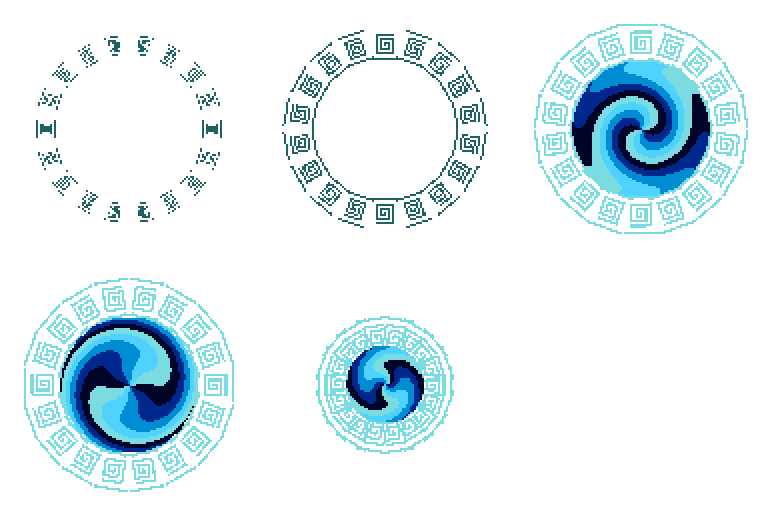
- Maybe it would make a good pair with “Heos Portal Maker”.
Examples
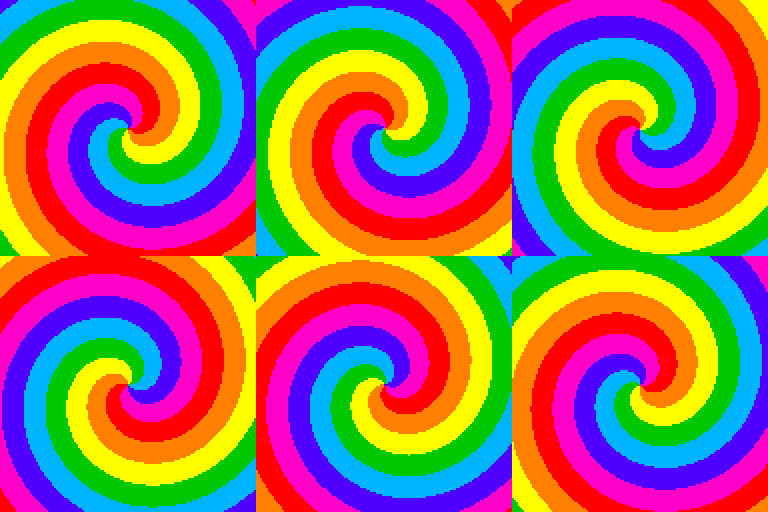
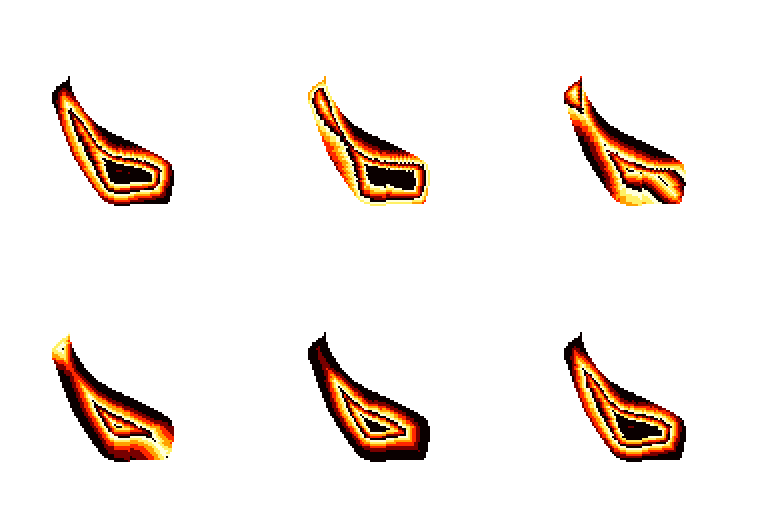
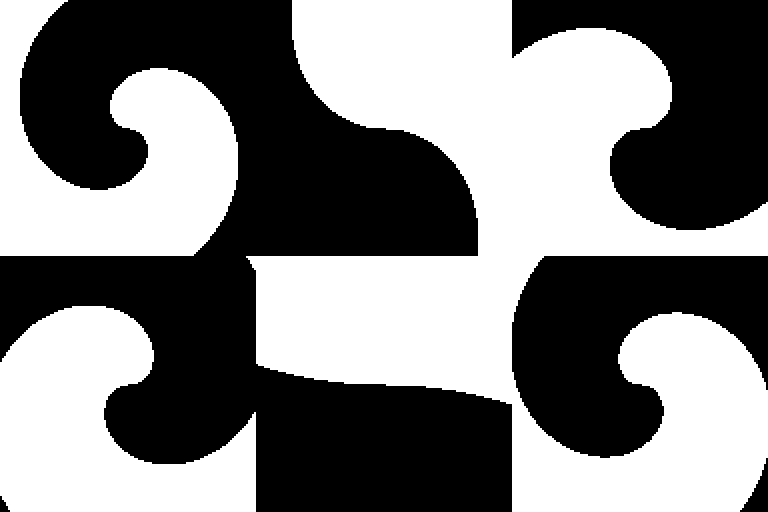
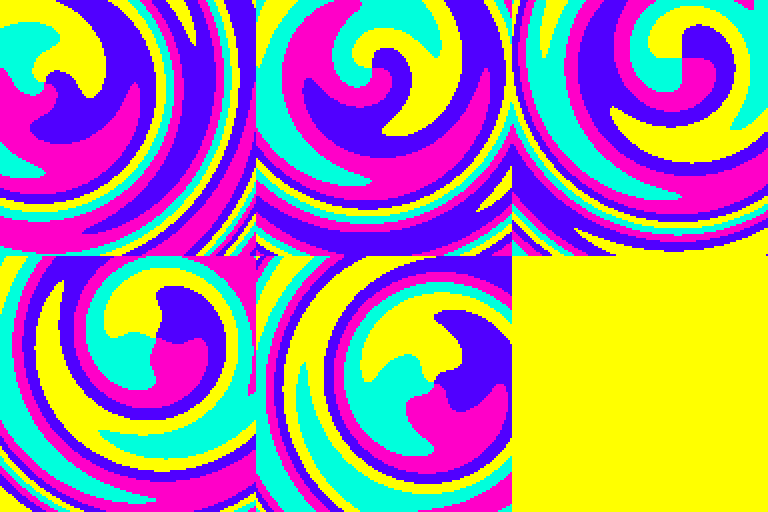
my favourite (Lava + ping pong) and using Heos Portal Maker
💬 Feedback & Support
I love seeing how you use Heos Twist in your projects. If you have questions, ideas, or just want to share what you’ve made, feel free to leave a comment or reach out directly. It’s always great to see your work in action.

If you found this tool useful, taking a moment to leave a rating really helps. Thanks for the support. ❤️
Purchase
In order to download this tool you must purchase it at or above the minimum price of $3.99 USD. You will get access to the following files:
Leave a comment
Log in with itch.io to leave a comment.