Relight
A downloadable tool
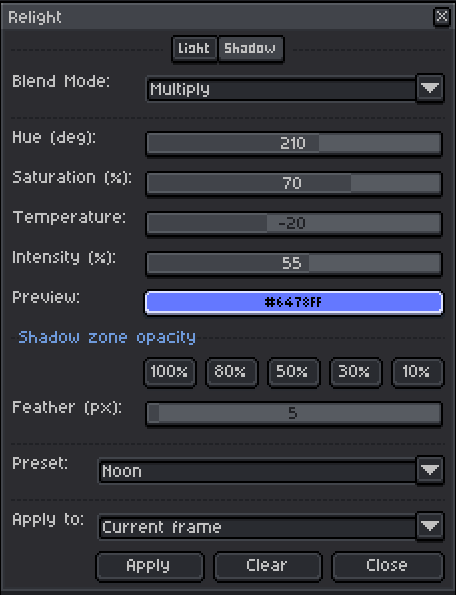
Relight is a non-destructive lighting and shading script for Aseprite. It allows you to add dynamic atmosphere and volume to your sprites by generating dedicated light and shadow layers without modifying your original artwork.
Core Features
- Lighting Modes: Apply uniform lighting to the entire sprite or define specific light and shadow areas using a zone system.
- Layer Management: Automatically creates
RELIGHT_LIGHTandRELIGHT_SHADOWlayers with configurable blend modes. - Presets: Includes 19 pre-configured settings such as Noon, Sunrise, Cyberpunk, and Underwater for instant mood shifts.
- Precise Control: Adjust hue, saturation, intensity, and color temperature for both light and shadow independently.
- Complementary Shading: Shadows are automatically calculated to provide a natural contrast to the chosen light source.
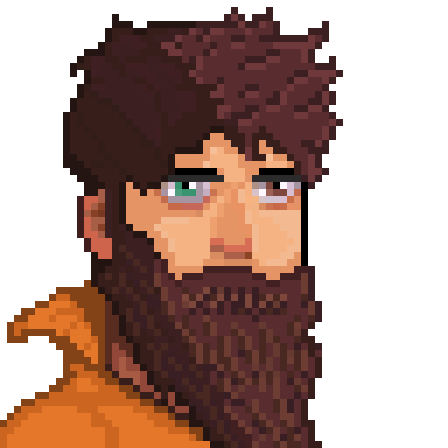
Original image
How it Works: The Zone System
The script utilizes a special layer named ZONES. By painting on this layer with specific colors, you control the effect placement:
- Red (255, 0, 0): Defines light zones.
- Blue (0, 0, 255): Defines shadow zones.
- Feathering: The effect fades linearly from the edges of your painted zones based on the pixel radius you define in the dialog.
Quick Intensity Buttons (100%, 80%, etc.)
The script includes dedicated buttons (100%, 80%, 50%, 30%, 10%) for both light and shadow zones:
- Purpose: These buttons serve as shortcuts to set your Foreground Color to the correct Red or Blue with a specific Alpha (Opacity) value.
- Local Control: Since the script interprets the Alpha of the pixels in the
ZONESlayer as "local intensity," using these buttons allows you to paint areas with different levels of light or shadow strength within the same frame. - Workflow: Instead of manually changing the brush opacity, simply click a percentage button and paint exactly where you want a stronger or softer effect.
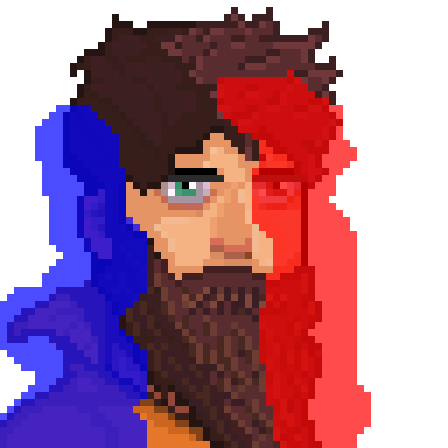
“Zones” painted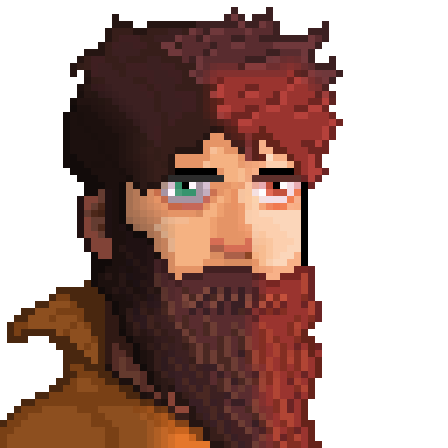
Result with the “campfire” preset
Animation Workflow
- Batch Processing: Use the "Apply to" dropdown to choose between the Current frame or All frames.
- Dynamic Zones: If your animation involves movement, you can paint different zones on the
ZONESlayer for each frame. The script reads the specific zone data for every individual frame to update the lighting accordingly.
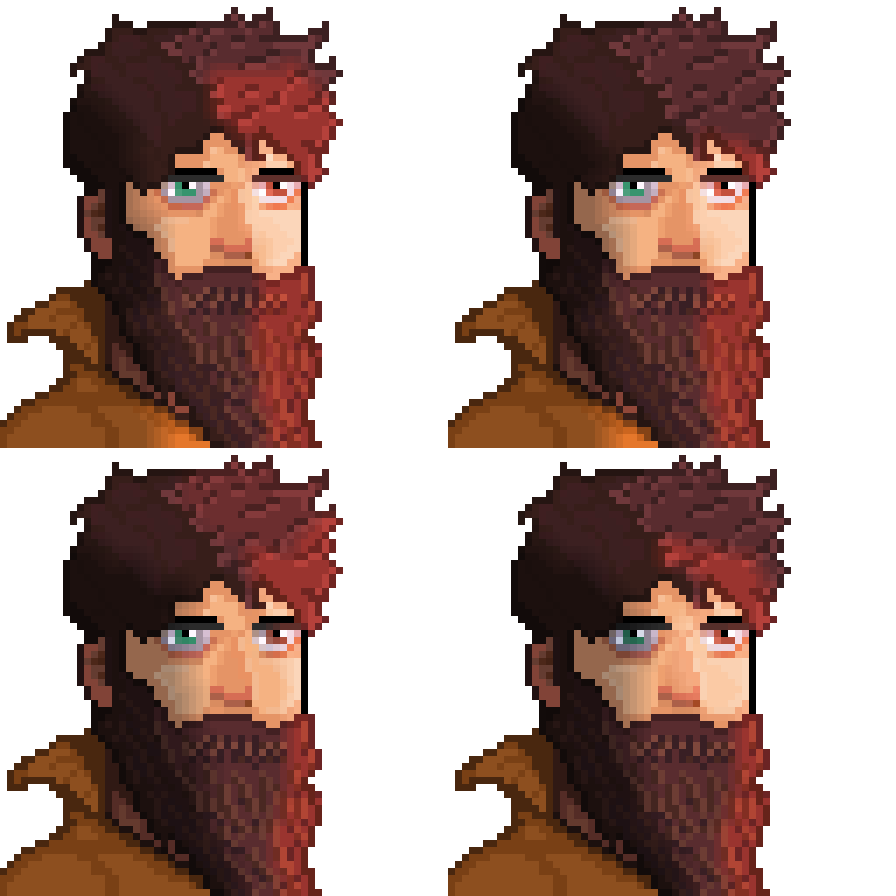
4-frame animation changing the “Zones”
Understanding Blend Modes
The script includes specific blend modes to suit different pixel art styles:
Light (RELIGHT_LIGHT)
- Screen (Default): The standard for lighting; it brightens colors based on the light source without losing the underlying hue.
- Soft Light: A subtle, natural lighting effect that is less aggressive than Screen.
- Hard Light: Creates sharp contrasts and intense highlights, ideal for stylized or high-energy scenes.
- Color: Changes the hue of the area while keeping the original luminosity mostly intact.
- Normal: Applies the light color as a standard overlay based on opacity.
Shadow (RELIGHT_SHADOW)
- Multiply (Default): The most effective way to shade; it darkens base colors by multiplying them with the shadow color.
- Darken: Only affects pixels if the shadow color is darker than the original, preventing over-saturation in already dark areas.
- Color: Tints the shadowed area with the shadow hue without heavily darkening the value.
- Normal: Applies the shadow color as a standard flat layer.
Common Use Cases
- Environment Toggling: Quickly switch a map from "Day" to "Night" using the Night or Moonlight presets.
- VFX: Create muzzle flashes, lightning strikes, or flickering alarms by applying the script to all frames and varying the intensity.
- Rapid Volumetrics: Use the zone system with a high Feather value to quickly add rounded shading to flat characters.
Relight v2: Animation Presets
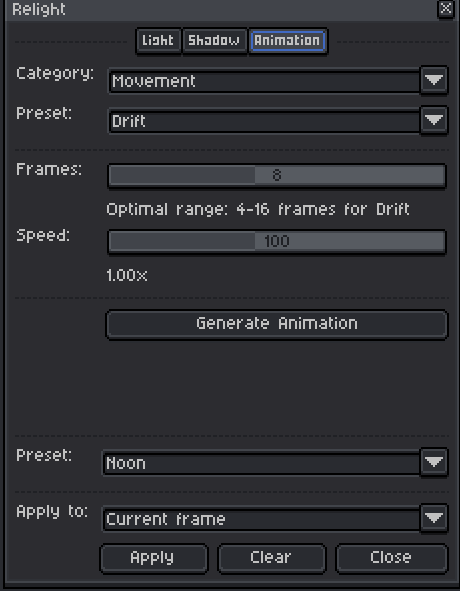
Version 2 includes an Animation tab with a preset system that automatically generates animation for your light and shadow zones throughout the frames. Simply paint your zones on the ZONES layer, select a category and preset, define the number of frames, and, with the layer containing the selected art and the ZONE layer visible, click Generate Animation.
The presets are organized into three categories: Movement, which moves the zones across the canvas following patterns such as Drift, Sway, Shake, or directional (Left, Right, Up, Down); Intensity, which varies the opacity of the effect with patterns such as Flicker, Pulse, Strobe, or Breath; and Morph, which distorts the shape of the zones with effects such as Grow, Shrink, Melt, or Twist.
The animations are generic because I can't read your mind (yet) and I don't know how you'll use the script, but we've tried to give you as much freedom as possible so you can adjust them manually to your liking. Both versions are included in the download: v1 for those who prefer a lighter script without this feature, and v2 for those who want to take advantage of the animation system. 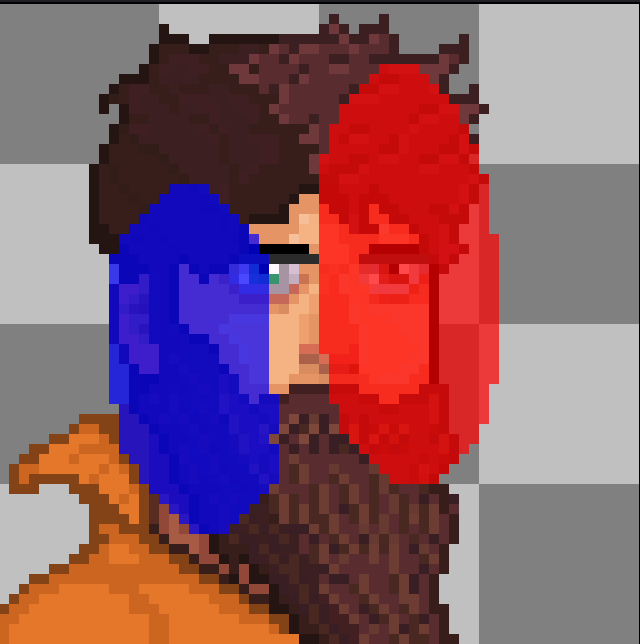
Zones, One frame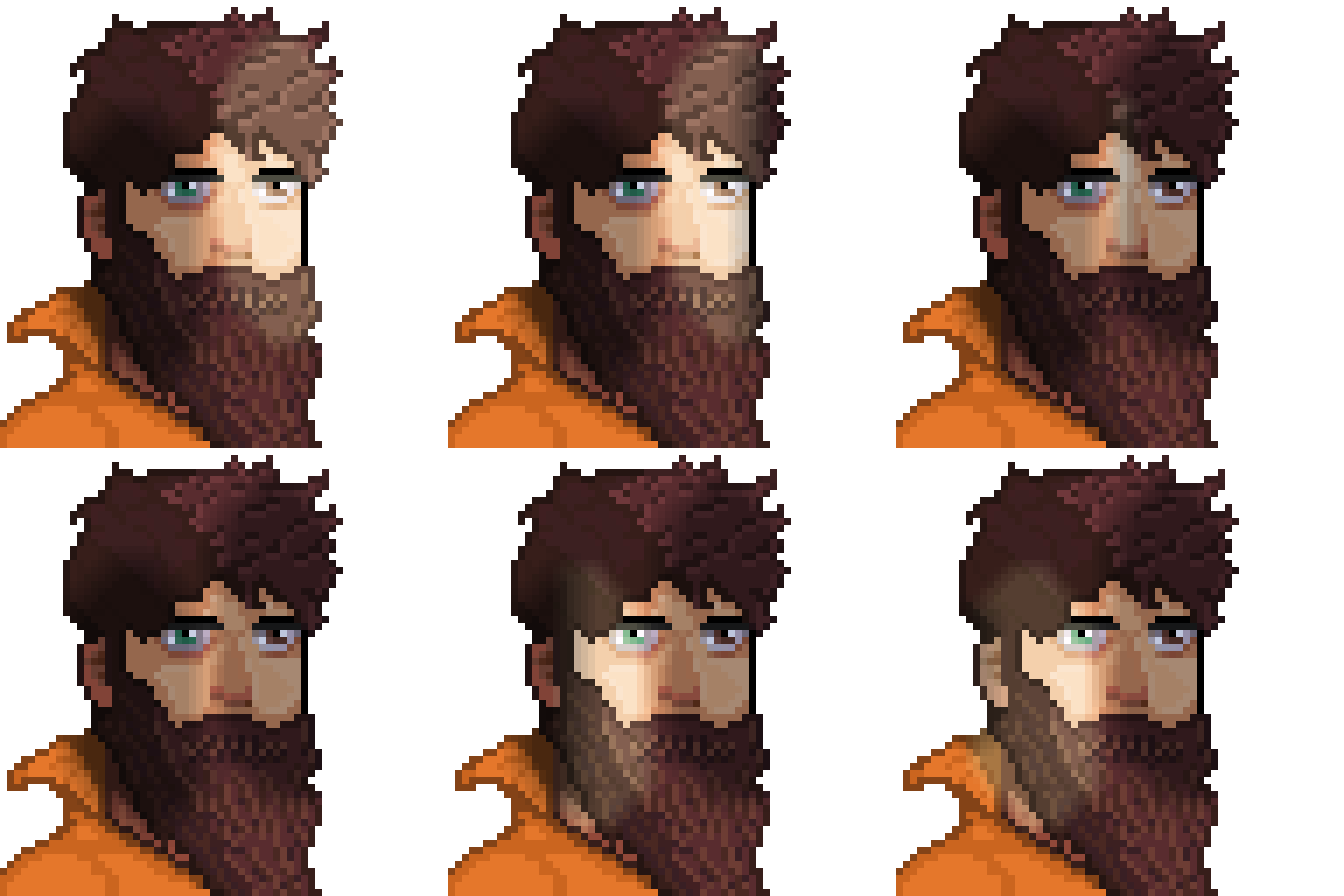
Automatic animation: Morph - Change
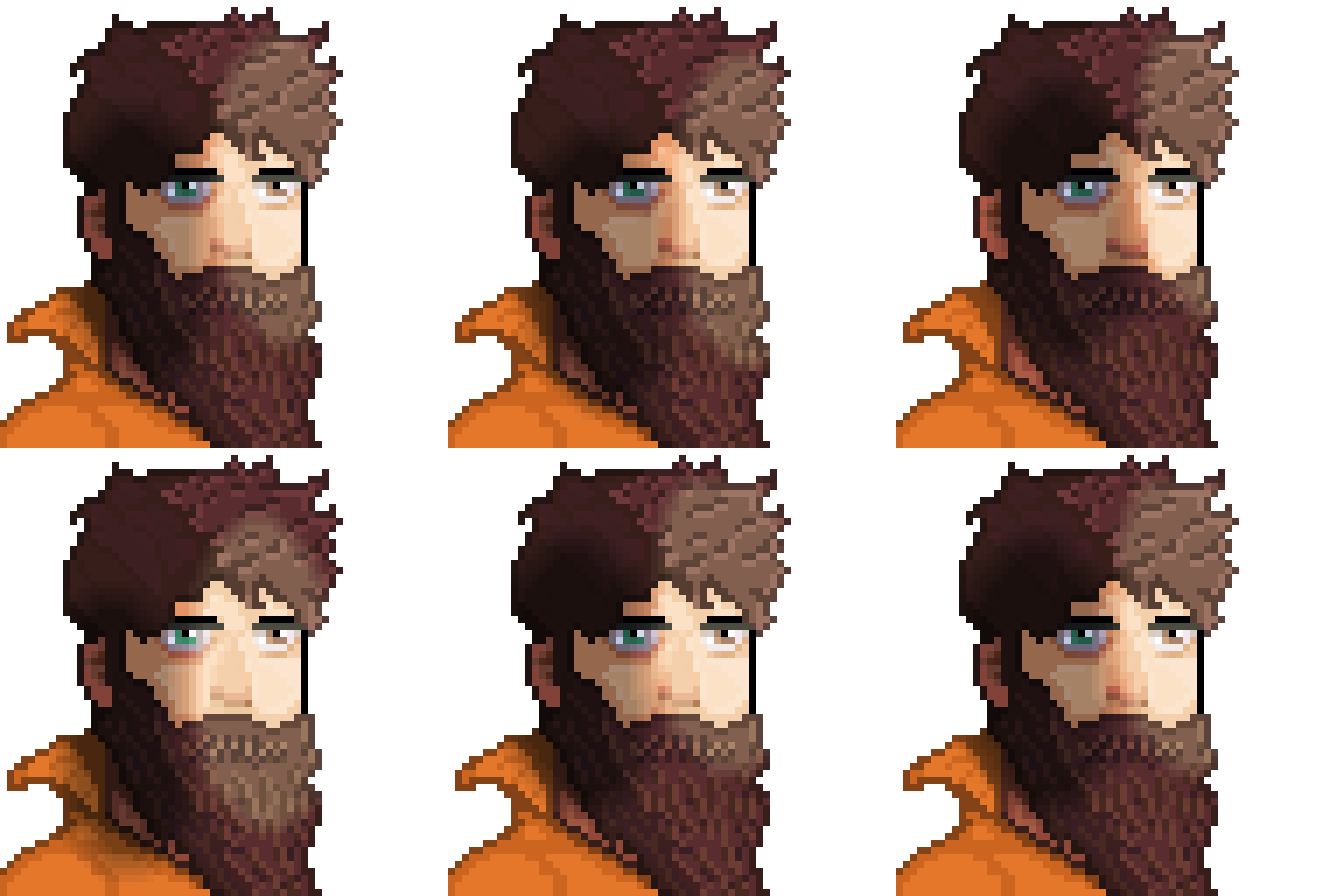
Automatic animation: Movement - Shake
💬 Feedback & Support
I love seeing how you use Relight in your projects. If you have questions, ideas, or just want to share what you’ve made, feel free to leave a comment or reach out directly. It’s always great to see your work in action.

If you found this tool useful, taking a moment to leave a rating really helps. Thanks for the support ❤️
Purchase
In order to download this tool you must purchase it at or above the minimum price of $3 USD. You will get access to the following files:
Leave a comment
Log in with itch.io to leave a comment.