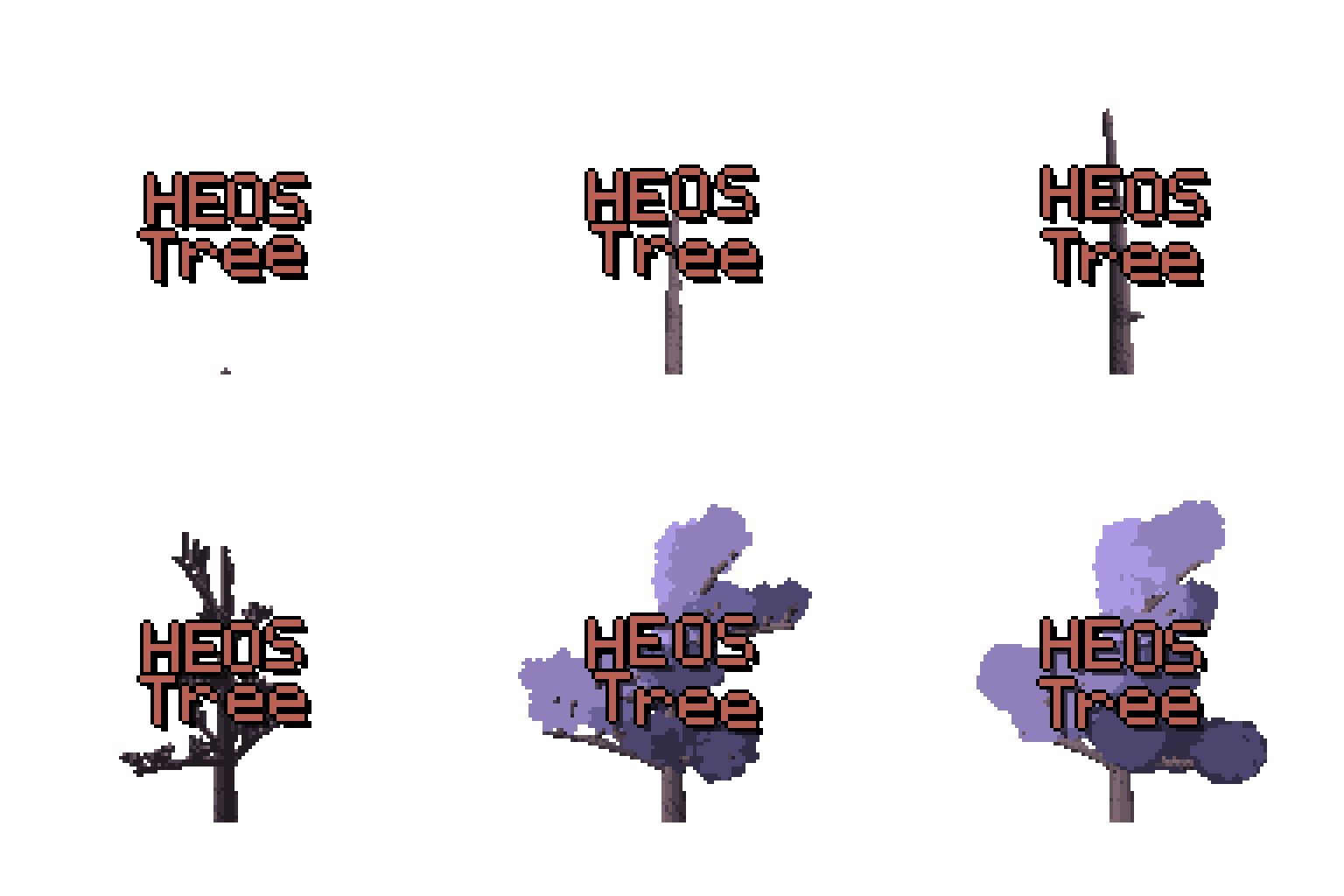
Heos Tree
Heos Tree is a Lua script for Aseprite that generates procedural trees with configurable 3D projection, layered foliage, bark stamps, roots, and full animation support.
Perfect for pixel‑art forests, fantasy landscapes, game assets, animated cinematics, or any scene that needs a hand‑crafted tree with natural variation and depth.
Before you start
Heos Tree is a deep tool – it has many tabs and parameters because it is designed to give you control over every aspect of the tree. That also means it can feel overwhelming at first. Do not let that stop you.
If you ever get lost, just hit Randomize or pick a Preset from the dropdown – both give you a working tree in one click, and you can tweak from there. The script is made to be explored.
One important note about framing: the Fit to canvas option (enabled by default) scales the tree so that the whole silhouette fits inside your sprite. On a small canvas (e.g. 64×64) this can make the tree look tiny and lose detail. For best results, work on a canvas of 128×128 pixels or larger. You can always turn off Fit to canvas and manually place the trunk base with a magenta pixel on a Heos_Marker layer.
If you have any questions or run into something unexpected, feel free to leave a comment or reach out – I am happy to help.
Examples
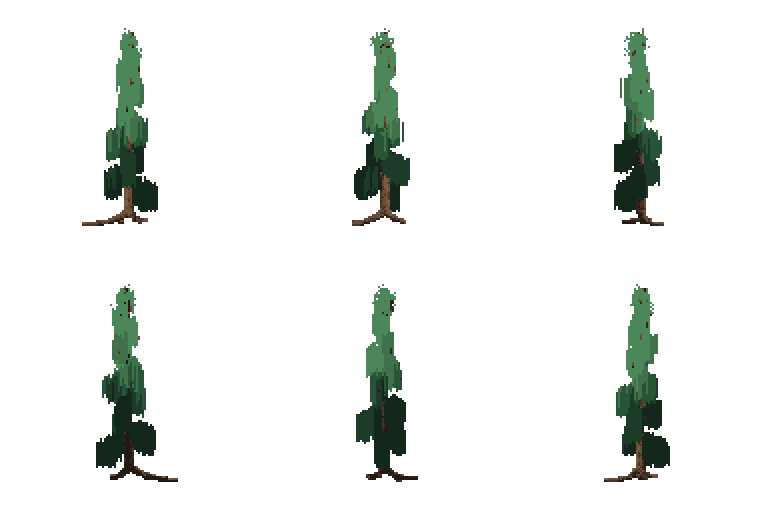
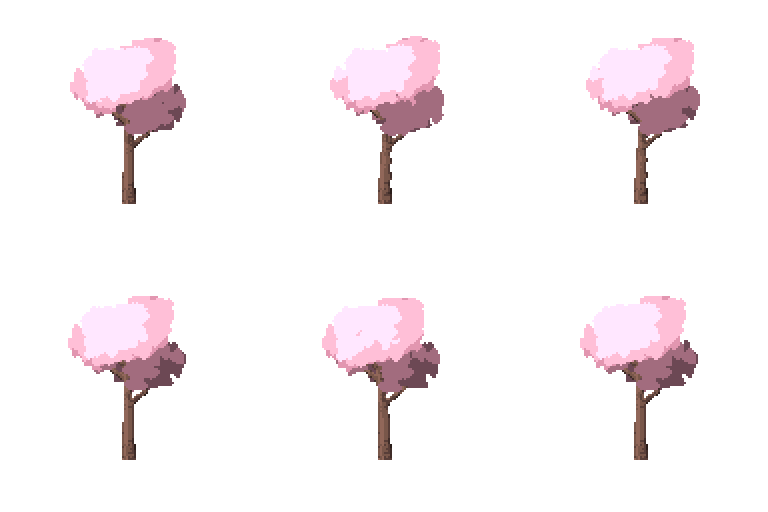
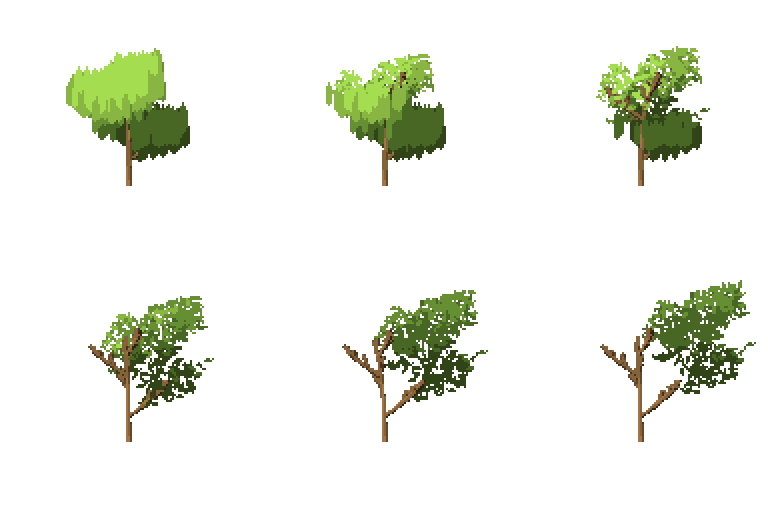
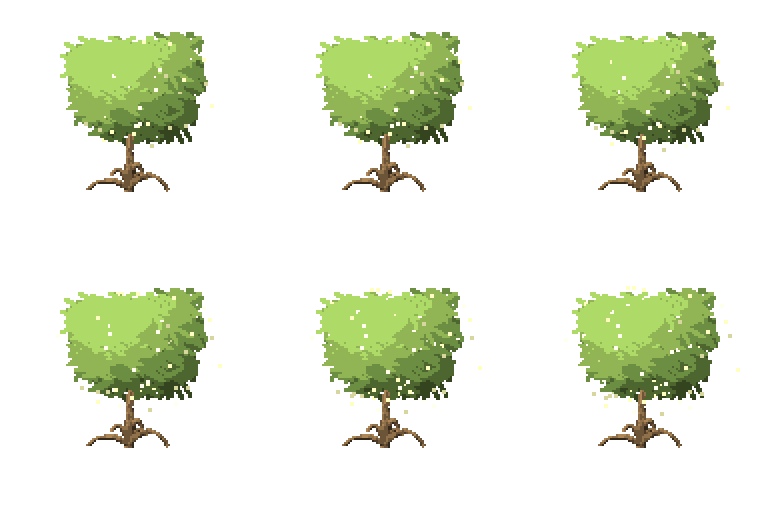
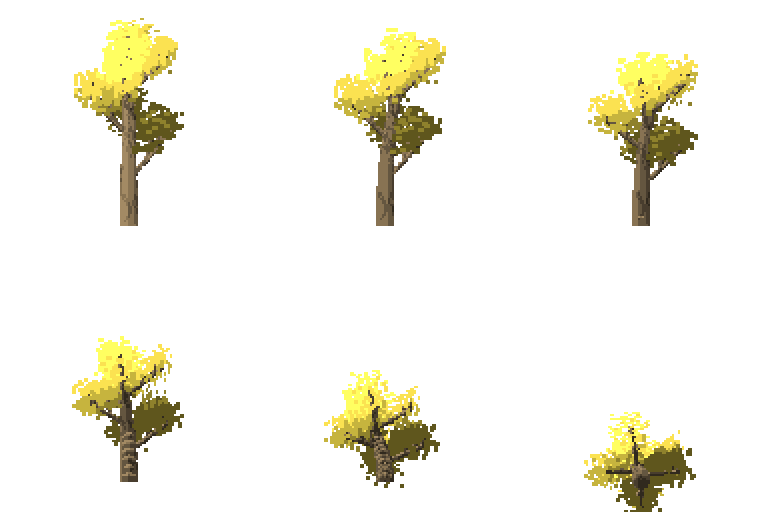
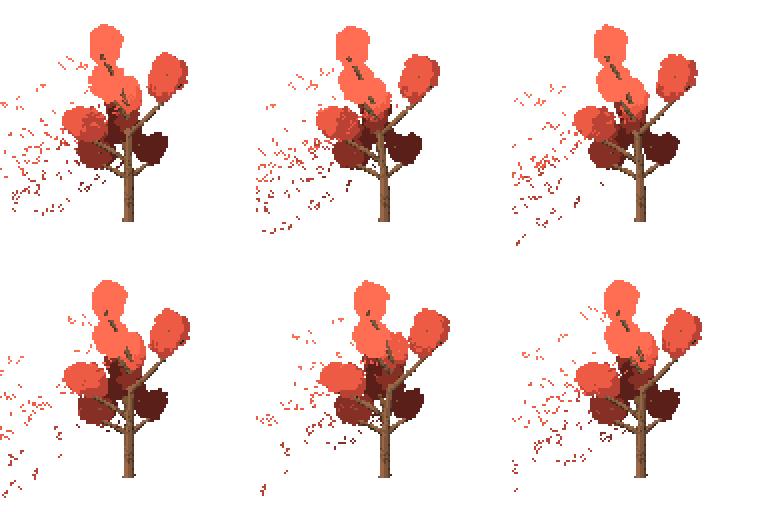
Custom:
Shape, drawn on the custom layer. Enabled: "90-degree steps," "keep drawn colors," and "exact drawn size"
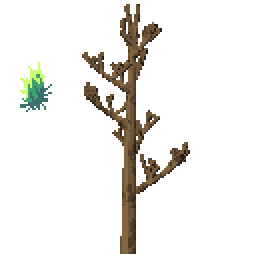
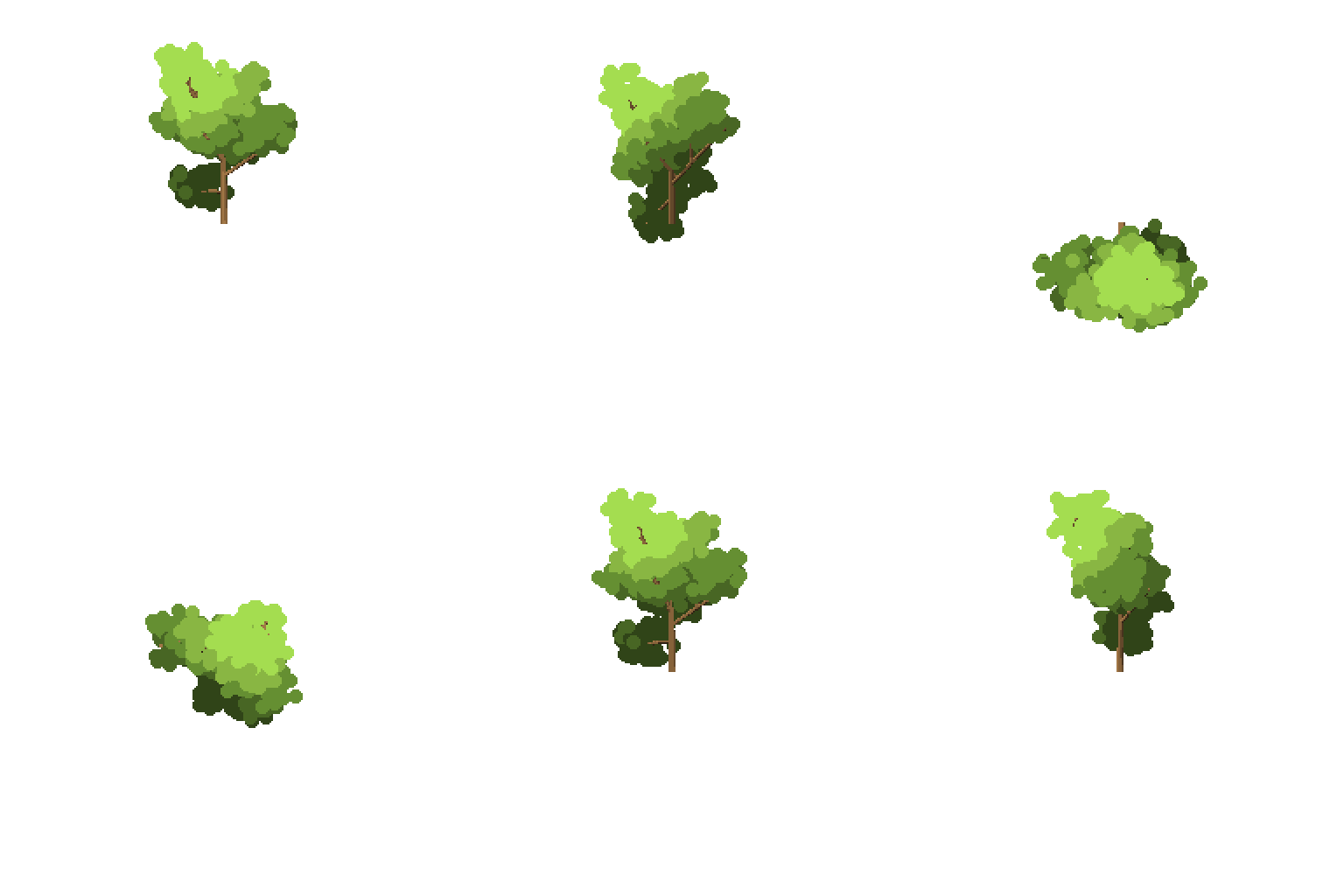
In "Leaves," orientation. Differences. (branch, down, inward, outward, random, up). In order.
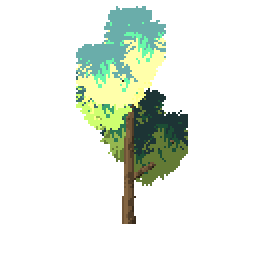
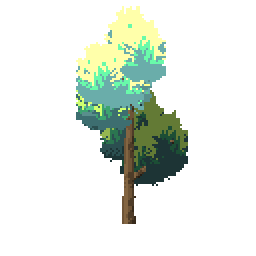
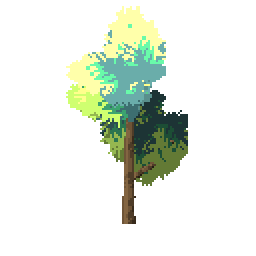
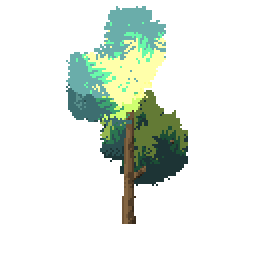
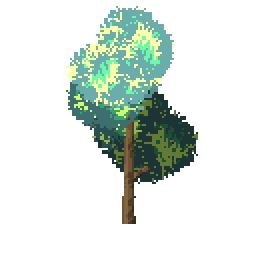
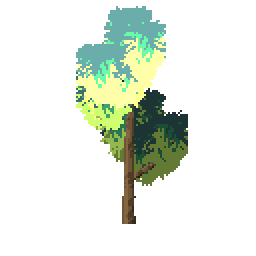
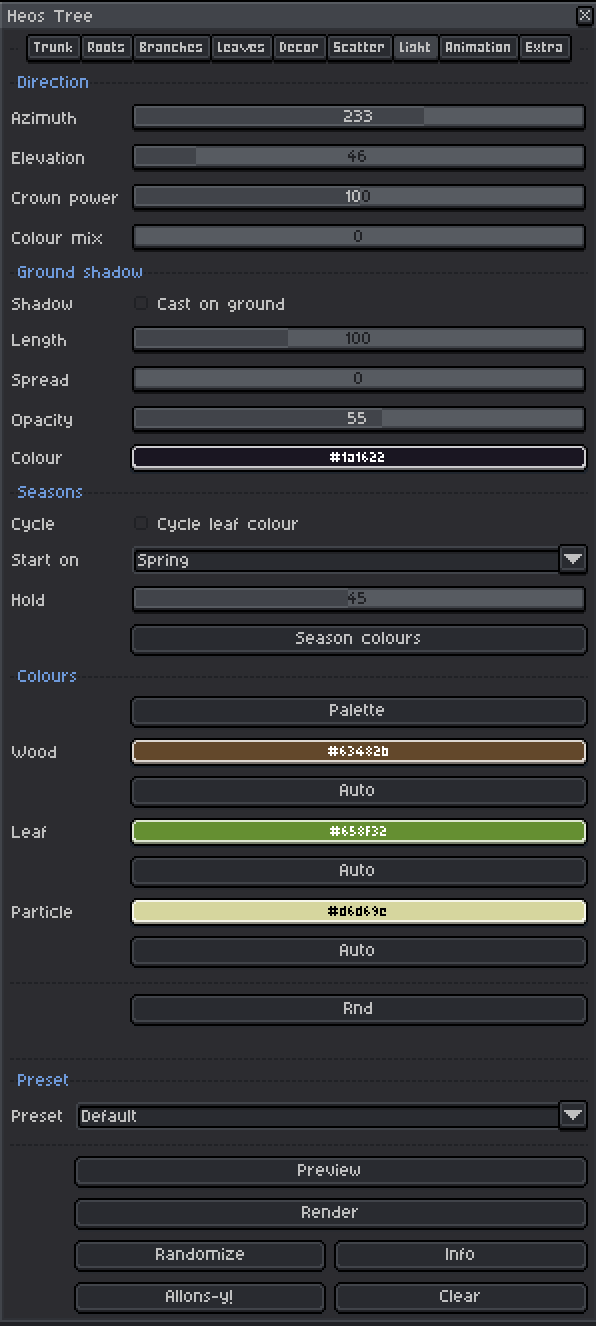
On the "light" tab, I adjust the crown power and color mix settings until I achieve a color I like.
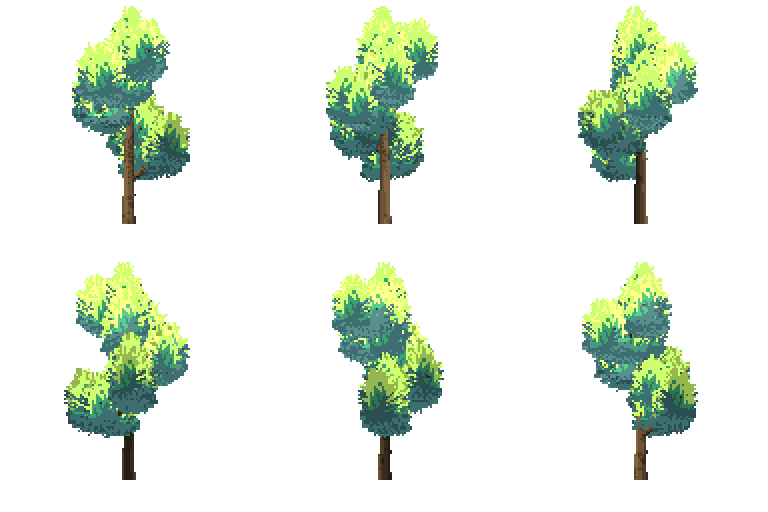
"Custom" can also be used to preserve only the shape.
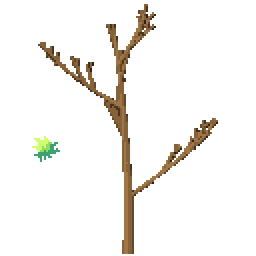
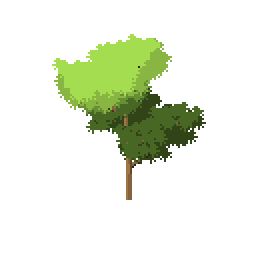
Animations:
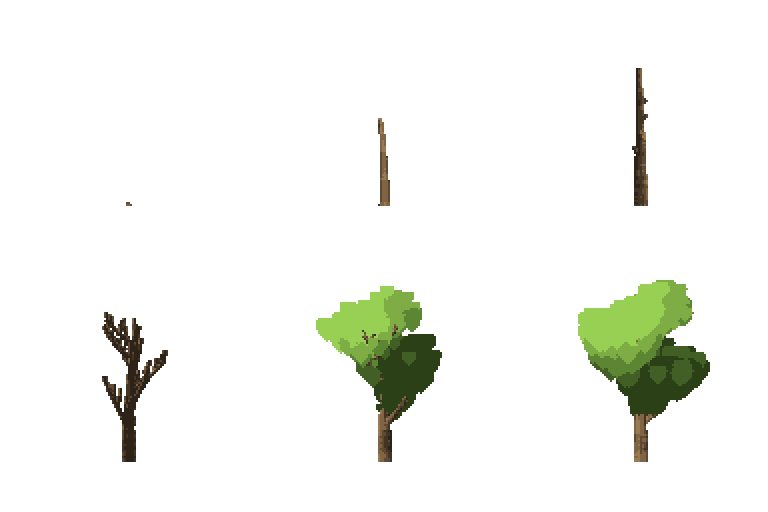
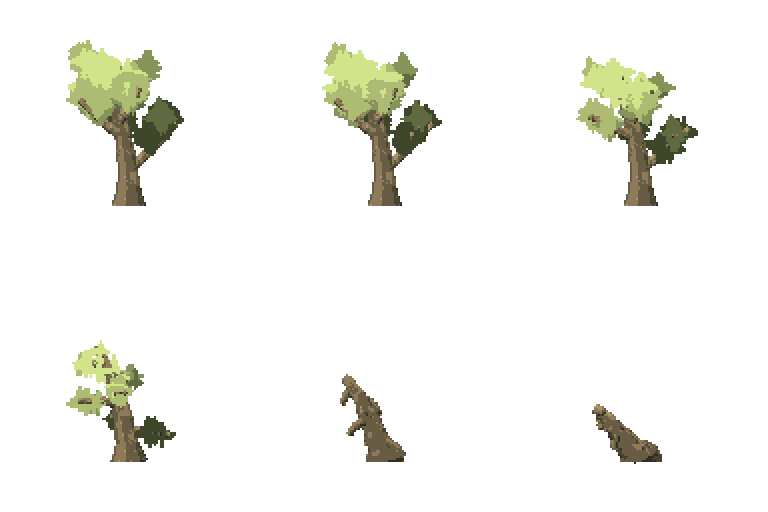
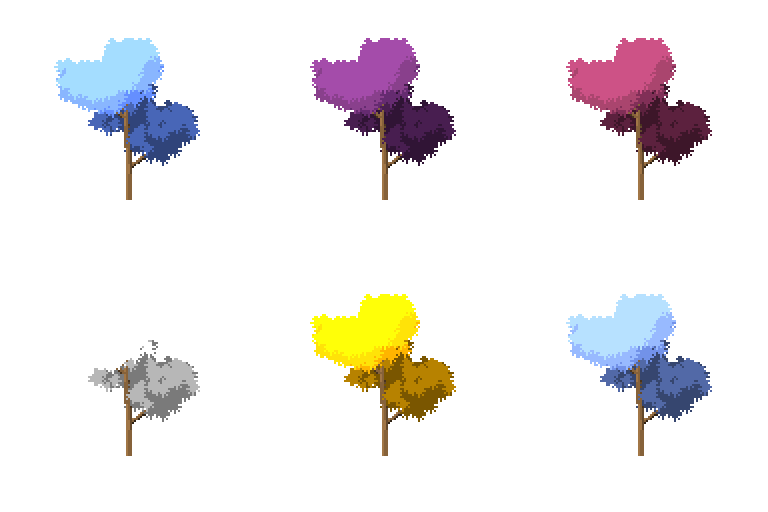
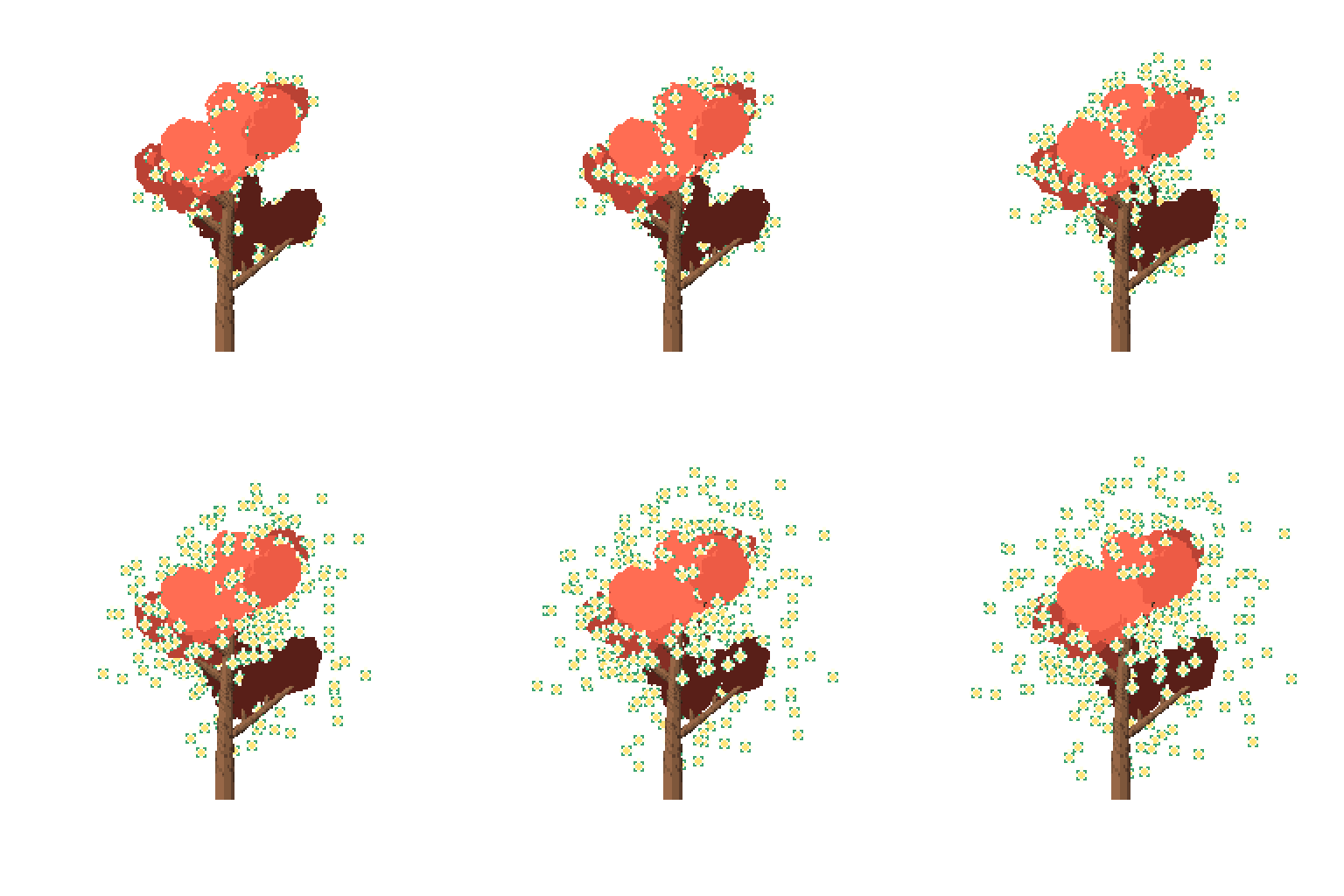
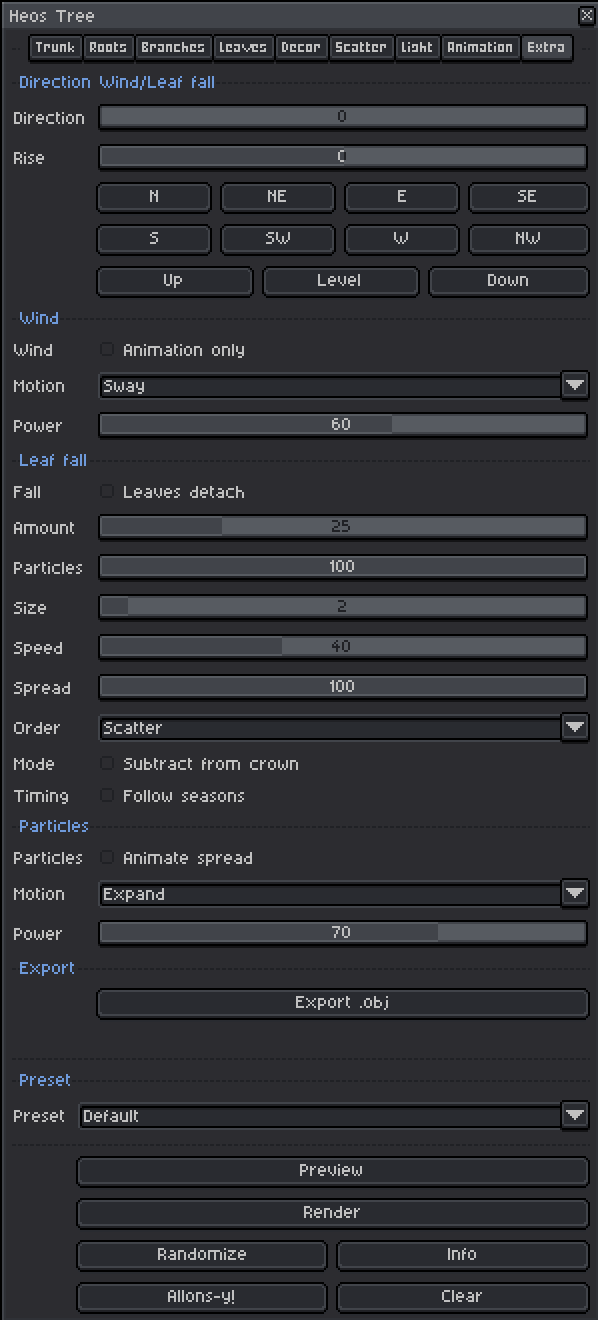
There are many types of animations. Some could be considered presets, while others offer advanced controls. As for animated presets, they are found under "Animation" - "Build Up" (Grow, Order, Decay, and Break), and under "Extra" you can find controls for wind, falling leaves, and particles. Additionally, there is a "hidden" animation under 'Light' called "Seasons," although it can be used for simple color changes. You can coordinate it with the falling leaves so they fall in "winter," or disable it so it simply changes color. Here are two examples:
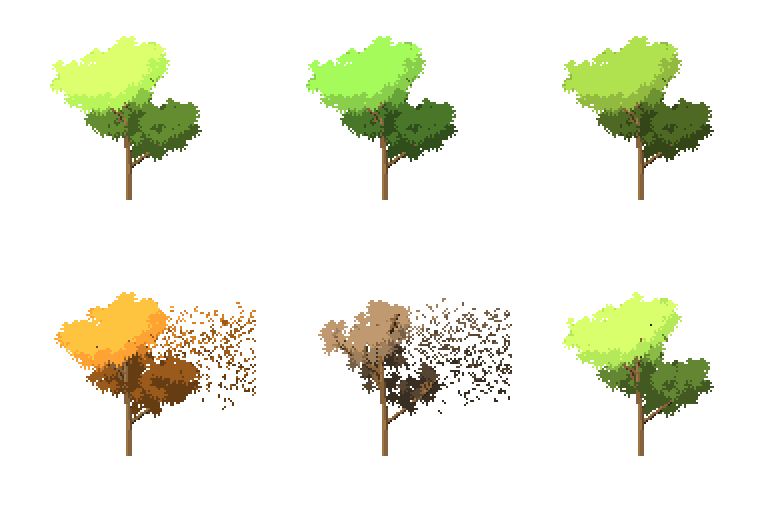
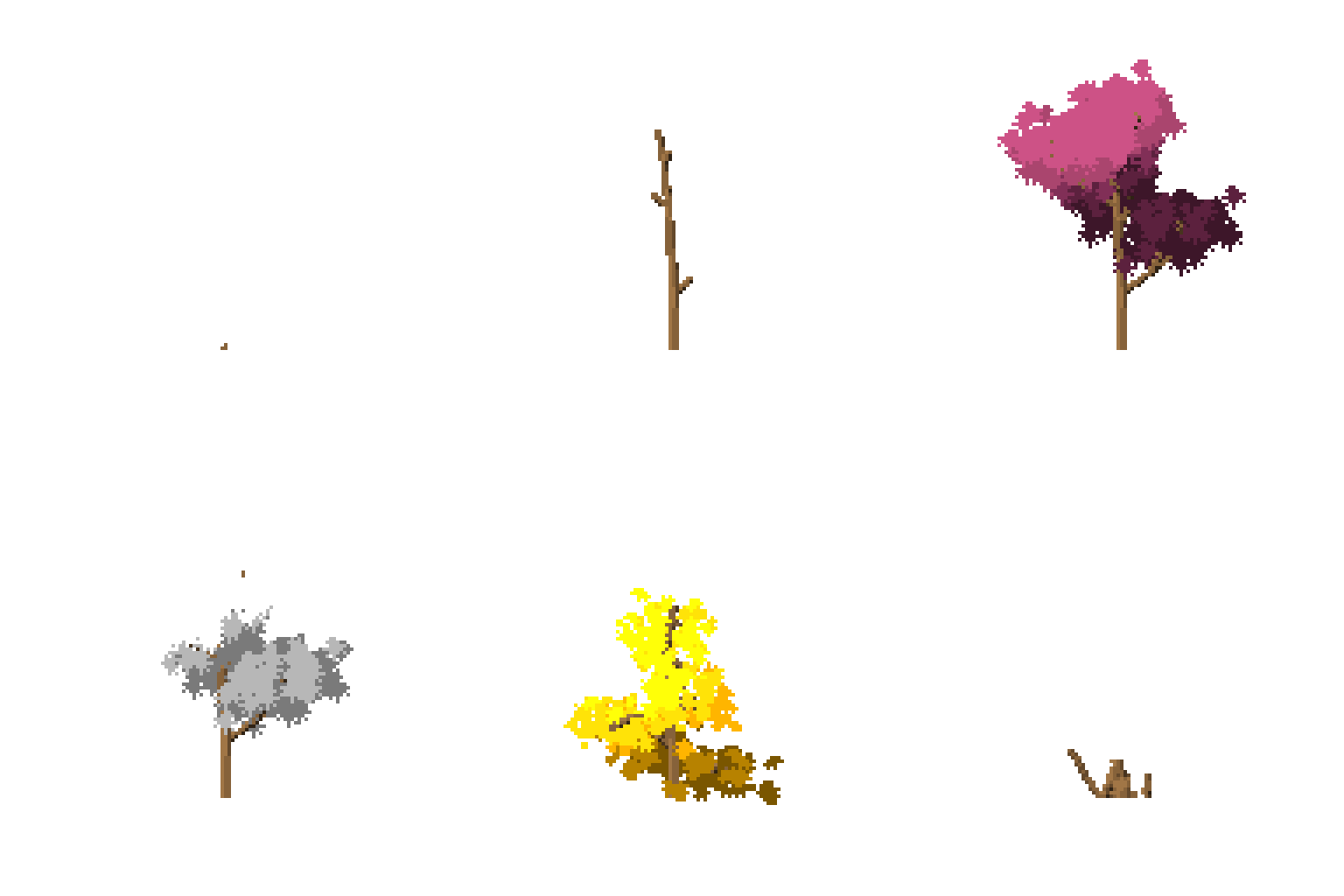
And with everything enabled in "Build up":
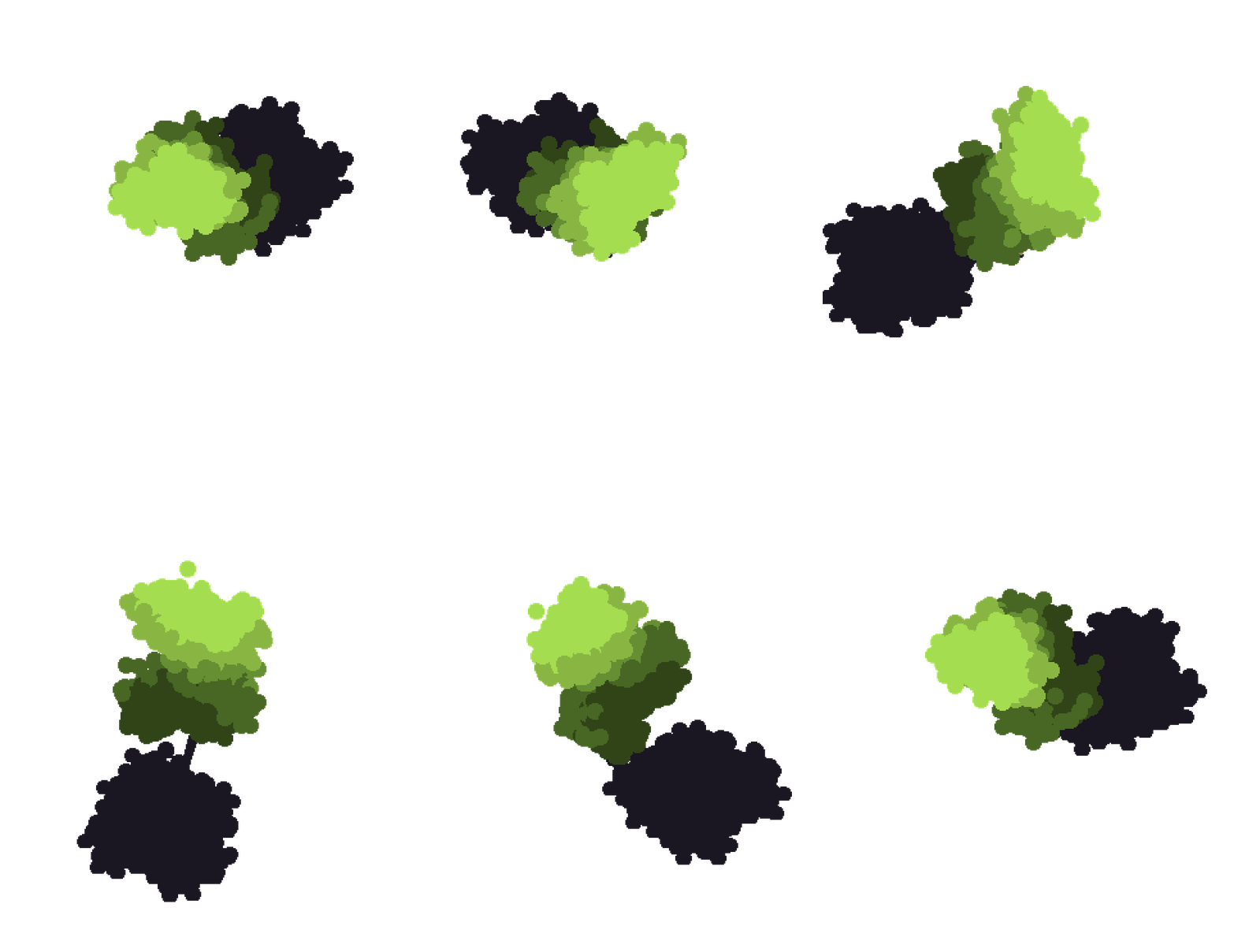
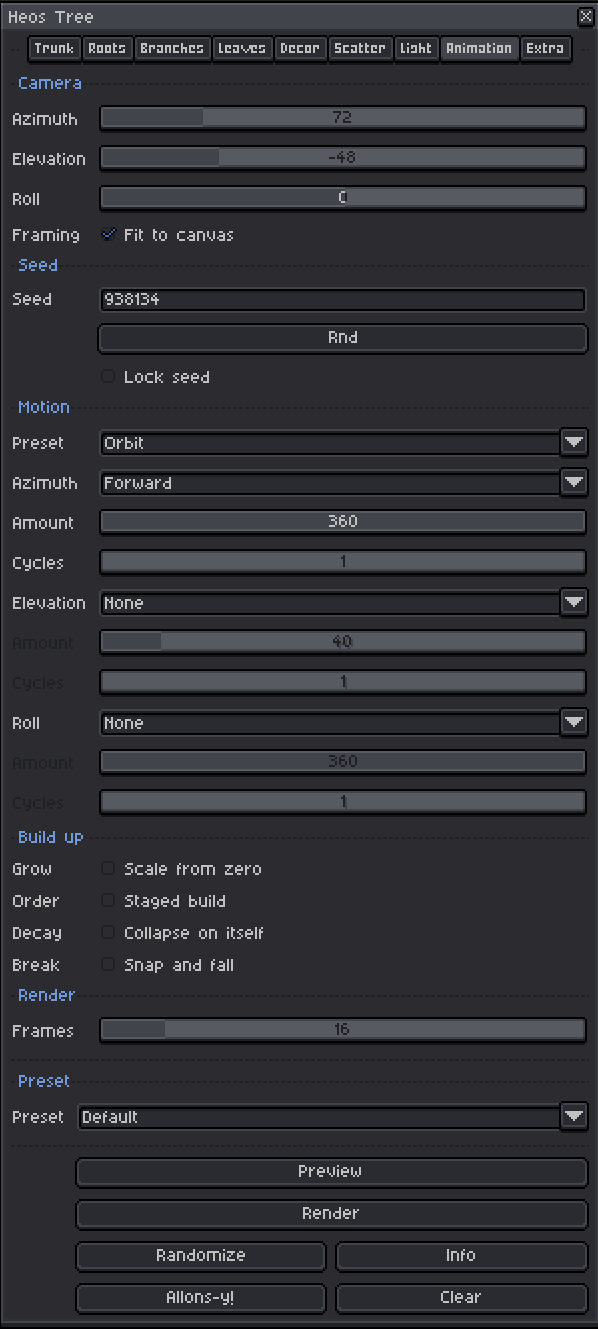
And to see the shadows, you need to change the "elevation" value in 'Animation' so you can see the ground. The "auto fit" feature will adjust it to fit within the canvas.
An example of custom decor:
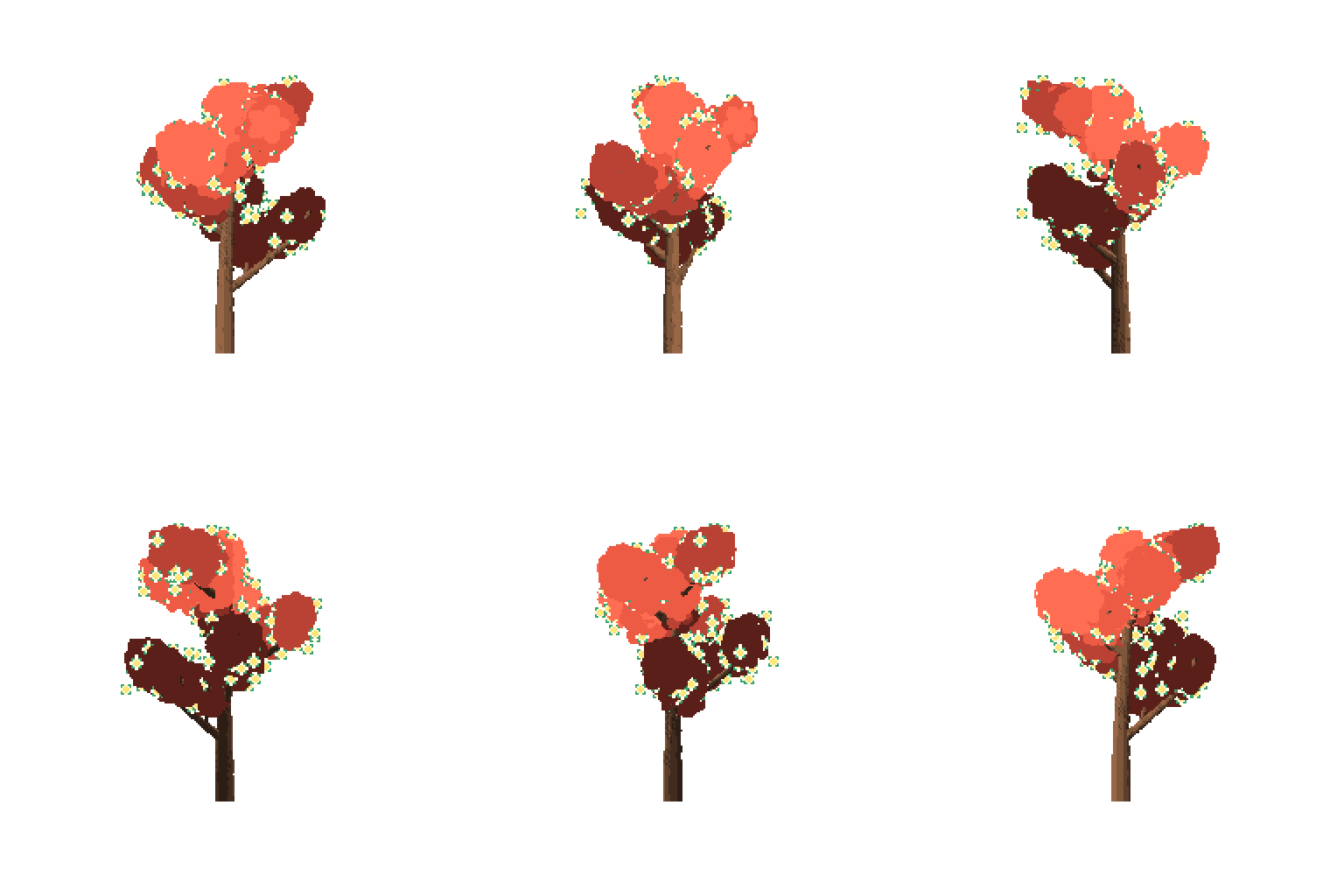
And its animation in “Extras”
And yes, you can choose any angle.
You can view and download more examples on the "Animated trees" page.
Workflow
1. Open a sprite: RGB mode required. Place a magenta pixel on a layer named Heos_Marker to set the trunk base, or the script will use the bottom centre.
2. Pick a preset: Choose from 25 species presets (Oak, Pine, Baobab, etc.) to get a solid starting shape.
3. Shape the tree: Adjust trunk, branches, leaves, bark, roots and light using the tabbed interface.
4. Tweak the palette: Open the floating Palette window to fine‑tune the 5‑tone wood and leaf ramps, or pick one of the 20 colour presets.
5. Render: Press Allons‑y! to generate the tree onto the output layers. Live preview redraws on every change if enabled.
6. Animate: Use the Animation and Extra tabs to add camera motion, growth, leaf fall, wind, decay, and particle motion.
How the Tree Works
The tree is built from a 3D skeleton: a trunk with configurable taper and curve, main branches that emerge at set heights and azimuths, and recursive child and grandchild branches that inherit and modify the parent's direction. Leaves are placed on branch tips with scatter, clumping, and depth‑sorted planes.
Skeleton: Trunk and branches are drawn as 3D segments, projected to screen space with a camera that can rotate and elevate.
Depth planes: Leaves are split into 2–6 layers (Back, Mid…, Front) for natural occlusion and parallax. The trunk sits between Back and the rest.
Bark stamps: Procedural or custom patterns are wrapped around branch cylinders, rotating with the wood in world space so they vanish behind the trunk.
Colour ramps: Wood and leaf colours are 5‑tone ramps derived from a base colour, giving smooth shading that responds to light direction.
Animation: Growth scales the tree from zero; leaf fall detaches leaves that fly along the wind direction; decay makes the skeleton buckle, sink and pile up at the base.
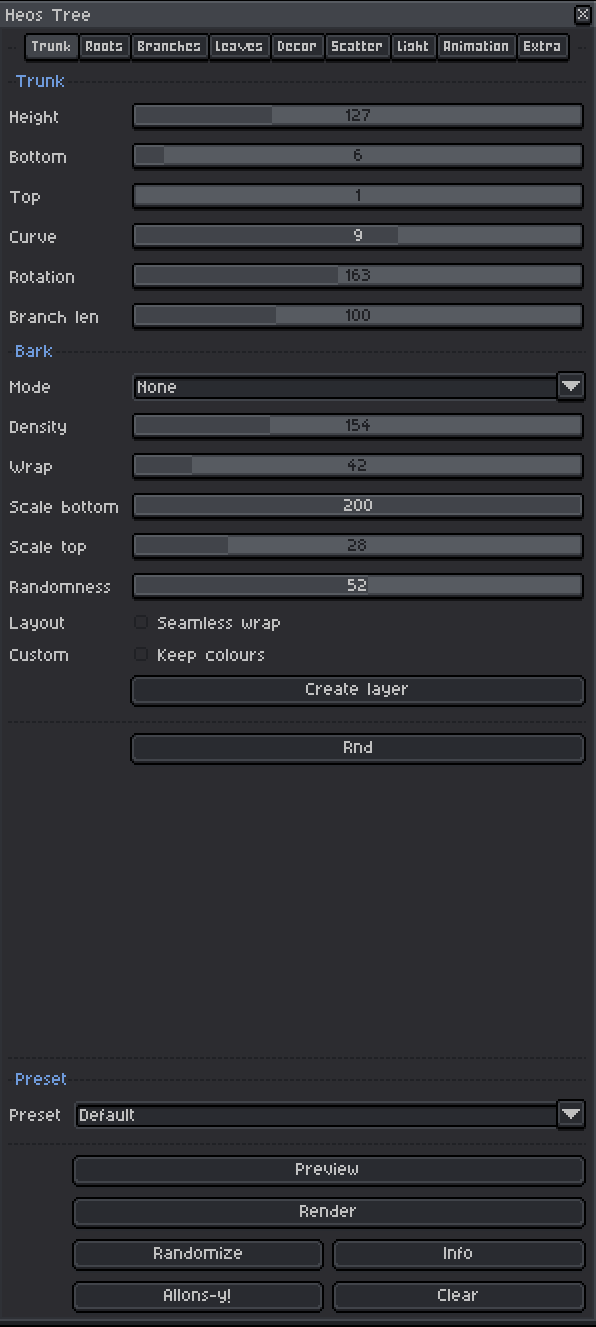
Trunk Parameters
Height: 10 to 400 pixels. Total trunk length.
Bottom: 2 to 80 pixels. Base thickness.
Top: 1 to 40 pixels. Tip thickness.
Curve: -50 to +50. How much the trunk bends.
Rotation: 0 to 360°. Direction of the curve.
Branch len: 10 to 300%. Scales every main branch at once, on top of per‑branch lengths.
Bark
Mode: 25 procedural patterns, None, or Custom (layer).
Density: 10 to 500. How many stamps are placed.
Wrap: 0 to 360°. Rotates the stamp around the cylinder.
Scale bottom: 50 to 200%. Stamp size at the base.
Scale top: 10 to 100%. Stamp size at the top.
Randomness: 0 to 100%. Size variation between stamps.
Custom – Keep colours: When using a custom bark layer, preserves the drawn pixel colours instead of applying the wood ramp.
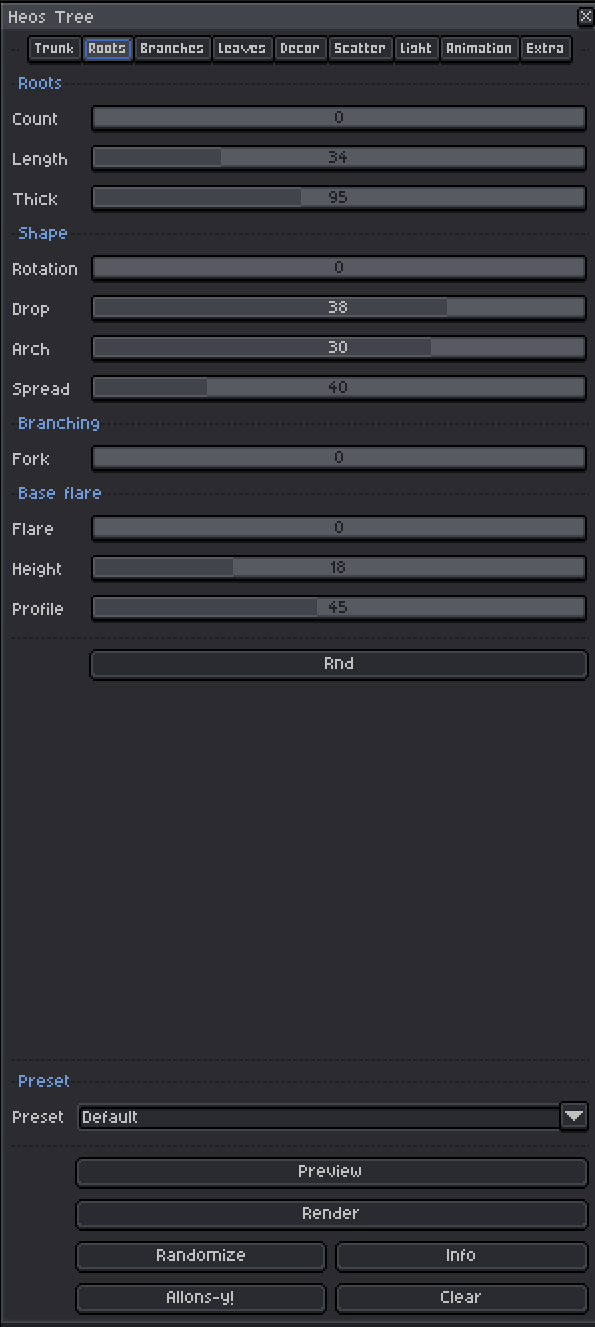
Roots Parameters
Count: 0 to 12. Number of surface roots around the base.
Length: 5 to 120 pixels. Root length.
Thick: 20 to 200%. Thickness relative to the trunk base.
Rotation: 0 to 360°. Turns the whole root set (independent of trunk curve).
Drop: -85 to +85°. How steeply roots dive when leaving the trunk. Negative sends them upward.
Arch: -80 to +80°. Where the far end goes. Positive lifts the tip, negative bends it down.
Spread: 0 to 180°. Random spacing on top of the even ring.
Fork: 0 to 100%. Splits each root into two thinner branches.
Base flare – Flare: 0 to 100%. Swells the foot of the trunk.
Base flare – Height: 2 to 60%. How far up the swelling reaches (as % of trunk height).
Base flare – Profile: 0 to 100%. Low keeps it fat (baobab belly), high closes it fast (buttress feet).
Branches & Levels
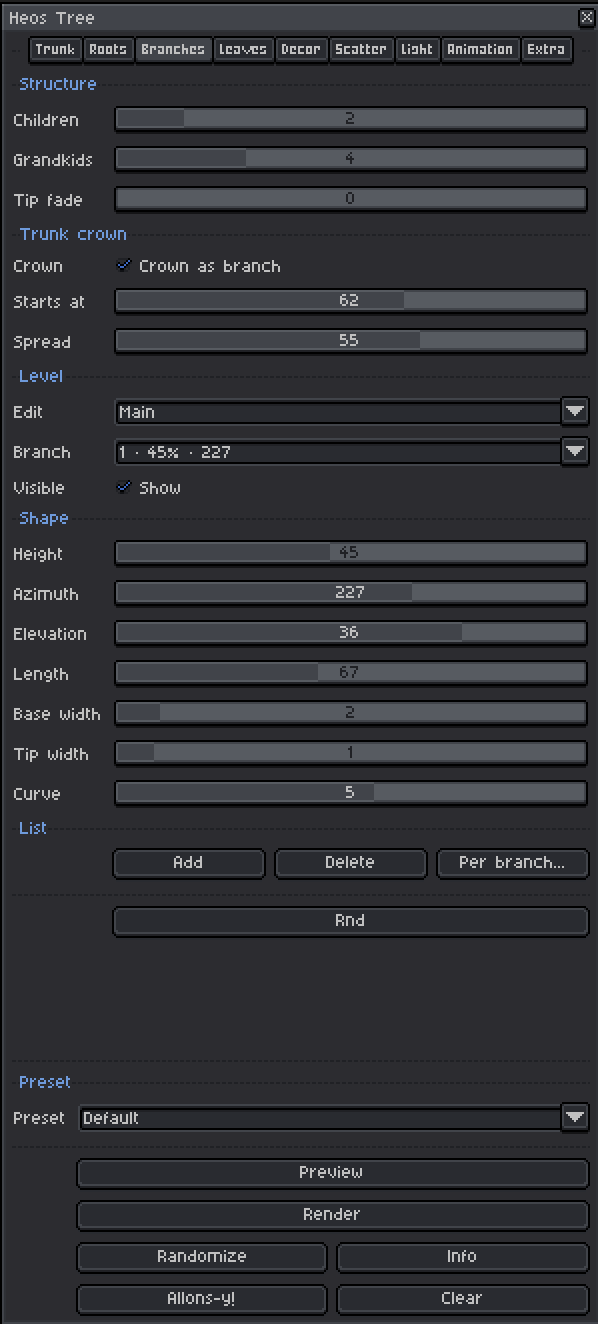
The Branch tab edits one level at a time: Main branches (each with its own height, azimuth, length, thickness and curve), Children (shared rules for branches on mains), and Grandchildren (shared rules for branches on children).
Structure – Children: 0 to 15. Branches per main branch.
Structure – Grandkids: 0 to 15. Branches per child branch.
Trunk crown – Crown: The top of the trunk acts as an extra branch, fanning children evenly and always carrying leaves.
Trunk crown – Starts at: 10 to 95%. Where the crown begins on the trunk.
Trunk crown – Spread: 0 to 85°. Elevation of the crown branches.
Main branch parameters: Height (0–100%), Azimuth (0–360°), Elevation (-75–75°), Length (5–150), Base width (0–25), Tip width (0–15), Curve (-50–50).
Child/Grandchild parameters: Spread (0–360° jitter), Attach span (0–100%, low bunches near tip, high spreads along parent), Size (2–100% of parent length), Tip decay (0–100%, shortens branches further along), Width (0–15), Curve (-50–50), Depth mode (auto / front / back).
Per branch overrides – The Per branch... button opens a floating window that lets you detach a single main branch from the global Children and Grandchildren rules. This is how you make one branch asymmetric, pruned, or denser than the rest. Tick Override to give that branch its own set of child settings; all the sliders (Count, Elevation, Spread, Attach span, Size, Tip decay, Width, Curve, Depth mode, Branching) then apply only to that branch. The Copy globals button resets the overridden branch to the current global values, and Clear all removes overrides from every branch at once.
Leaves & Scatter
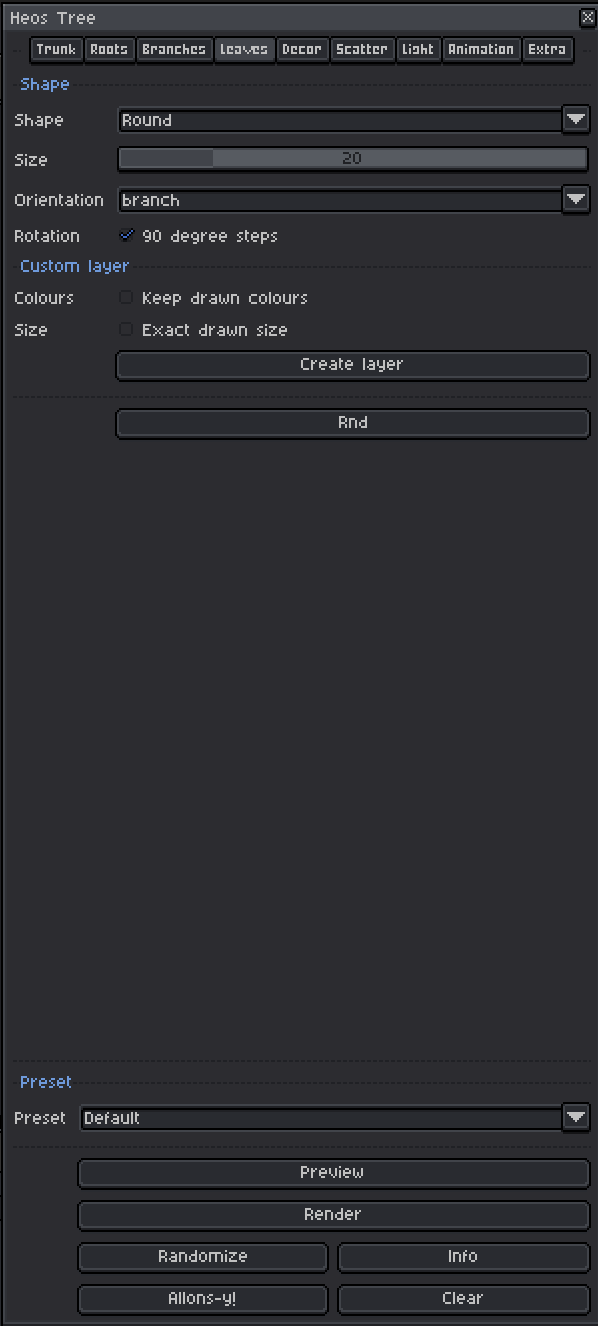
Shape: 25 built‑in shapes (Round, Maple, Needle, Fan, Heart, etc.), None, or Custom (layer).
Size: 1 to 100 pixels. Leaf scale.
Orientation: branch, down, inward, outward, random, or up.
Rotation: 90‑degree steps (preserves hand‑drawn pixels) or free angles.
Custom layer – Keep drawn colours: Preserves the original pixel colours from your Heos_Leaf layer, generating a 5‑tone ramp per colour.
Custom layer – Exact drawn size: Places the leaf unscaled and unrotated.
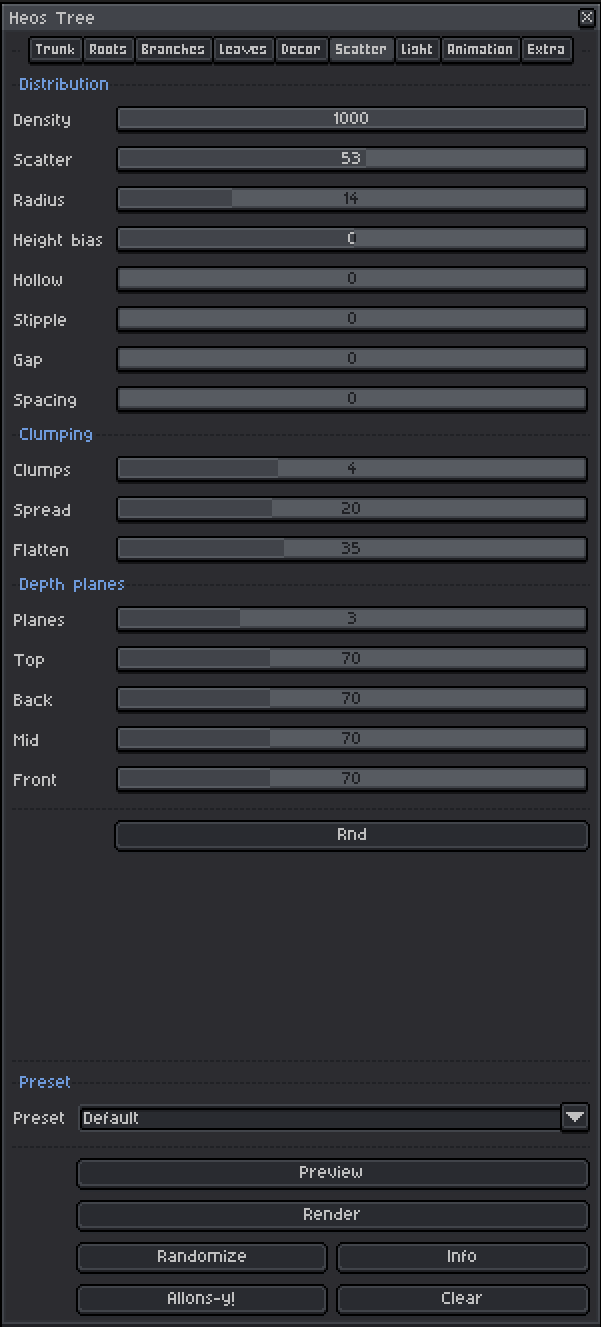
Distribution – Density: 10 to 1000. Leaves per twig.
Distribution – Scatter: 0 to 100%. Random offset from the twig.
Distribution – Radius: 0 to 60 pixels. Spread of the scatter.
Distribution – Height bias: -100 to +100%. Packs leaves toward the top or bottom of the crown.
Distribution – Hollow: 0 to 100%. Empties the middle, pushing leaves outward.
Clumping – Clumps: 0 to 12. Leaf masses per twig (0 = uniform cloud).
Clumping – Spread: 1 to 60. Radius of each clump.
Clumping – Flatten: 0 to 100%. Squashes clumps vertically.
Depth planes – Planes: 2 to 6. Slices of foliage. Changing this rebuilds the output layers.
Depth planes – Top/Back/Mid/Front: 10 to 200%. Leaf scale per depth plane (the three sliders form a curve for 3+ planes).
Decor
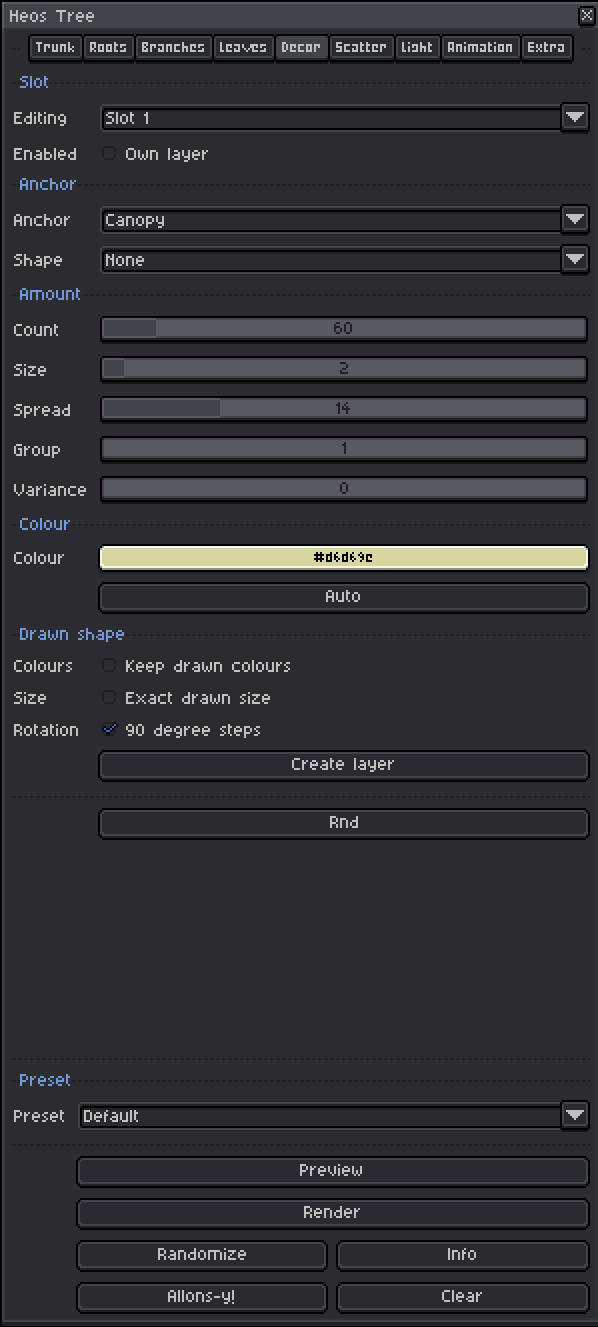
Editing: Slot 1, Slot 2, or Slot 3. One set of controls; the dropdown picks which of the three independent slots is underneath. Each slot has its own switch, anchor, shape, amount and colour. All three share one layer, Heos_Tree_Particles, and hide correctly behind wood and leaves and behind each other.
Anchor: Canopy or Ground. Canopy is seeded from real leaf positions, so it needs leaves (Leaf shape not None). Ground anchors on the trunk base instead, and works with no leaves at all.
Shape: 25 built‑in shapes, None, or Custom (layer) to read your own art from Heos_Particle, Heos_Decor2 or Heos_Decor3 depending on the slot.
Count: 1 to 600. How many separate anchor points get decorated; this is the coverage, and Group does not shrink it.
Size: 1 to 32 pixels. Piece scale.
Spread: 0 to 60. How far a piece drifts from its own anchor. On Canopy that is the leaf it was born on; on Ground, the radius of the ring around the trunk base.
Group: 1 to 20. How many pieces land on EACH of those Count anchors, on top of the Count already placed there. Higher values read as denser tufts without touching how far apart the tufts themselves are, which is what Count and Spread do.
Variance: 0 to 100. Random push on the colour of each piece, on top of the slot colour.
Colour: Slot 1 shares its swatch with "Particle" in Colors/Extras; the same colour, editable from either place. Slots 2 and 3 keep their own colours.
Drawn shape: Keep drawn colours (preserves original pixel colours from your custom layer), Rotation (90-degree steps or free angles), Exact drawn size (places the piece unscaled and unrotated). Create layer opens a window and creates the necessary layer, ready to draw on.
Light & Colour
Direction – Azimuth: 0 to 360°. Light source direction.
Direction – Elevation: 0 to 90°. Light source height above the horizon.
Crown – Power: 0 to 200%. Strength of the light on leaf surfaces. Higher values saturate the highlights and compress the midtones, giving a flatter, more graphic look.
Colours – Wood: Base colour for the 5‑tone bark ramp. Click Auto to regenerate the ramp from the current shade.
Colours – Leaf: Base colour for the 5‑tone foliage ramp.
Colours – Particle: Base colour for the three Decor slots. Slot 1 shares this swatch; Slots 2 and 3 have independent colours in the Decor tab.
Palette – 20 colour presets: Click a preset button to load a complete wood + leaf + particle colour scheme in one go.
Seasons: Cycles the leaf colour from spring through fall to winter and back. Pairs well with the Leaf fall animation to drop leaves during the winter phase. Disable it for a static colour change instead.
Animation
Frames: 1 to 512. Total frames in the animation sequence.
Fit lock – Enabled: When on, Fit to canvas is computed once at the start and reused for all frames, so the tree size does not change during playback.
Camera – Azimuth: 0 to 360°. Camera rotation in degrees per frame.
Camera – Elevation: 0 to 5°. Upward tilt per frame. Positive values lift the horizon, negative values tilt down.
Wind – Power: 0 to 100. Strength of wind forces. Wind bends the trunk and sways the foliage; it does not move individual leaves. Higher power gives a more violent bend.
Wind – Speed: 1 to 10. Frequency of wind gusts. Higher values make the wind pulse faster.
Build up – Grow: 0 to 100%. Length of the growth phase (as % of total frames).
Build up – Order: 0 to 100%. Stagger leaves in order rather than all at once (from tip to base or vice versa).
Build up – Decay: 0 to 100%. Length of the decay phase (skeleton buckles, sinks, piles at the base).
Build up – Break: 0 to 100%. Length of the final collapse phase (tree snaps and falls).
Shadow – On: Enable ground shadow. Useful for establishing scale and grounding the tree when the camera is elevated.
Shadow – Length: 50 to 200%. Shadow length relative to tree height.
Shadow – Spread: 0 to 50%. Softness of the shadow edge.
Shadow – Alpha: 10 to 100%. Opacity of the shadow.
Extra – Wind, Fall & Particles Motion
These controls are separated from the Build up animation because they apply independently during the growing phase and do not appear in simple (non-animated) renders. Leaf fall, wind, and particle motion are shot-level choices, not tree-species choices, so they do not reset when you pick a preset.
Leaf fall – On: Enable falling leaves.
Leaf fall – Amount: 0 to 100%. Fraction of leaves that detach and fall.
Leaf fall – Speed: 1 to 10. How fast leaves drift downward and sideways as they fall.
Leaf fall – Spread: 0 to 100%. Horizontal scatter.
Leaf fall – Gravity: 0 to 100%. Downward acceleration (leaves fall faster as they go).
Leaf fall – Rotation: 0 to 100%. Tumbling as they fall.
Motion – Slot 1: None, Expand, Contract, Ping pong, or Burst. Animates the Spread parameter of Decor Slot 1 only (particles slot 1 only, which is the legacy Particles system). Expand throws pieces out, Contract pulls them in, Ping pong breathes, Burst fires three times.
Compatibility
Requires Aseprite 1.3.x or later. Works with RGB sprites only (indexed sprites are not supported).
Tips
For a full life cycle, turn on Grow, Order, Leaf fall with Subtract, and Decay. The tree grows, leafs out, sheds, and collapses in one clip. Give it 40 frames or more – the chain runs in three clear phases.
To get a bare tree, set Subtract on, Amount 100, Spread 100. The last leaf lets go on the last frame. Set Particles 20 to keep the air readable while still stripping everything.
For a baobab foot, use Roots base flare with a low Profile. For aerial roots, set Drop negative and Arch negative – they climb out, curve over and dive back.
Use custom layers for leaves, bark or particles: draw your own shapes on Heos_Leaf, Heos_Bark or Heos_Particle. Each separate blob becomes a variant, picked at random.
Feedback & Support
I love seeing how you use Heos Tree in your projects. If you have questions, ideas, or just want to share what you've made, feel free to leave a comment or reach out directly. It's always great to see your work in action.

If you found this tool useful, taking a moment to leave a rating really helps. Thanks for the support.
Purchase
In order to download this tool you must purchase it at or above the minimum price of $4.99 USD. You will get access to the following files:
Leave a comment
Log in with itch.io to leave a comment.